Create a private lesson in Kadrella
In Kadrella, a lesson is a time slot that links a tutor, one or more students and a price. Once created, it shows in the calendar, counts towards the payments you are owed and can send a reminder. This guide covers a one-off lesson. For a lesson that repeats every week, follow the recurring lesson guide instead.
3 stepsFree planScreenshots from 4 November 2026
Step 1
Open the lesson calendar
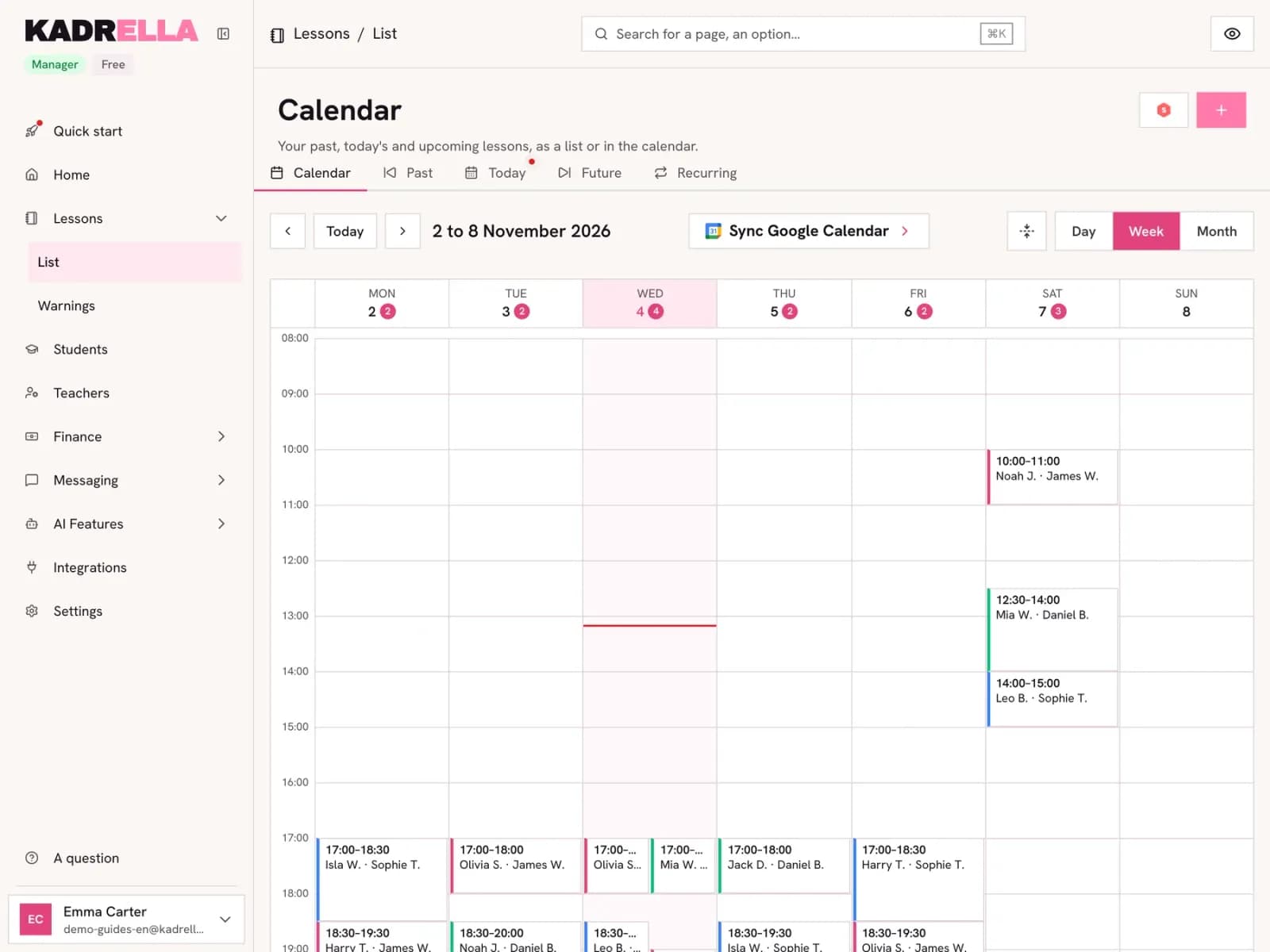
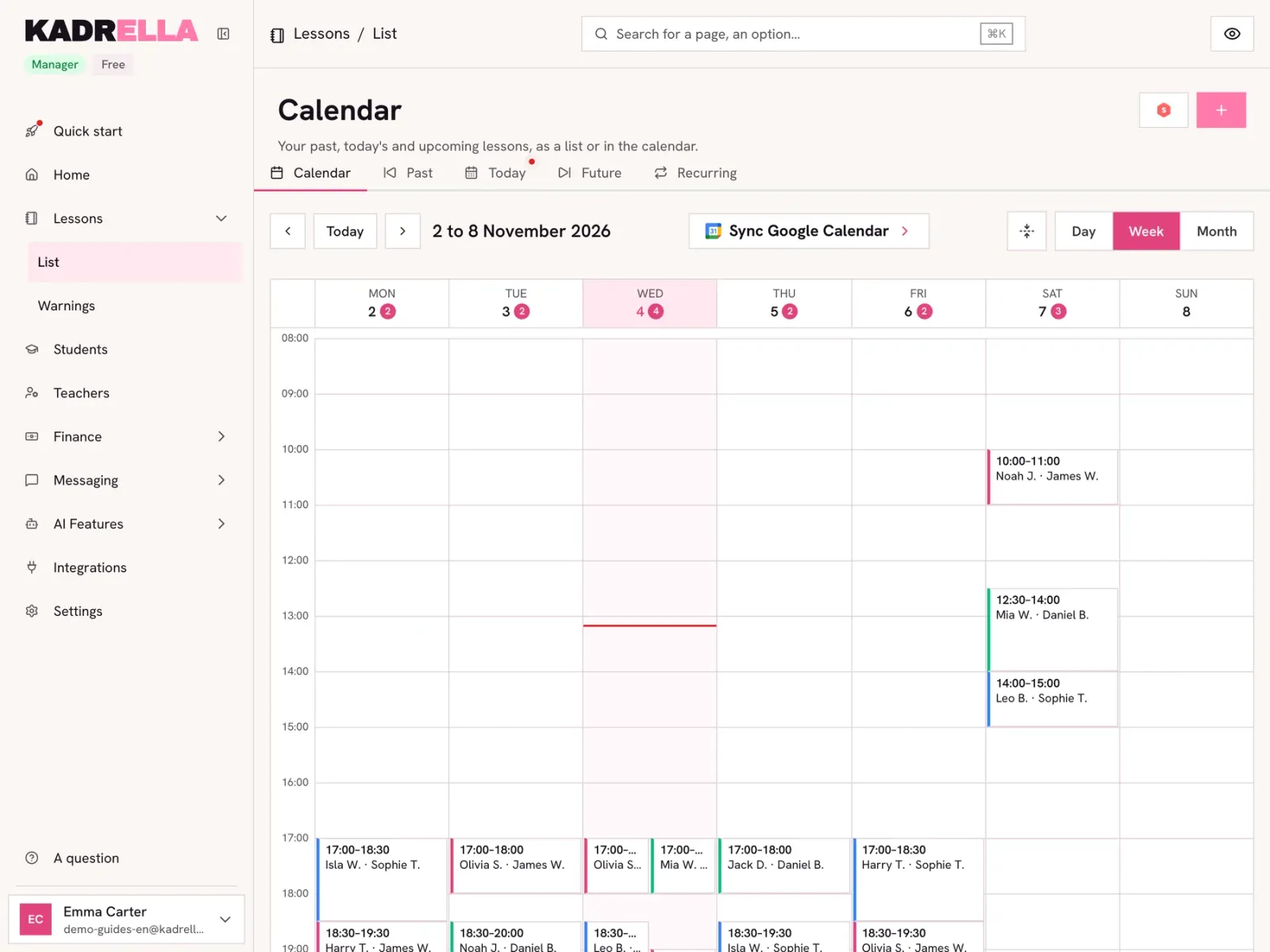
In the menu, open "Lessons" then "List". The "Calendar" tab shows the current week, one colour per tutor. Click the "+" button at the top right.
 View the full-size screenshot
- "Create Lesson" opens the form.
Step 2
Pick the date, the tutor and the student
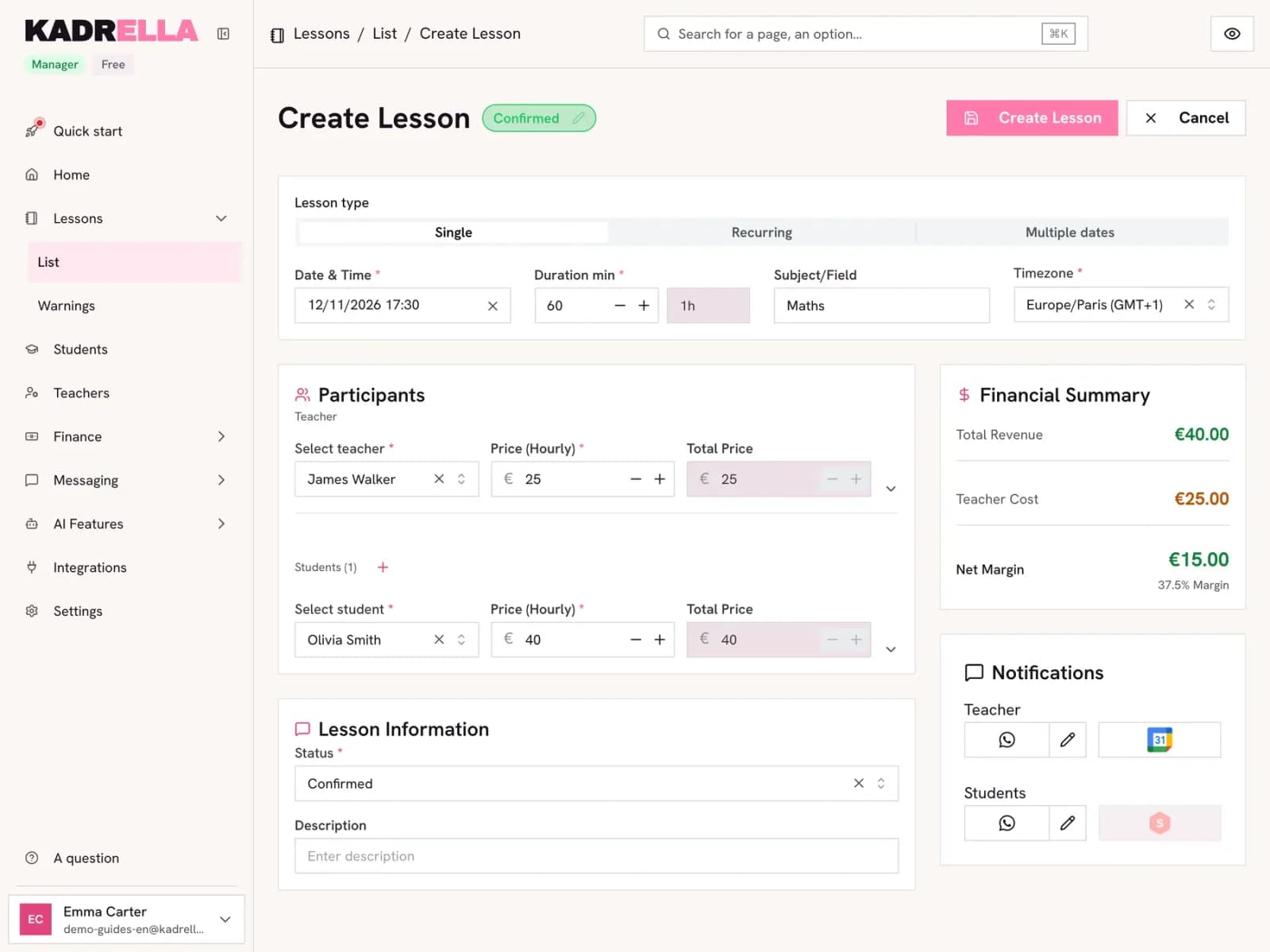
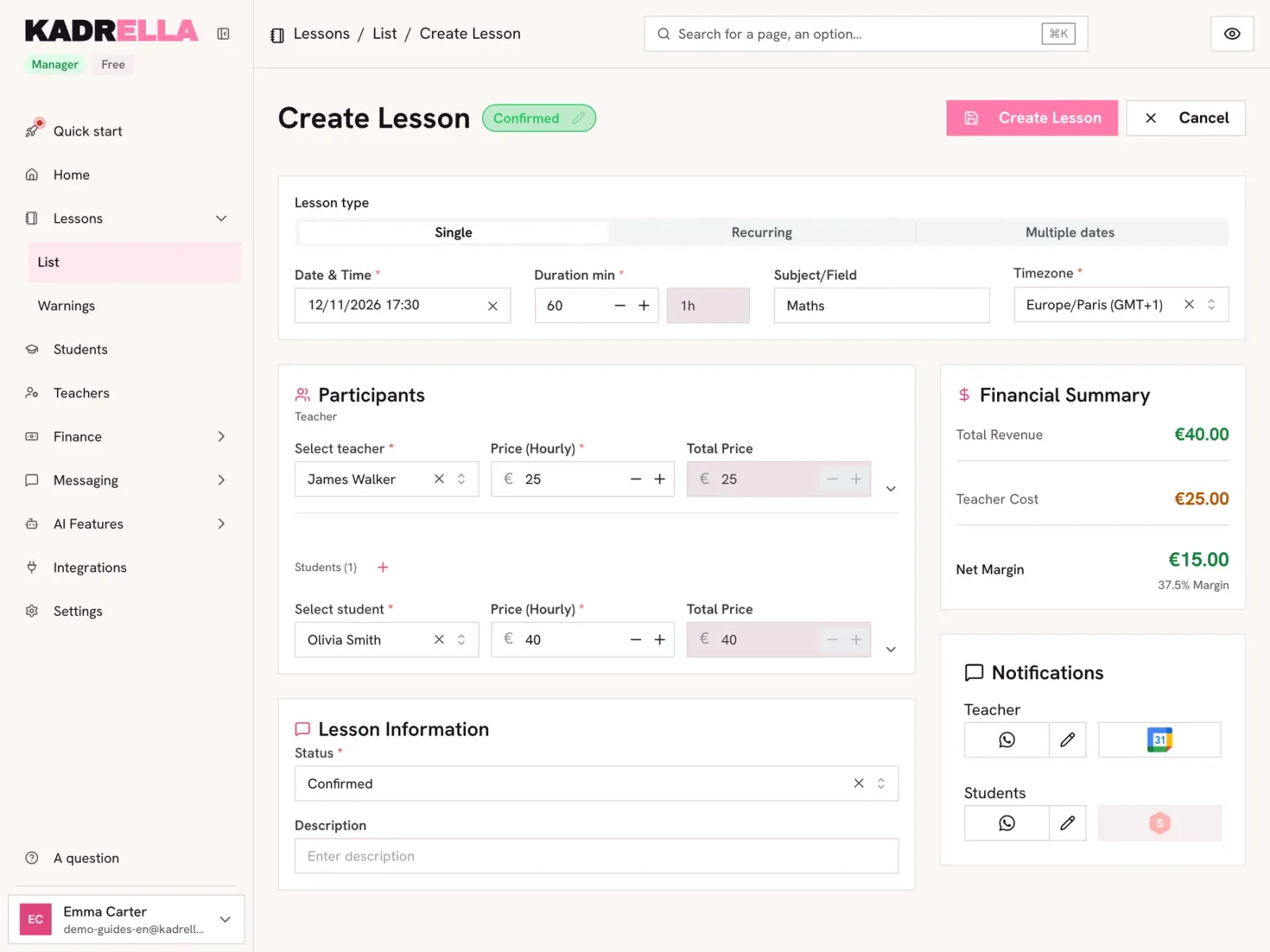
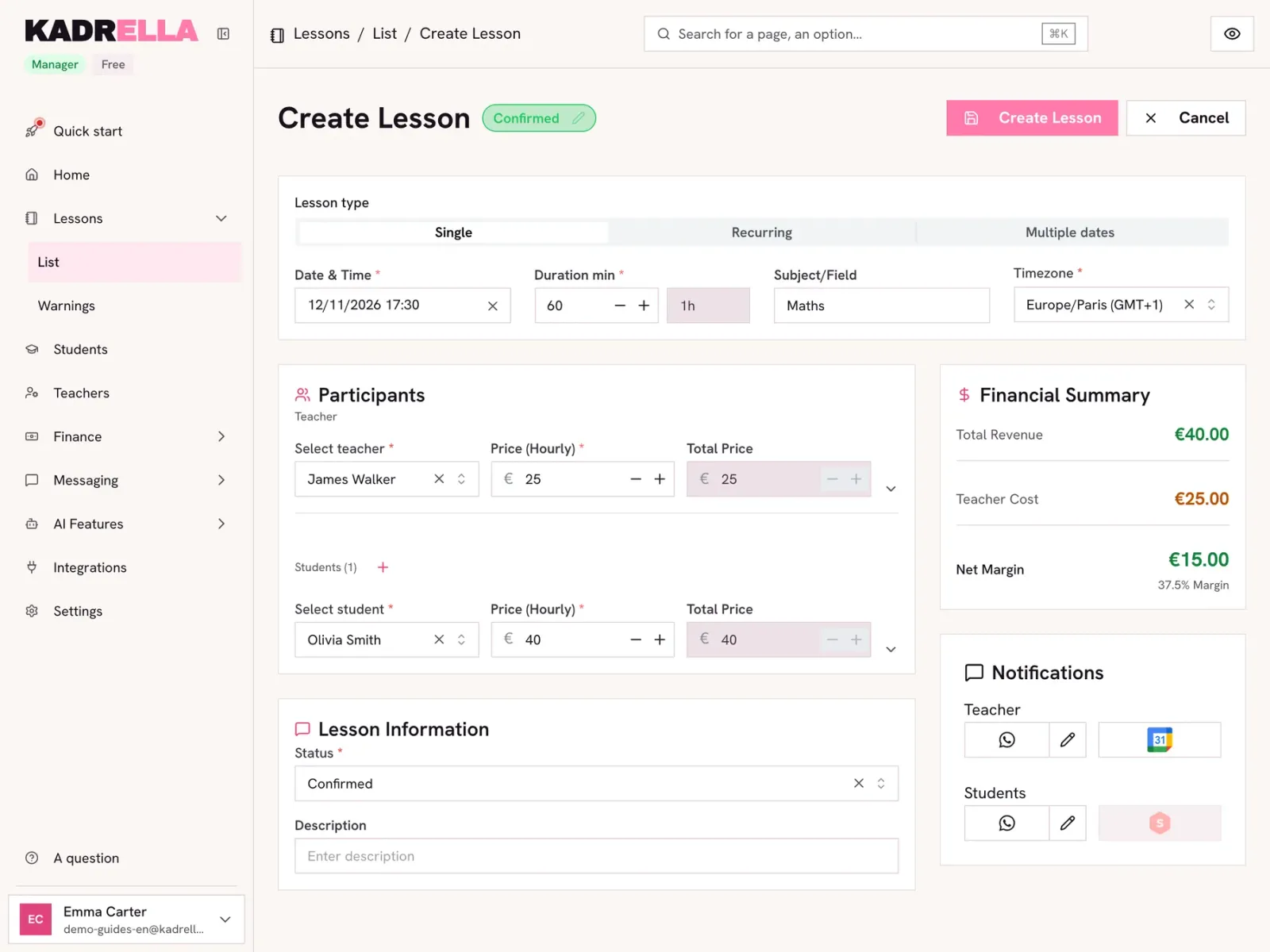
Leave "Single" selected, then fill in the date, time and duration. Choose the tutor and the student: their default hourly rates fill in the prices, and you can change them for this lesson. The "+" next to "Students" adds a second student for a group lesson.
 View the full-size screenshot
- Lesson date and time, in the timezone shown on the right.
- The tutor and what they are paid, per hour or as a flat fee.
- The student and the price they pay.
- The financial summary works out revenue, tutor cost and your margin.
Good to know
- If the tutor or the student already has a lesson in that slot, Kadrella shows it in red above the participants before you save.
- The prices come from the hourly rate on the student and tutor records. Changing them here only affects this lesson.
Step 3
Set the notifications and save
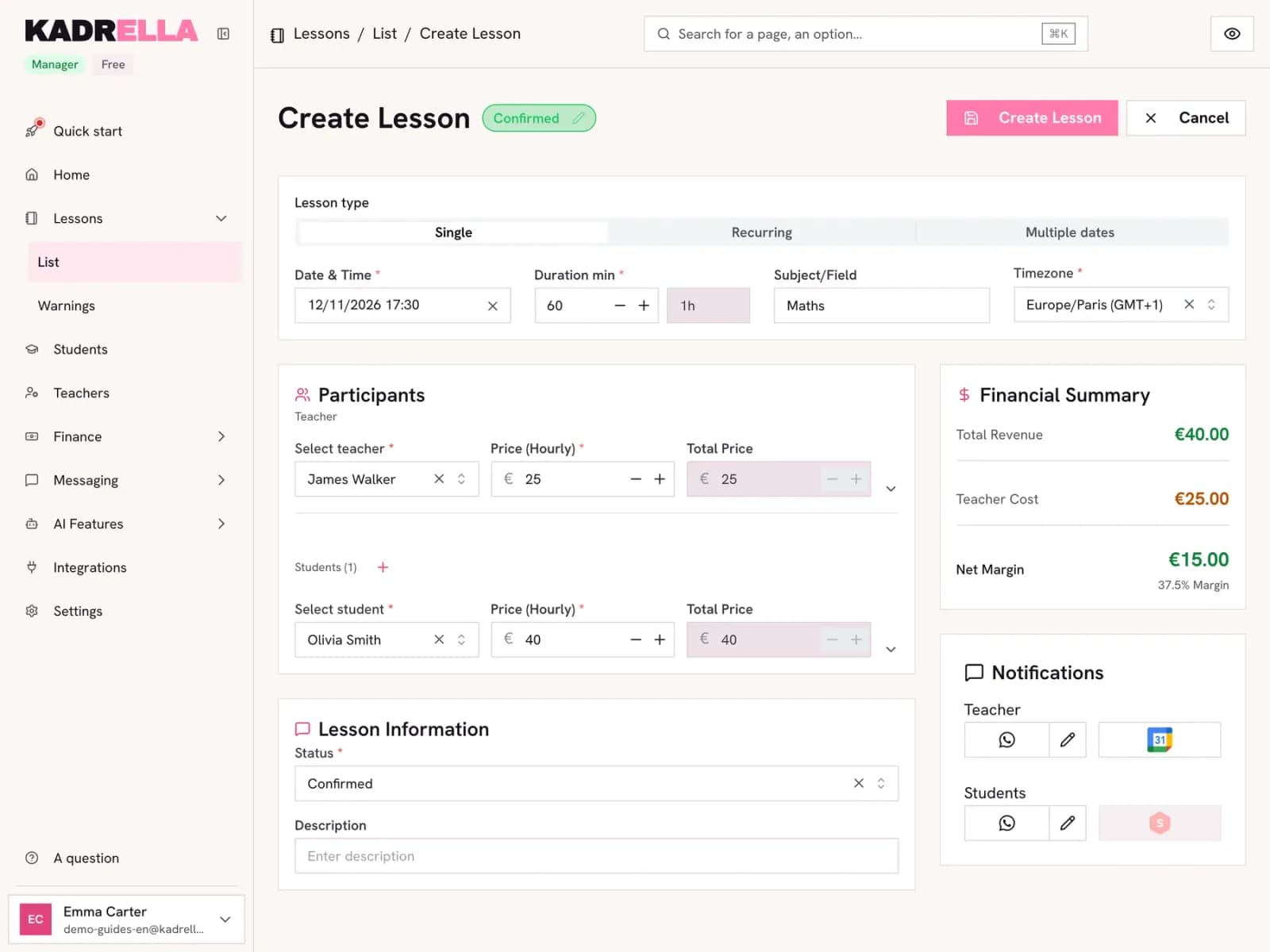
The "Notifications" block decides who is told: a WhatsApp message to the tutor or the student (the pencil edits the text), a Google Calendar event for the tutor. These need WhatsApp and Google Calendar connected first. Then click "Create Lesson".
 View the full-size screenshot
- WhatsApp and Google Calendar notifications, for the tutor and the students.
- "Create Lesson" saves and opens the lesson page.
| Type | What for | What Kadrella creates |
|---|---|---|
| Single | A trial lesson, a one-off lesson | One lesson |
| Recurring | A student taught every week | The lessons of the next 4 weeks, then the rest over time |
| Multiple dates | A revision course, irregular dates | One lesson per date picked |
Going further
- Feature
- Lesson tracking
- Related reading
Screenshots taken on a demo account: names, phone numbers and amounts are made up.
Spend your Sundays teaching, not chasing payments.
Free to start, set up in minutes. No card.