Create a recurring lesson (every week)
A recurring lesson is a rule (for example "every Saturday at 4 pm") from which Kadrella creates the lessons for you. The lessons of the next 4 weeks are created straight away, then the list keeps filling up over time. It is the right option for a student you teach all year: you enter the lesson once.
4 stepsFree planScreenshots from 4 November 2026
Step 1
Choose "Recurring" in the form
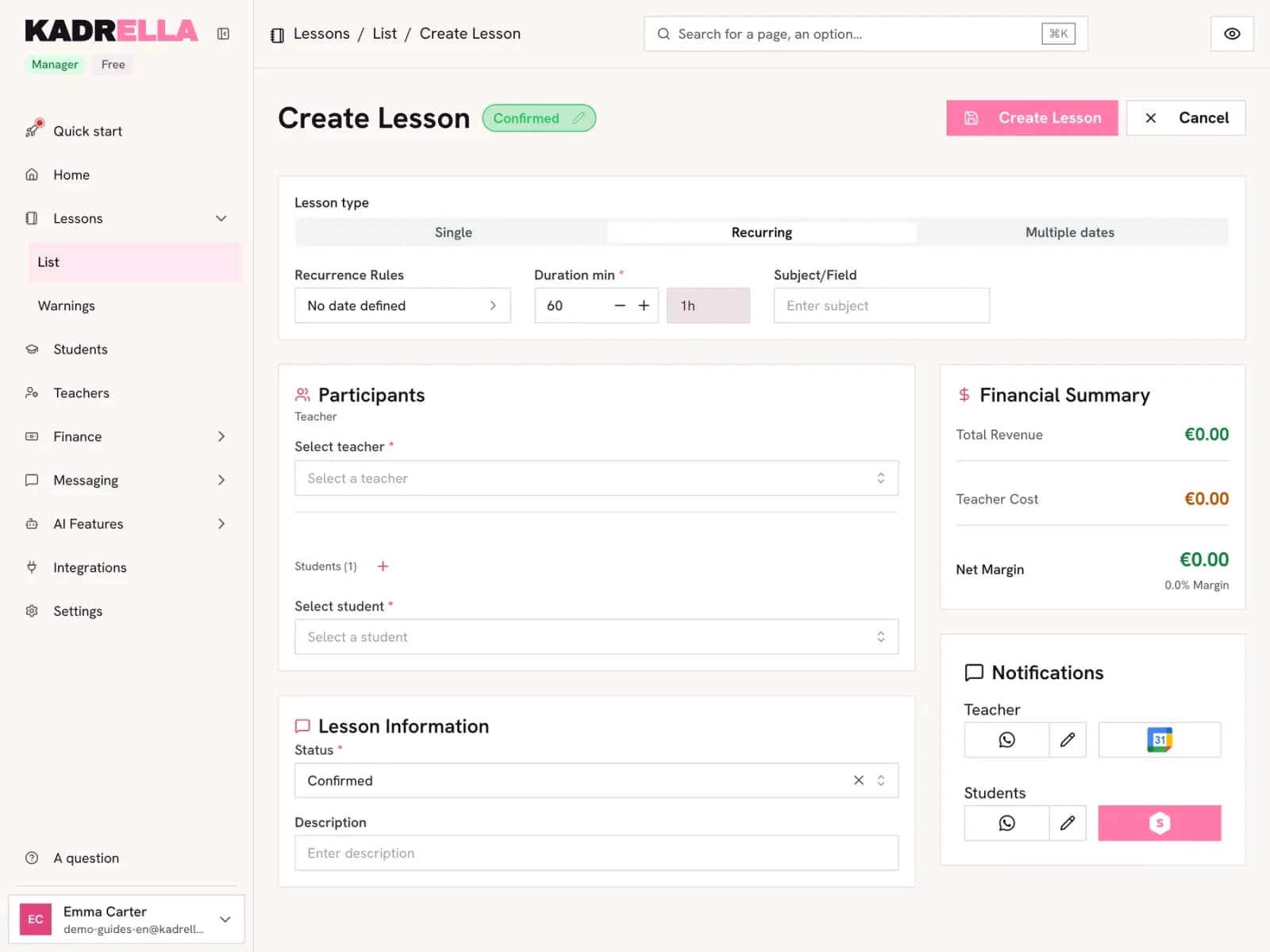
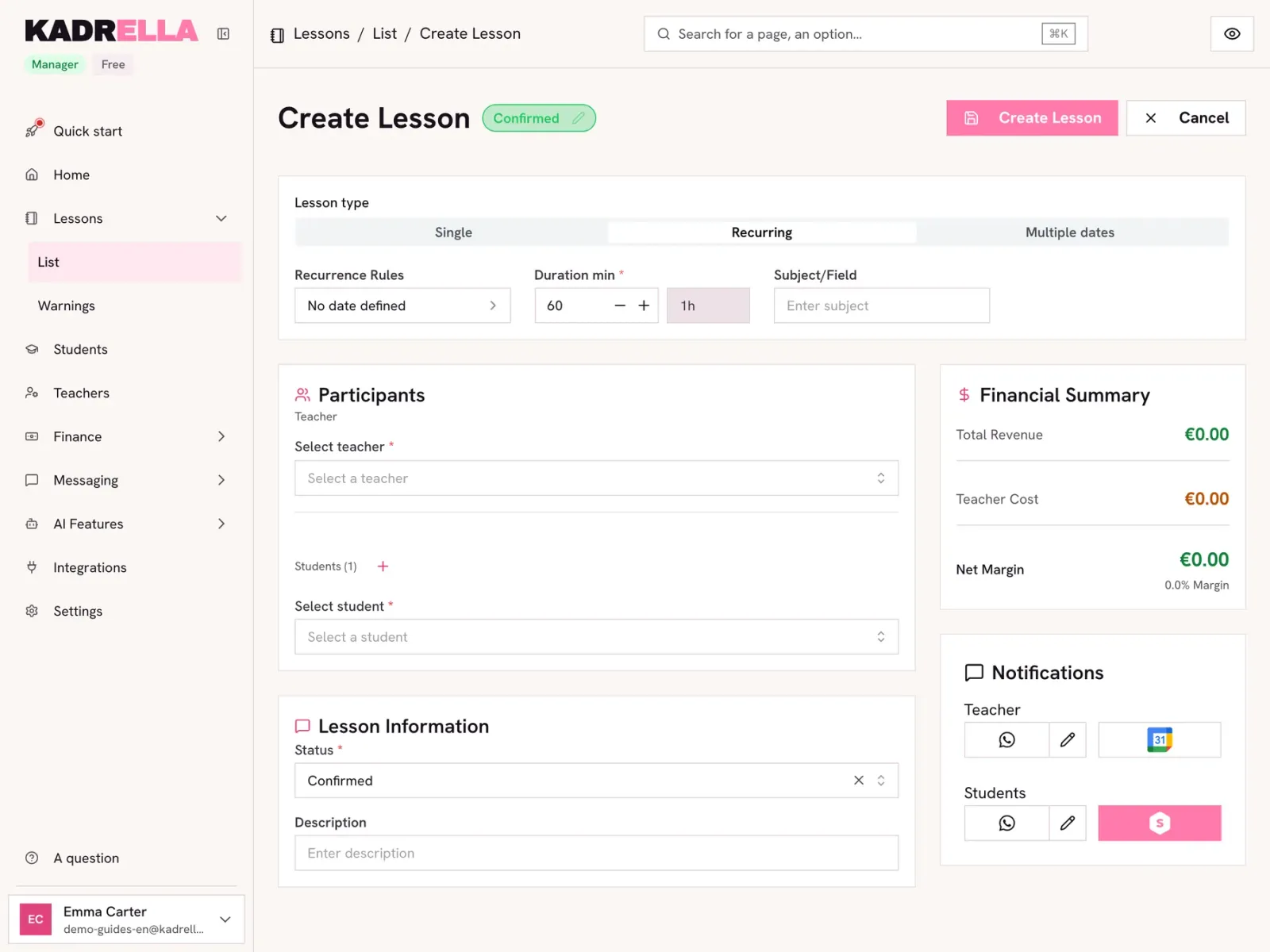
Open "Lessons", click "+" to create a lesson, then switch the lesson type to "Recurring". The date field becomes "Recurrence Rules". Click it.
 View the full-size screenshot
- The "Recurring" lesson type.
- "Recurrence Rules" opens the rule to set.
Step 2
Set the recurrence rule
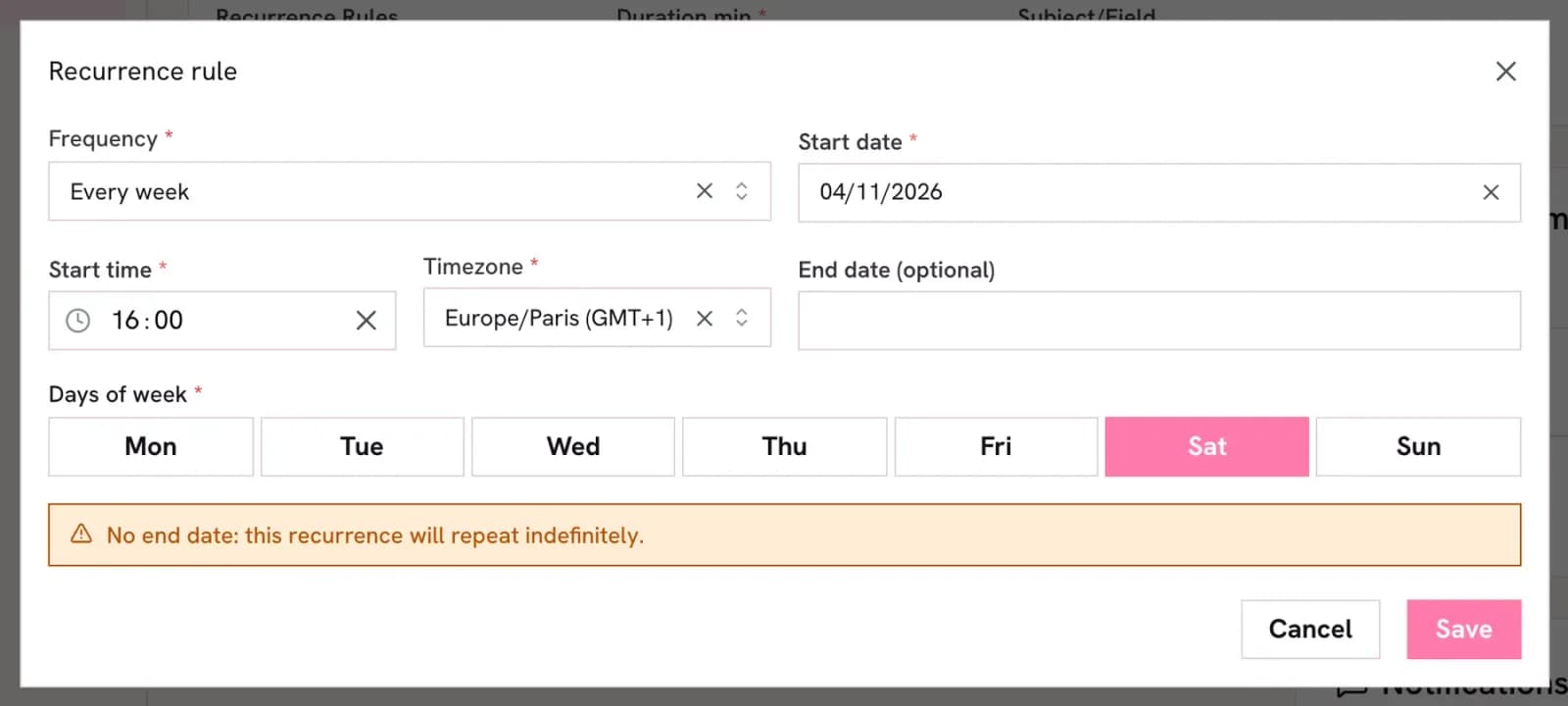
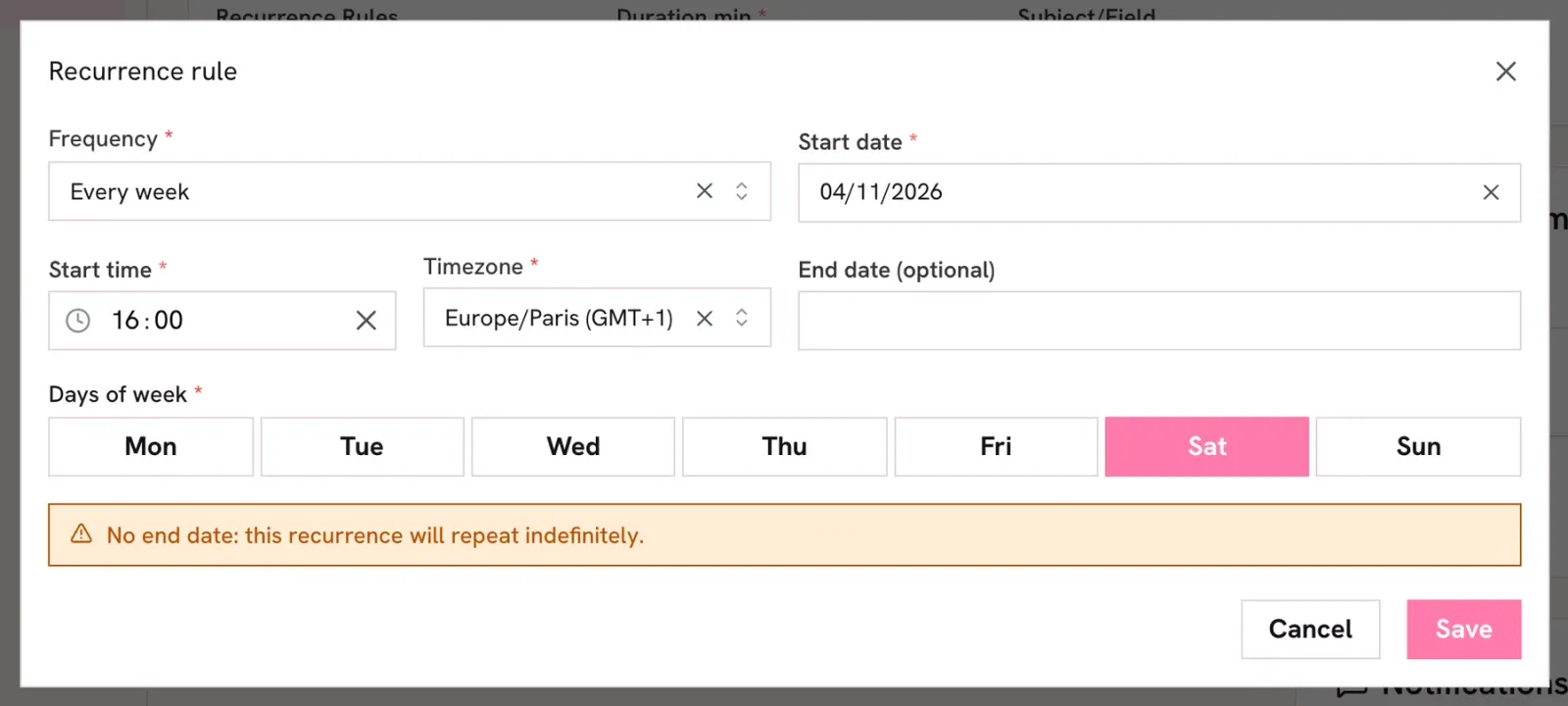
Choose the frequency, the start time and one or more days of the week. The end date is optional: without it, the lesson repeats until you stop it, and Kadrella warns you about it. Click "Save".
 View the full-size screenshot
- The frequency, here every week.
- The lesson start time.
- The days: tick several for two lessons a week.
- The end date, for example the end of the school year.
Step 3
Add the tutor and the student, then create
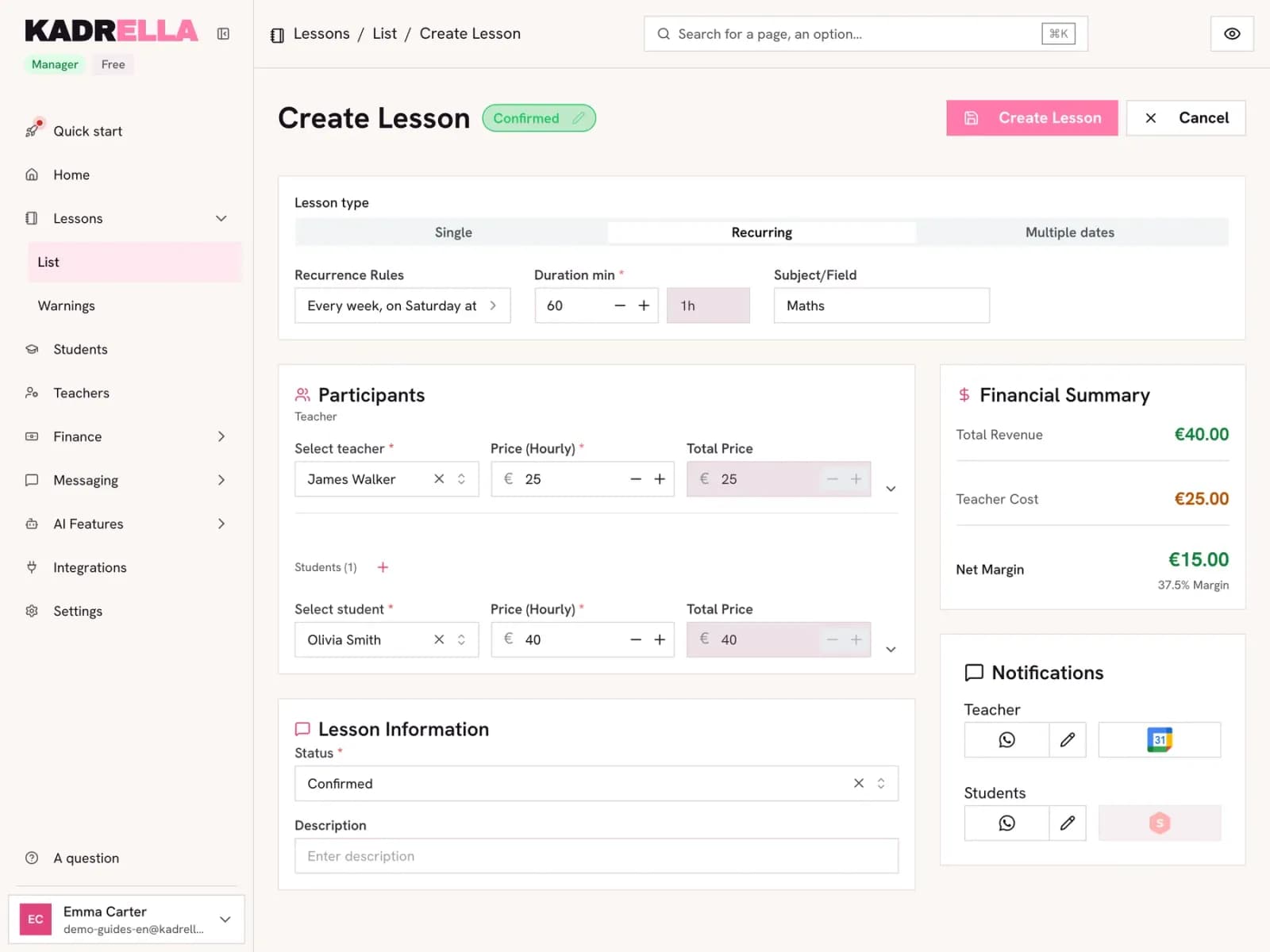
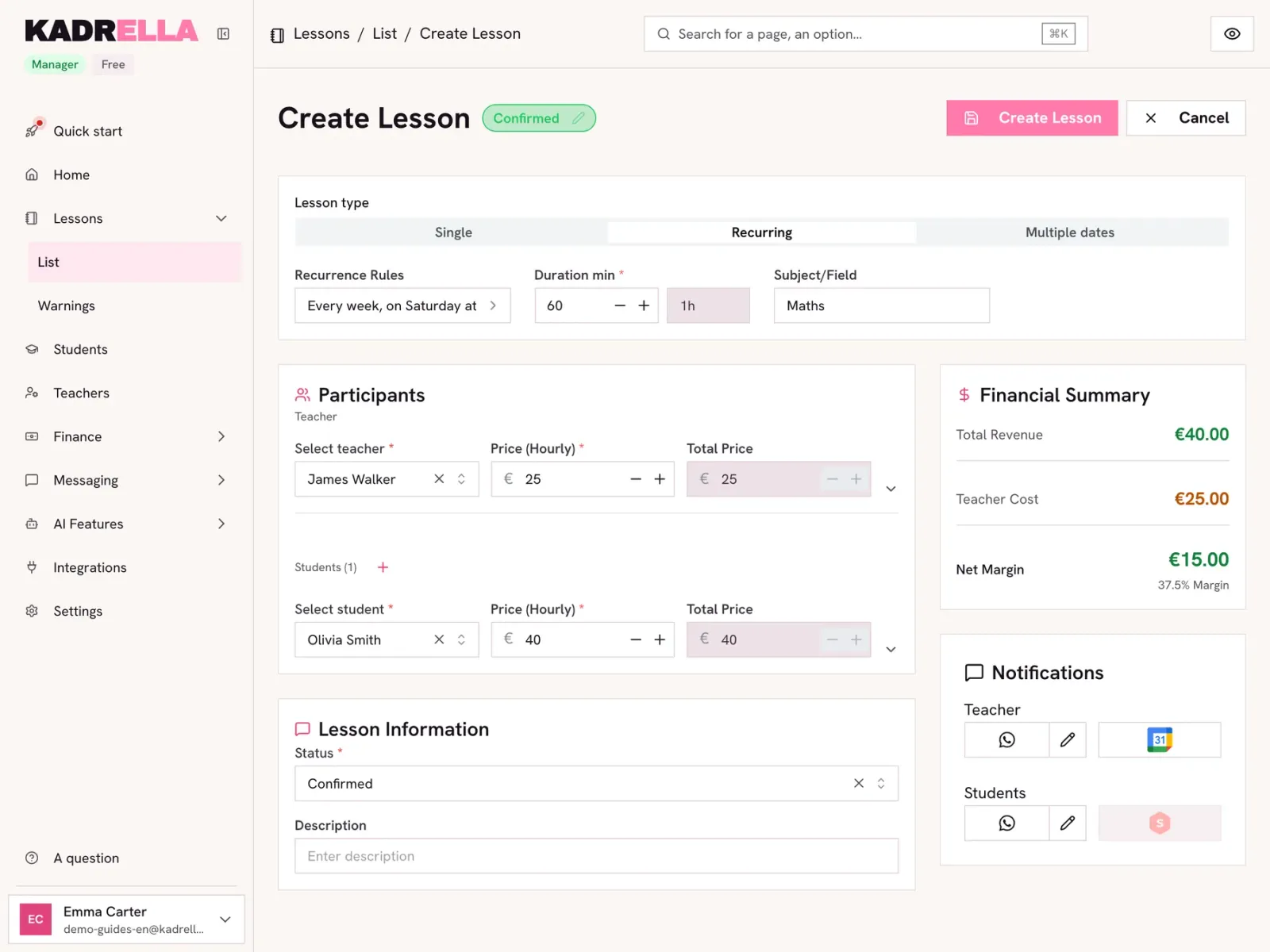
The rule now reads in plain words in the form ("Every week, on Saturday at 16:00"). Choose the tutor, the student and the subject as for a one-off lesson, then click "Create Lesson".
 View the full-size screenshot
- The rule as it will be applied.
- "Create Lesson" creates the series.
Good to know
- Kadrella creates the lessons of the next 4 weeks straight away, then adds the next ones as time goes by (checked every hour). A lesson further out not showing yet in the calendar, Google Calendar or payments is expected: it does not exist yet.
Step 4
Find the series in the "Recurring" tab
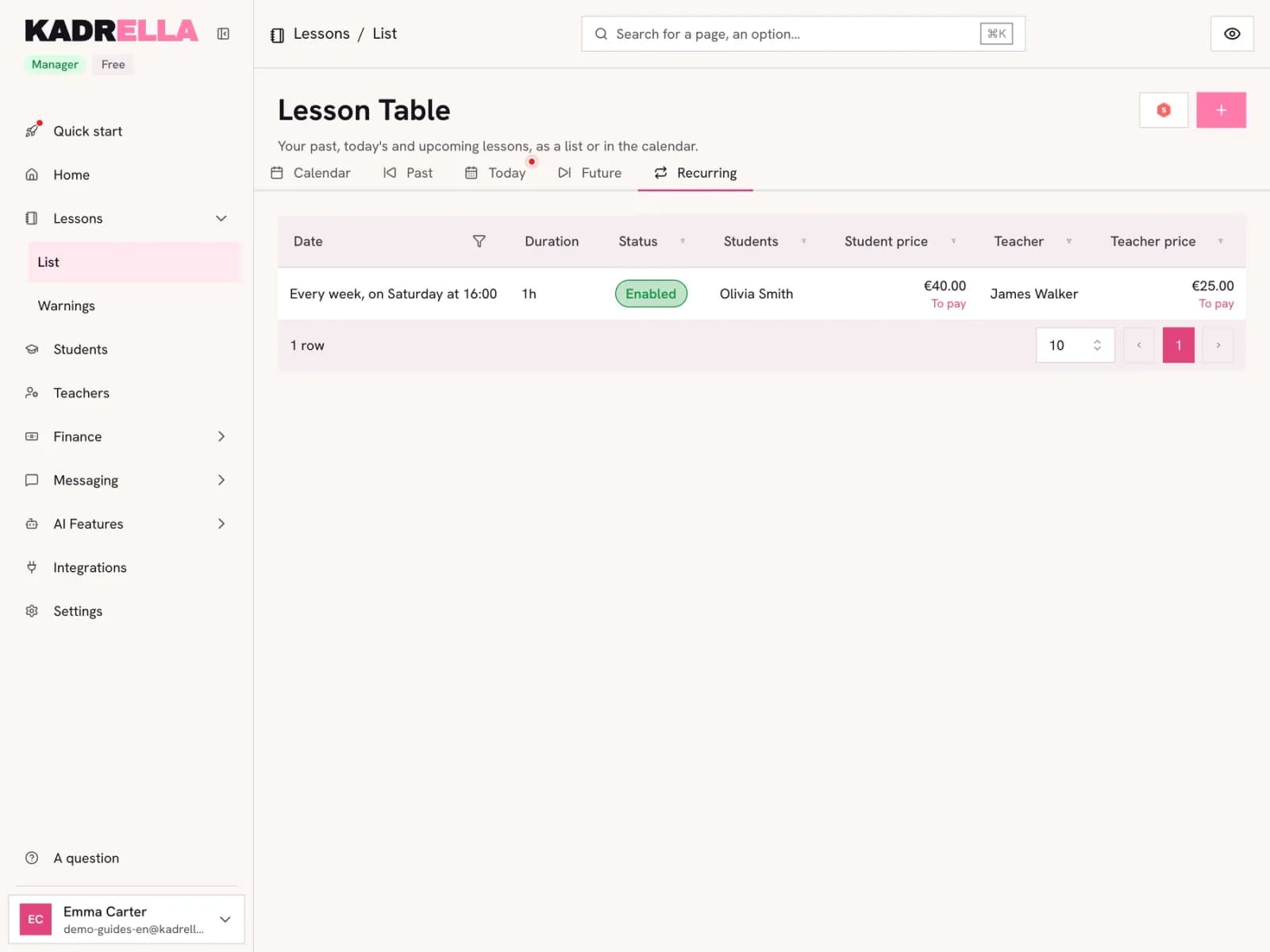
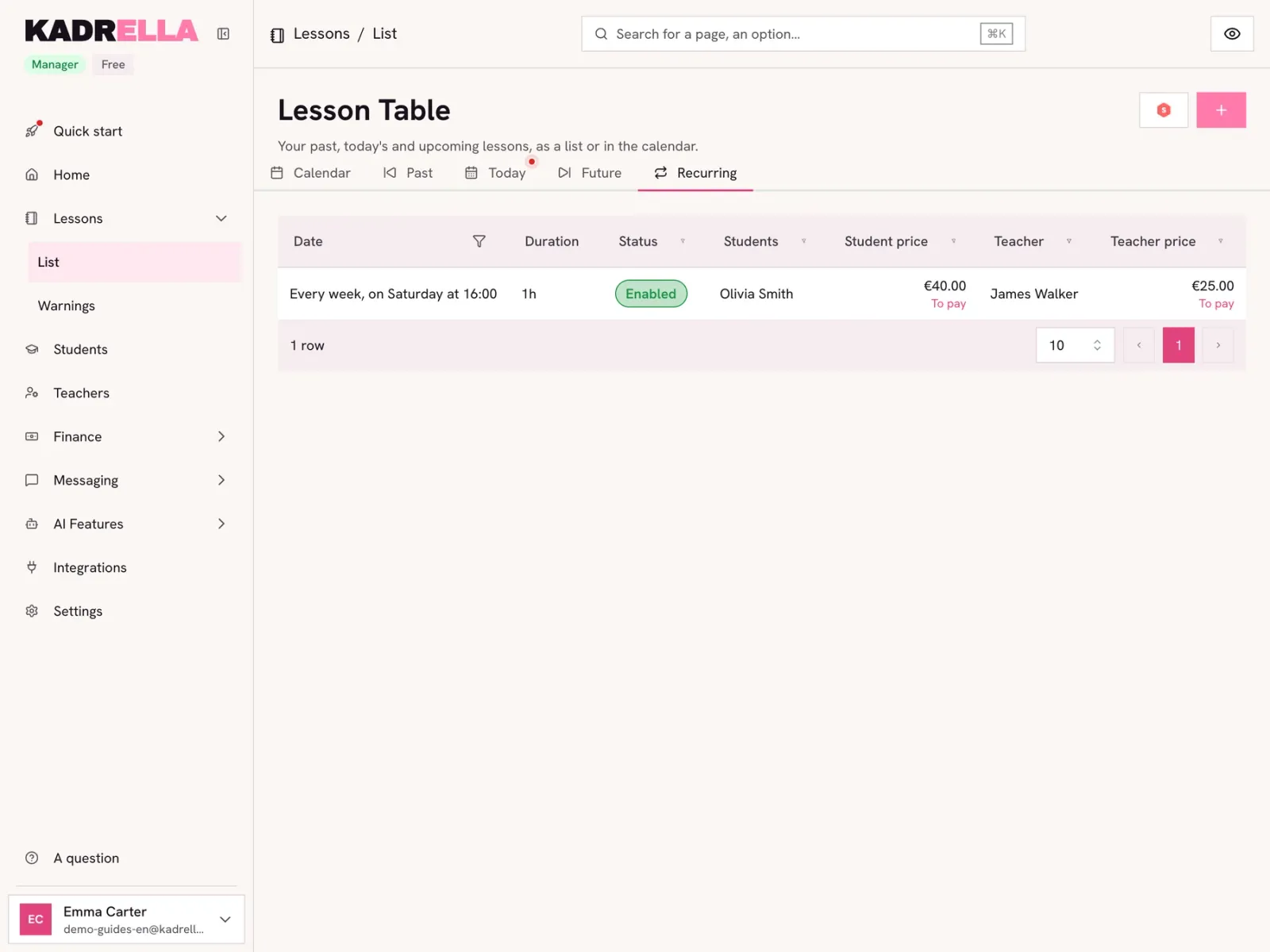
In "Lessons", the "Recurring" tab lists all your series with their status. Open a row to change the rule, switch it off with the "Active" toggle or add exceptions.
 View the full-size screenshot
- The "Recurring" tab.
- The series: rule, student, tutor and price.
What happens to the lessons of the series You… What Kadrella does change the day or time of the rule Offers to apply the rule right away: future lessons are deleted and created again in the new slot. Those you moved, edited or cancelled, or that are paid, stay as they are. switch the rule off Stops creating lessons, and offers to delete the future lessons already created. delete the rule Shows how many future lessons it created and offers to delete them too, or keep them. move or edit one lesson of the series Only this lesson changes. An exception is added: it is not created again on the old date. delete one lesson of the series Warns that the lesson comes from a recurrence, then adds an exception: it does not come back. The other lessons stay as they are. delete the series’ original lesson Offers to delete just that lesson, or the lesson and the future lessons.
Good to know
- For the holidays, add an exception over the period: no lesson is created between those two dates, and the series picks up afterwards.
Going further
- Feature
- Lesson tracking
- Related reading
Screenshots taken on a demo account: names, phone numbers and amounts are made up.
Spend your Sundays teaching, not chasing payments.
Free to start, set up in minutes. No card.