Record a payment for a lesson
In Kadrella, a payment is an amount received from a student, which you split across one or more of their lessons. That split is what turns a lesson from "To pay" into paid, and what feeds the late payments list. A 100 € transfer can settle two lessons at once.
4 stepsFree planScreenshots from 4 November 2026
Step 1
Open the student payments
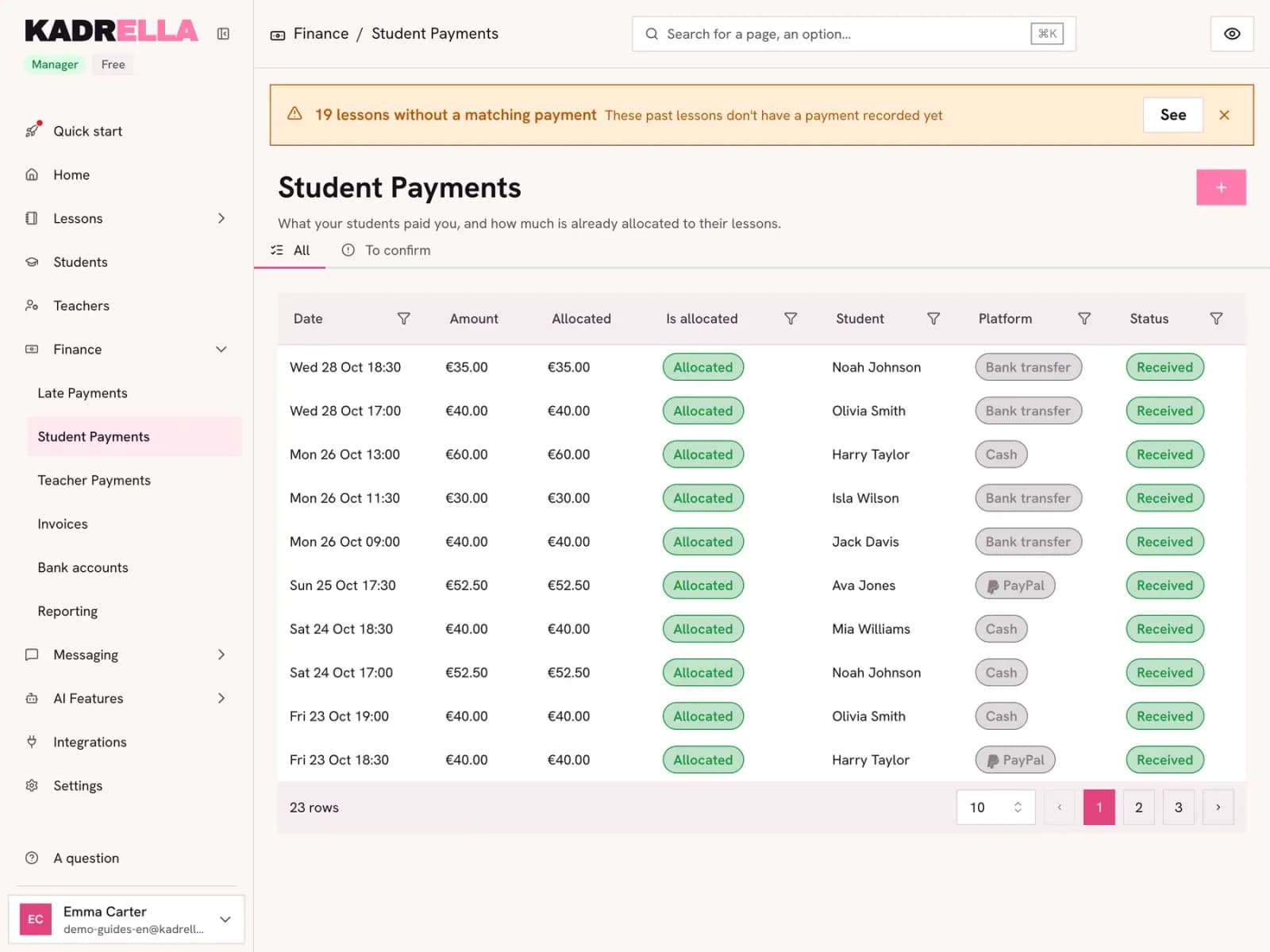
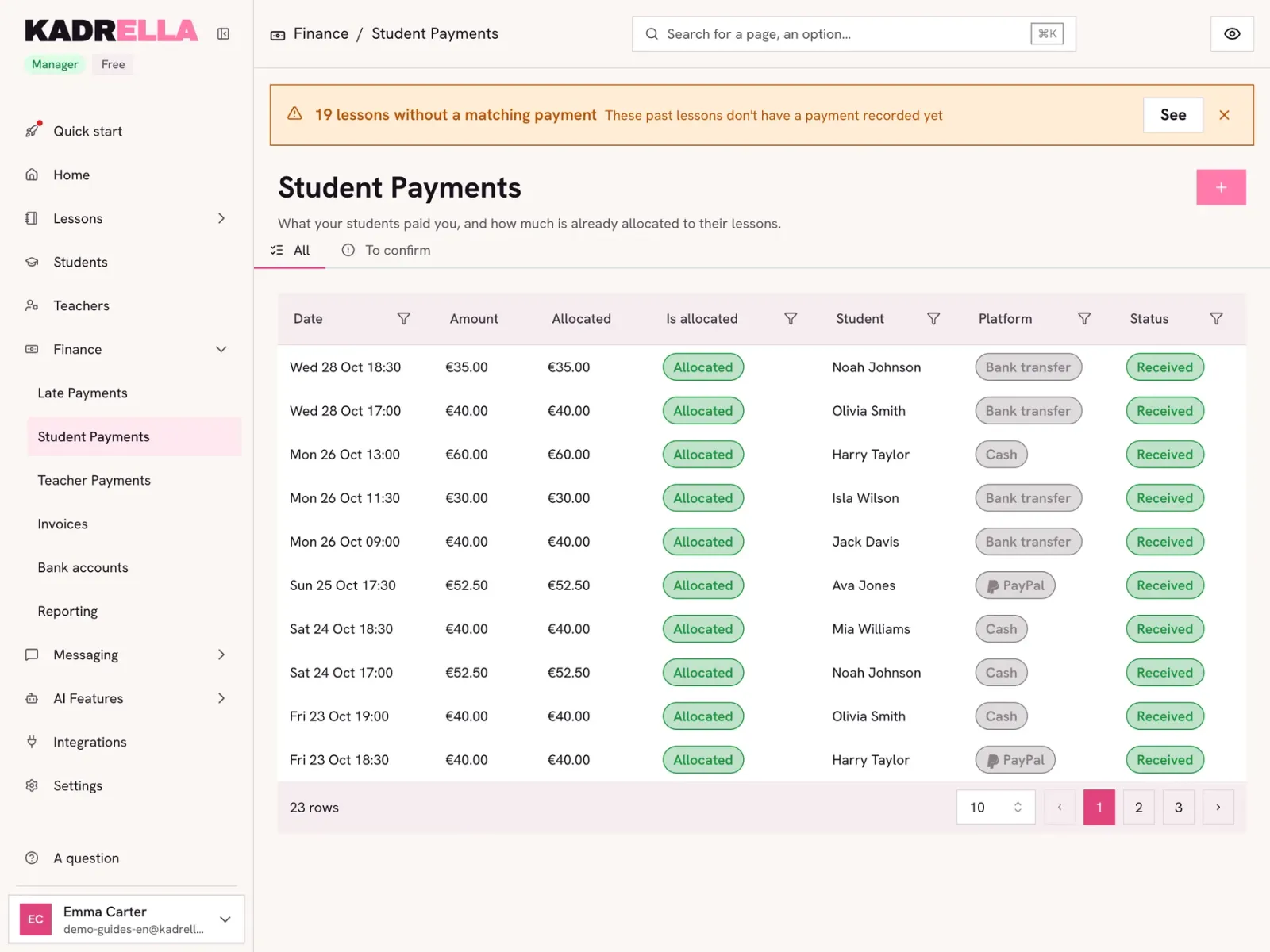
In the menu, open "Finance" then "Student Payments". The orange banner counts the past lessons that have no payment yet: "See" lists them. Click "+" to record a payment.
 View the full-size screenshot
- "See" lists the past lessons with no payment.
- "Create student payment" opens the form.
Step 2
Pick the student and the transfer received
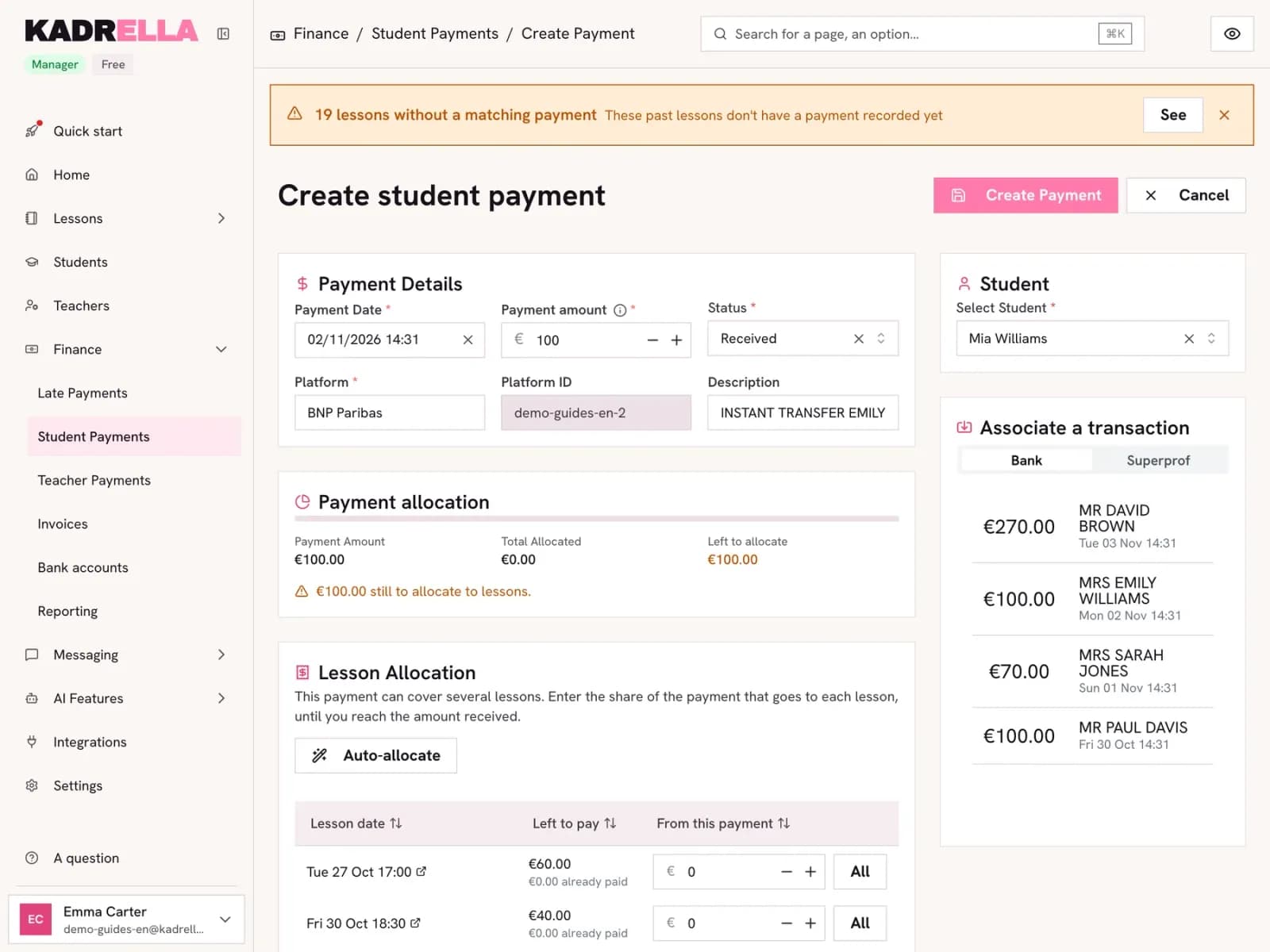
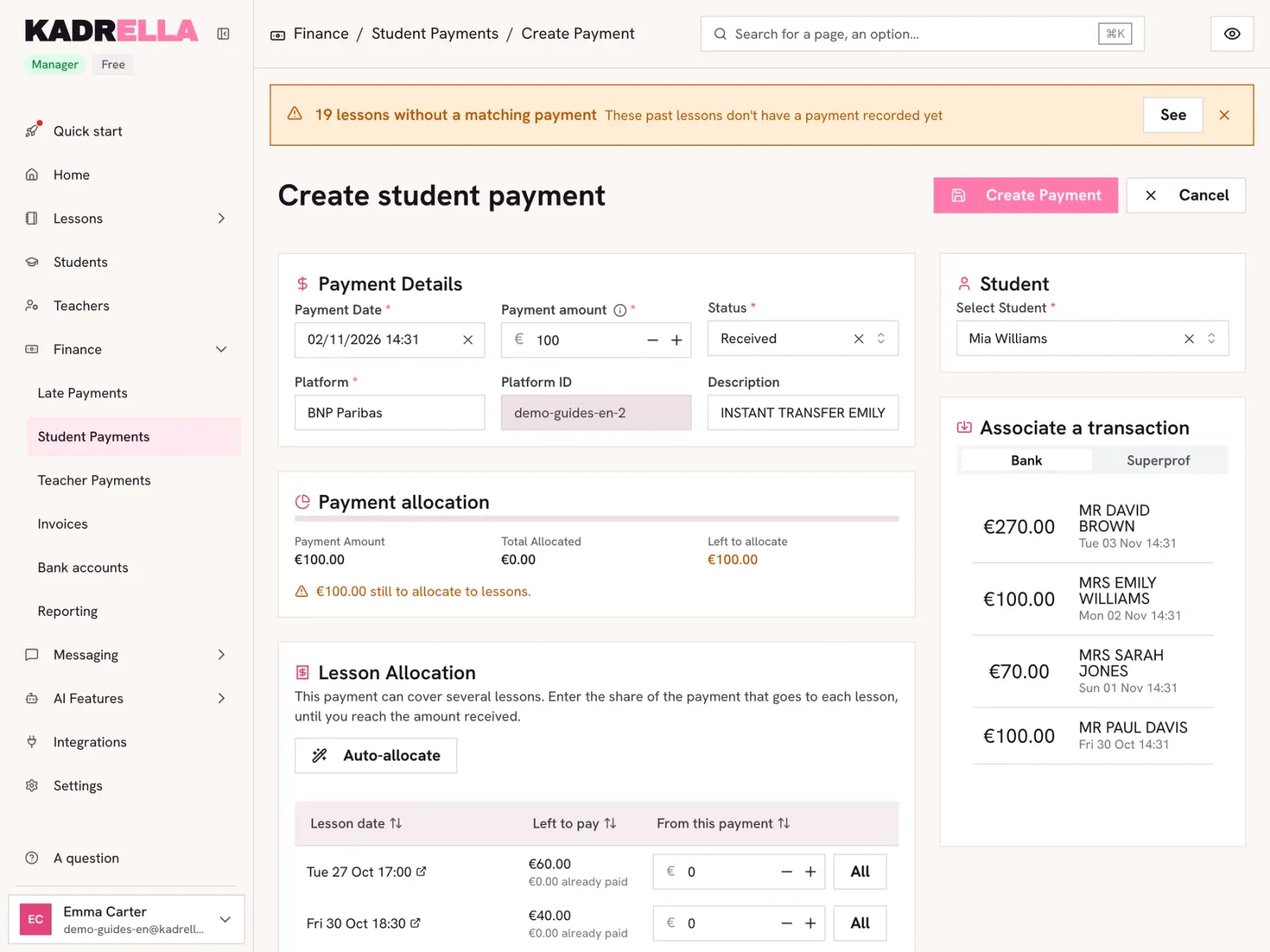
Choose the student. If your bank is connected, the "Associate a transaction" block lists the transfers received that are not linked to a payment yet. Click the family’s one: the date, amount, platform (your bank), transaction ID and bank label fill in by themselves. Without a connected bank, enter the amount and the platform (cash, bank transfer, PayPal, cheque…) by hand.
 View the full-size screenshot
- The student who paid.
- The transfer received, clicked in the bank list.
- The amount, taken from the transfer.
- The platform, here the bank of the transfer.
Good to know
- The "Superprof" tab does the same for a payment made through Superprof.
Step 3
Split the payment across the lessons
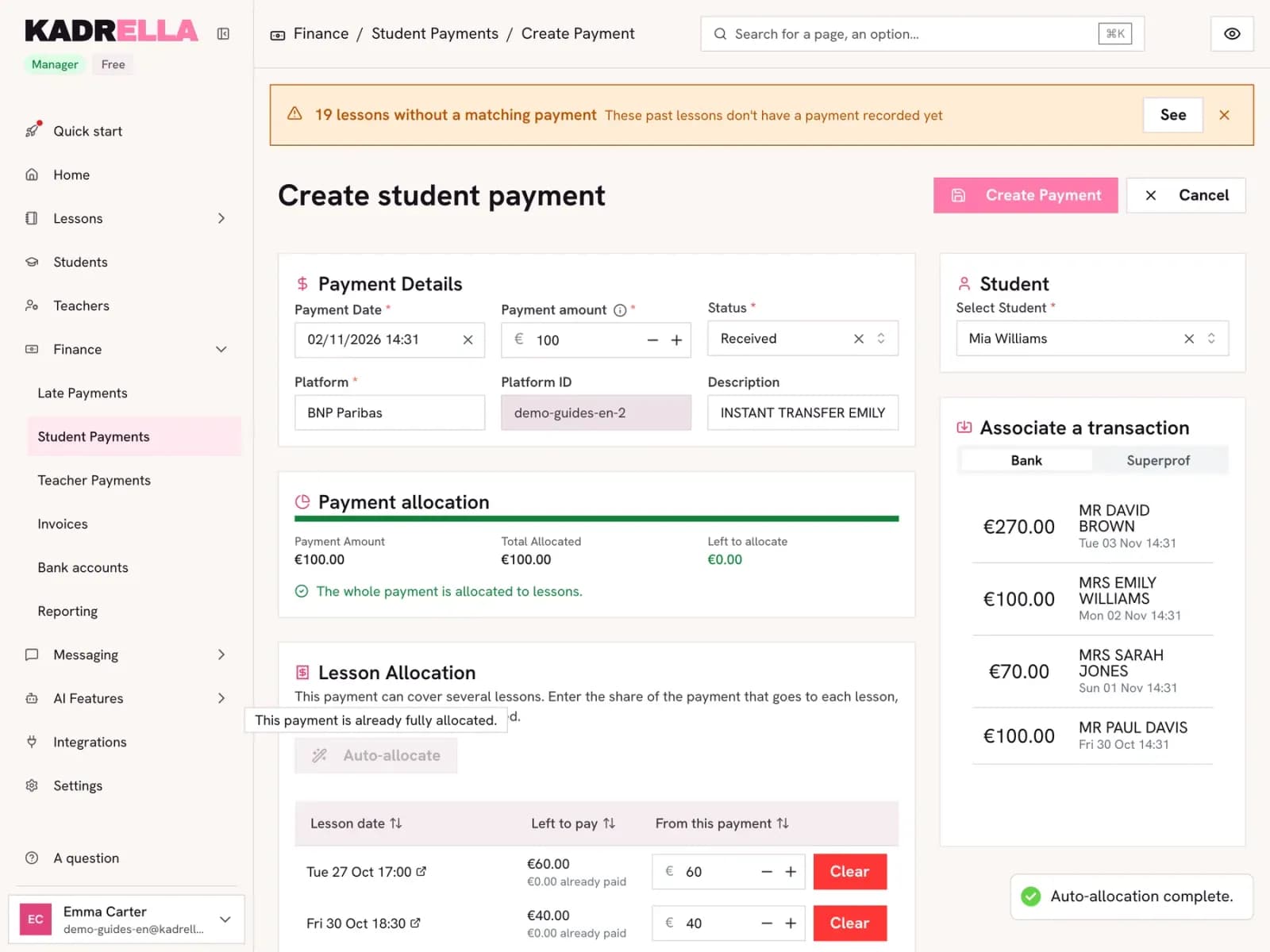
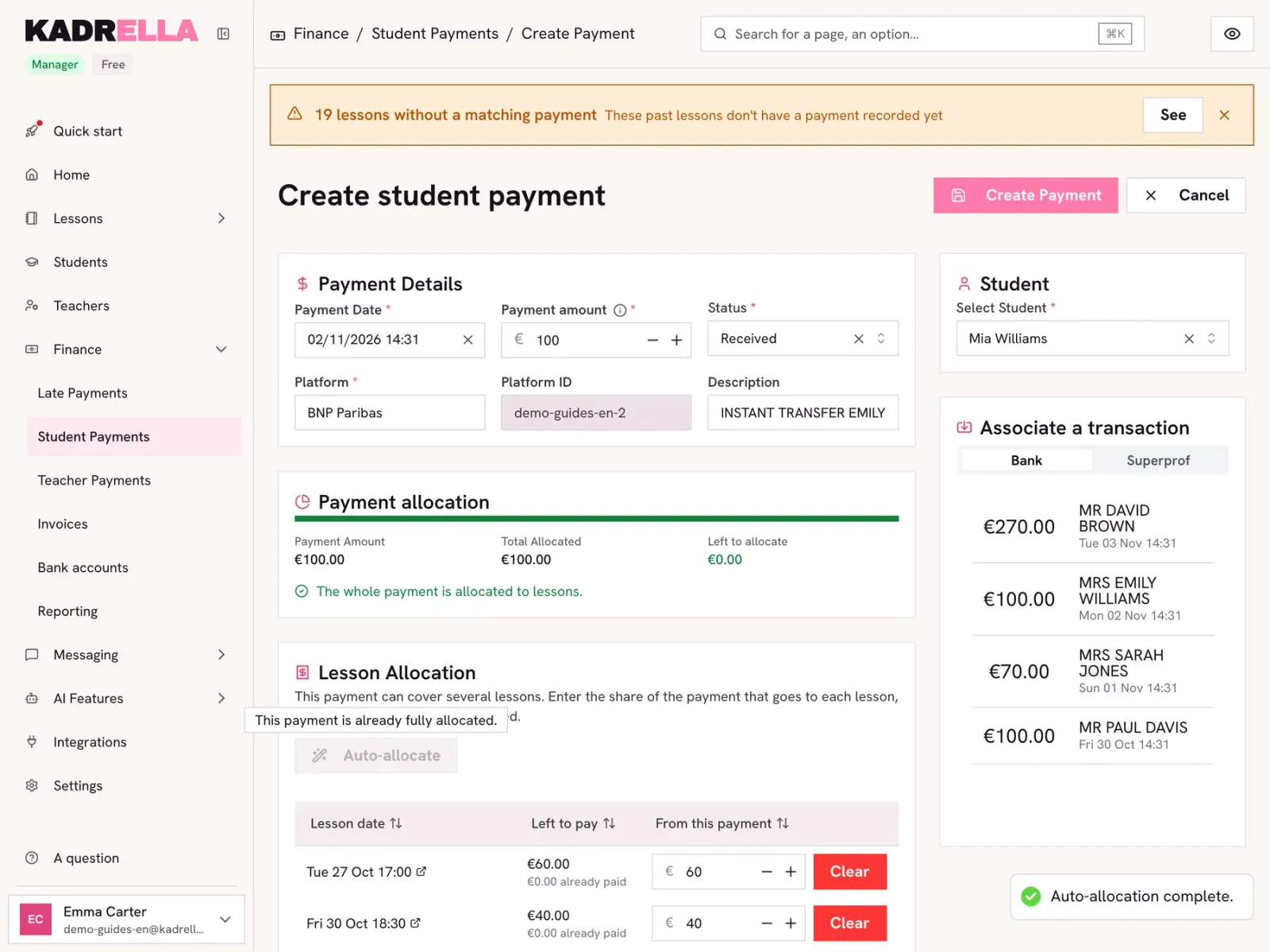
The lessons the student still owes show under "Lesson Allocation". "Auto-allocate" splits the amount starting with the oldest, and you can adjust each line. When the amount left to allocate is 0, the whole payment is allocated. Click "Create Payment".
 View the full-size screenshot
- The share of the payment on each lesson.
- The check: amount received, total allocated, amount left.
Step 4
The bank account is saved on the student
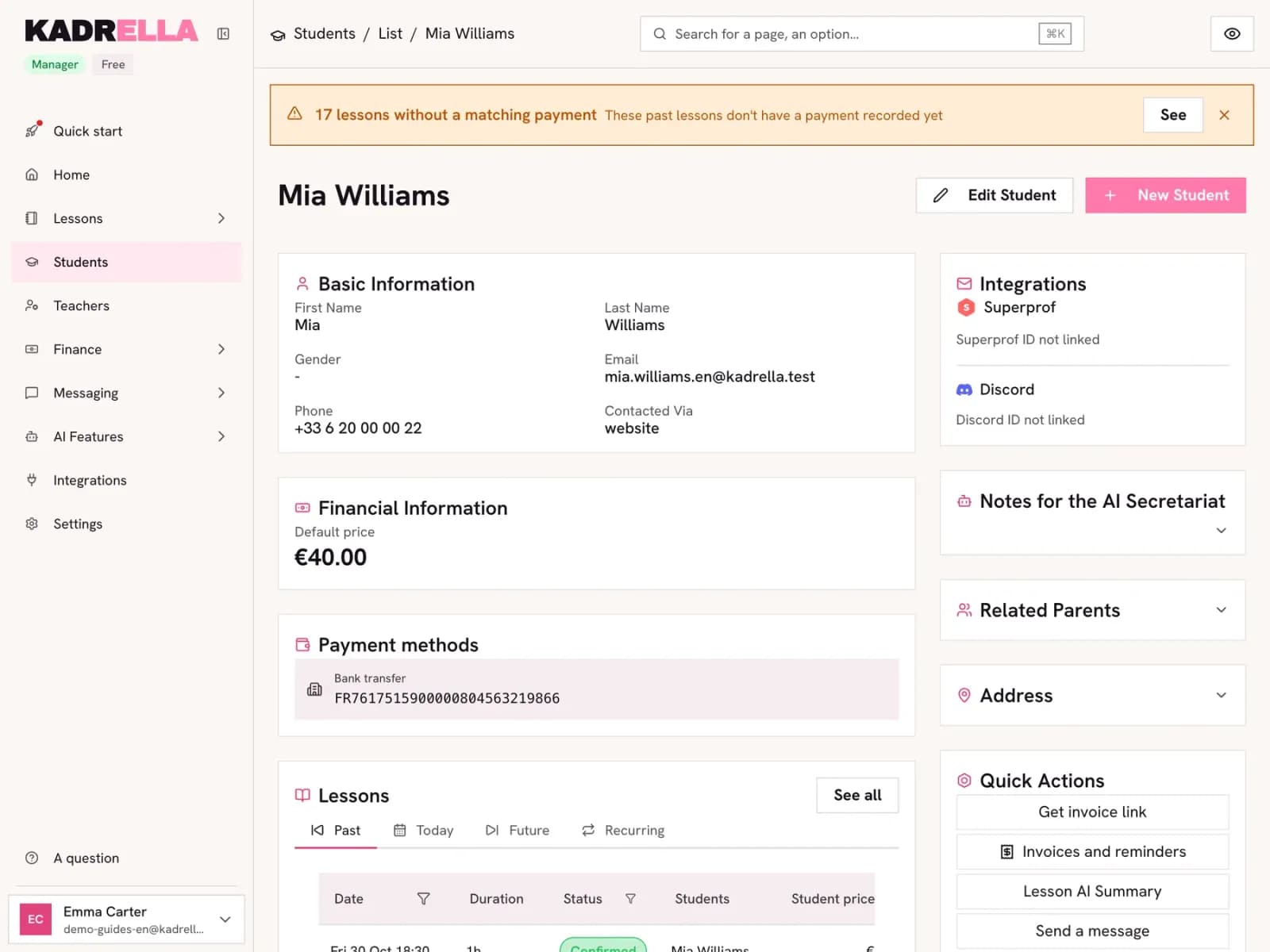
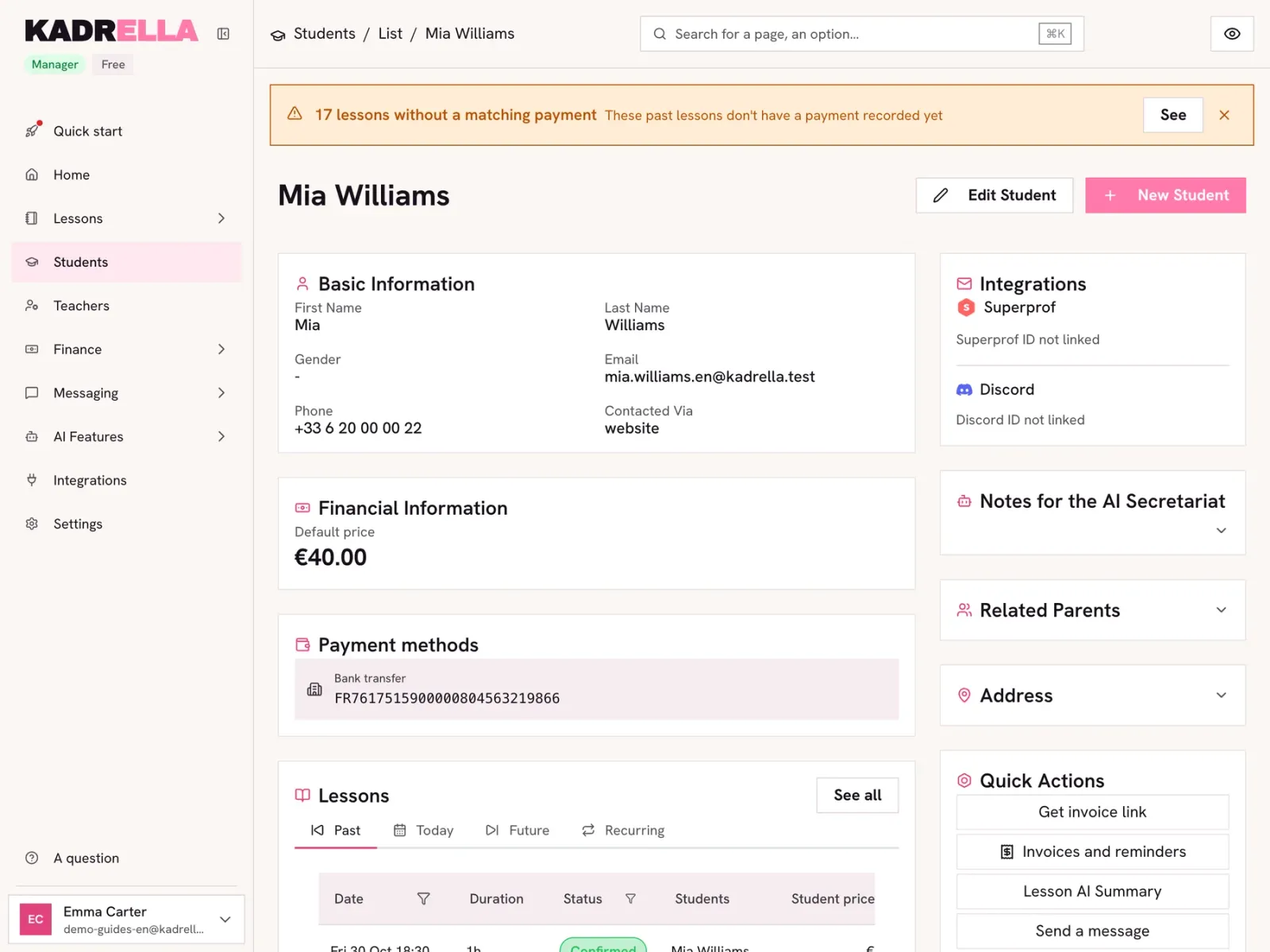
A payment created from a transfer saves the family’s IBAN under "Payment methods" on the student record. After that, each new transfer from this account creates a payment for this student by itself: you only split it across the lessons, from the "To confirm" tab of student payments.
 View the full-size screenshot
- The bank account that pays this student’s lessons.
Good to know
- A parent paying for two children: the same account can be linked to both records.
| Status | When to use it | Effect |
|---|---|---|
| Received | The money is in your account or in hand | The allocated lessons count as paid |
| Pending | Payment announced but not in yet (transfer on its way) | Switch it to "Received" when the money arrives |
Good to know
- The "To confirm" tab gathers the payments not fully split across lessons yet, including those created automatically from the bank.
- A student who pays a package upfront: record the whole payment. The share not yet allocated stays visible on the payment page, and you allocate it to the next lessons once given.
Going further
- Feature
- Payment tracking
Screenshots taken on a demo account: names, phone numbers and amounts are made up.
Spend your Sundays teaching, not chasing payments.
Free to start, set up in minutes. No card.