Create and send a lesson invoice
In Kadrella, an invoice is created from a payment: it takes the student, the lessons covered and the amount, and gets a sequential number (for example M-2026-11-000001). It carries your business’s legal details, hence the step for your company number (the SIRET in France). Invoicing is part of the Pro plan.
4 stepsPro planScreenshots from 4 November 2026
Step 1
Fill in your company number
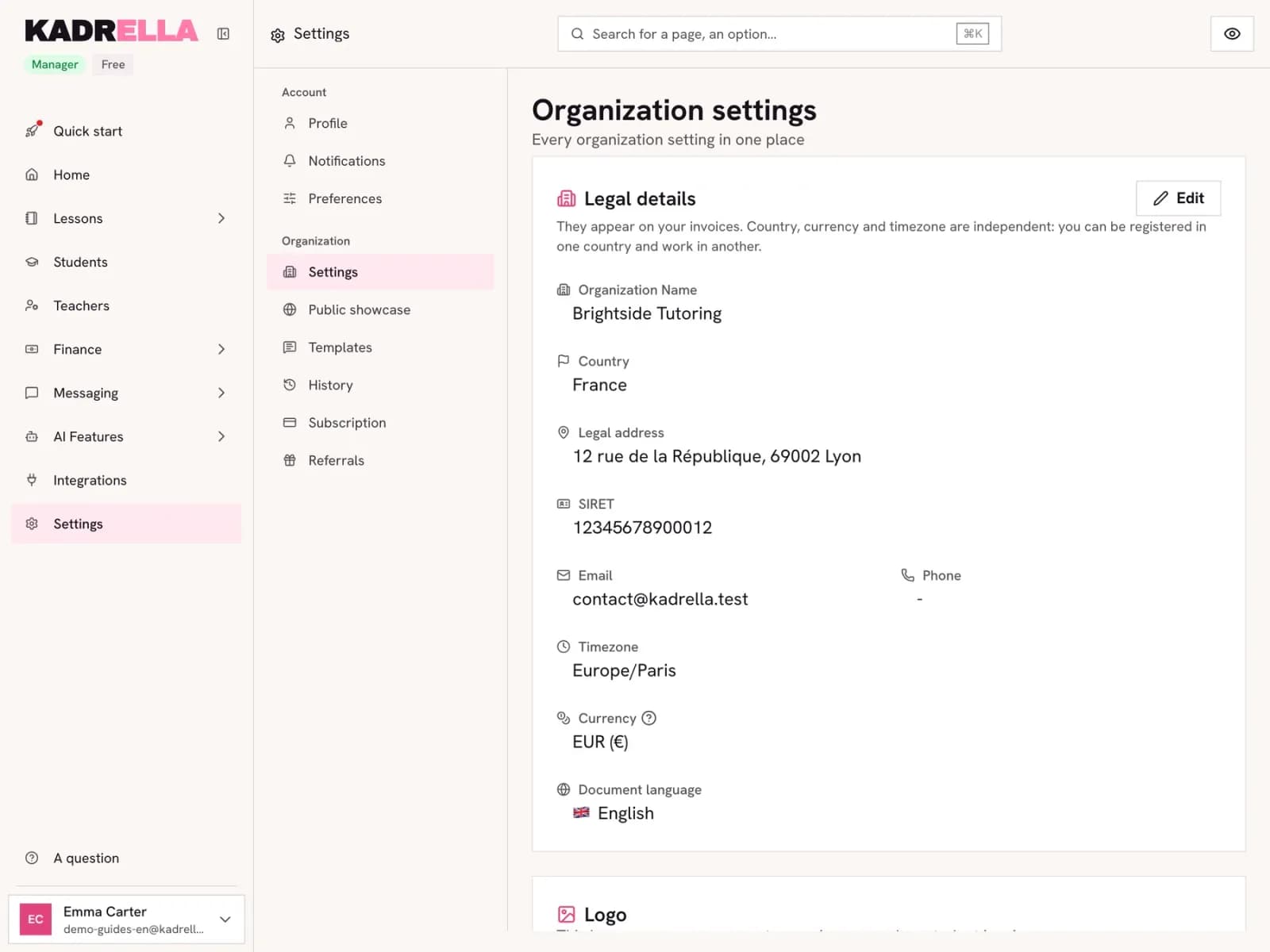
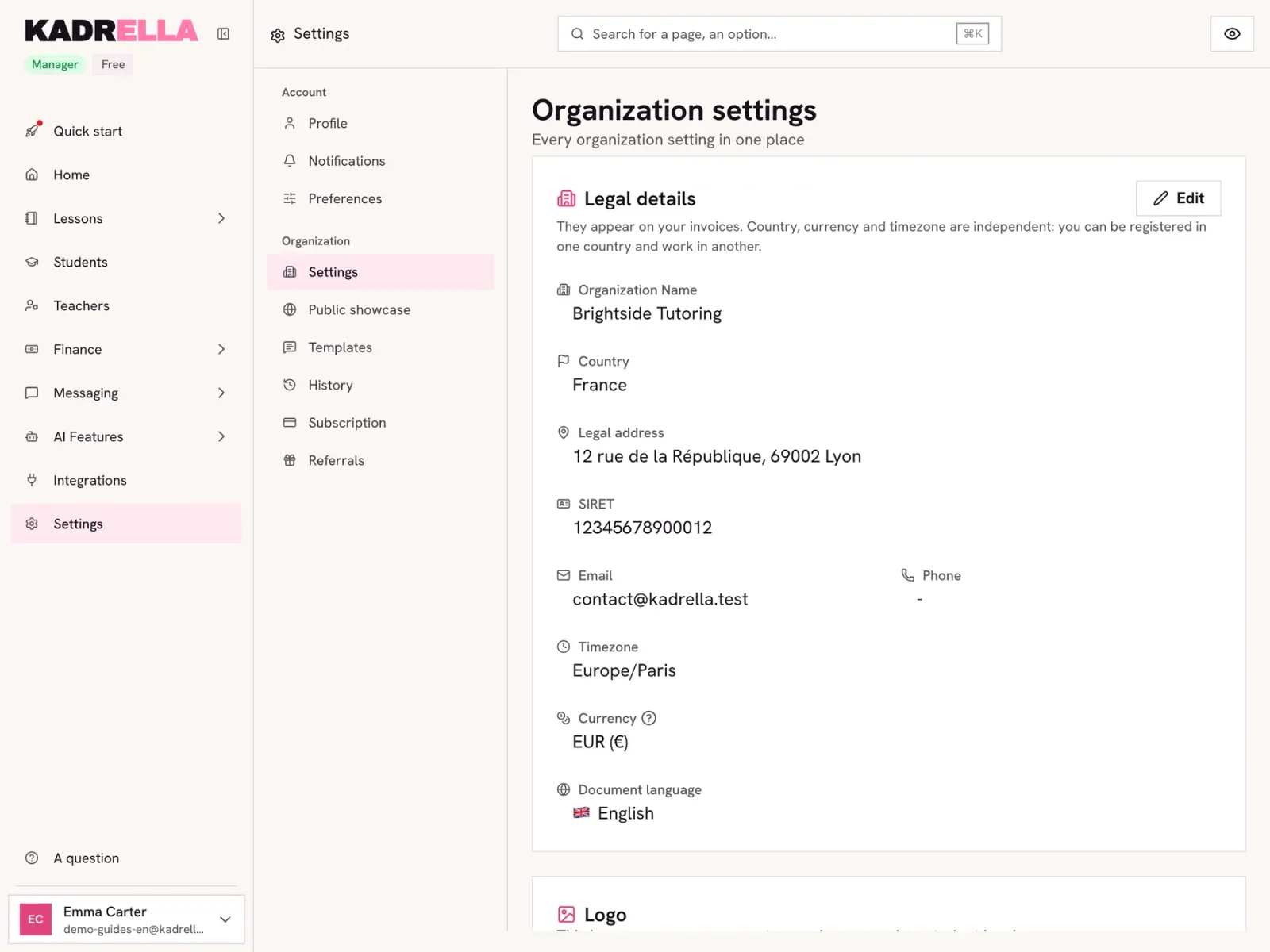
Kadrella needs your company identification number before it generates an invoice: in France this is the SIRET, the field the app shows. Open "Settings" then, under "Organization", the "Settings" page. Click "Edit" in "Legal details" and enter the number and the address.
 View the full-size screenshot
- The company number (SIRET) printed on invoices.
- "Edit" to enter it.
Step 2
Open the payment to invoice
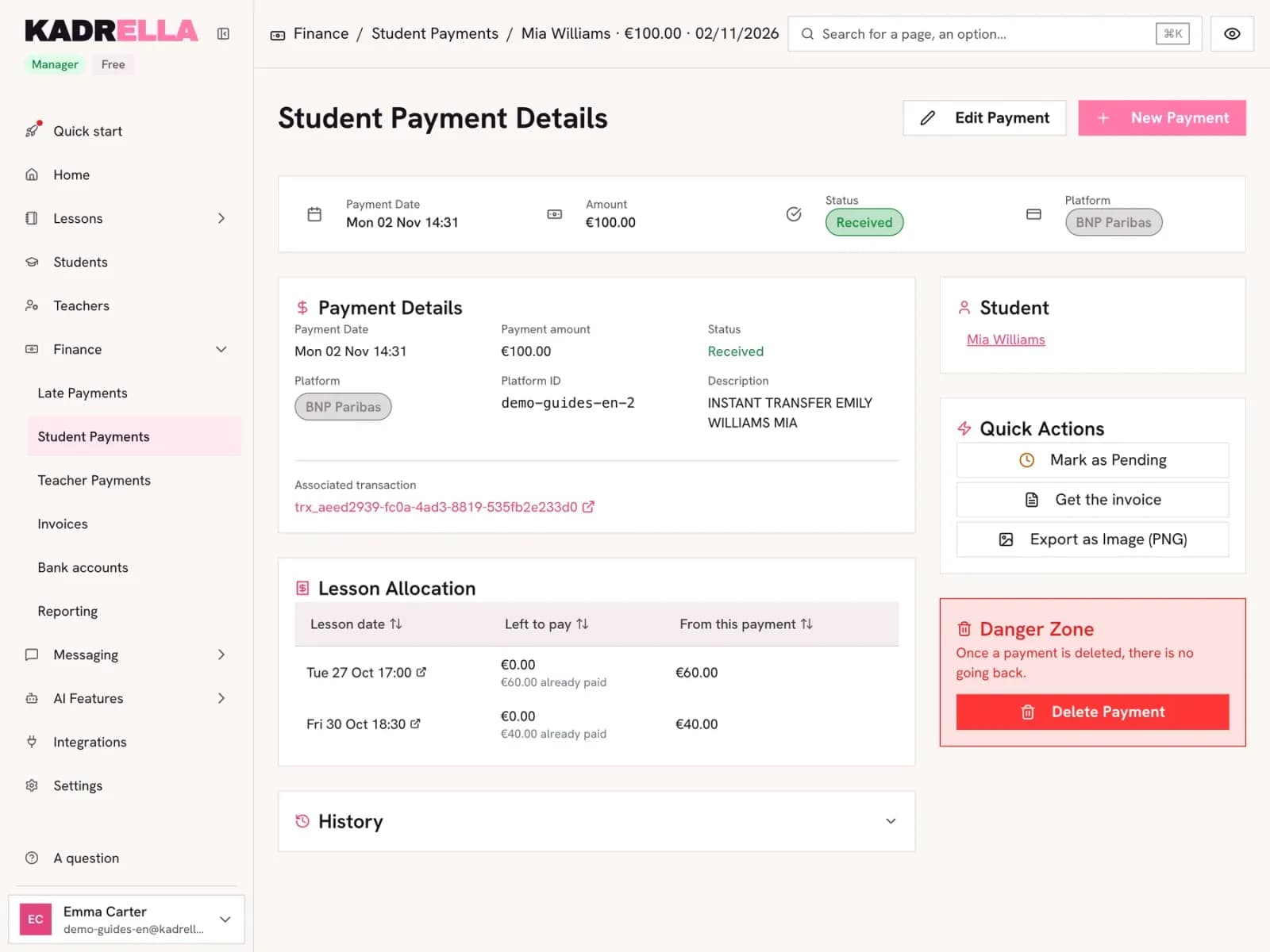
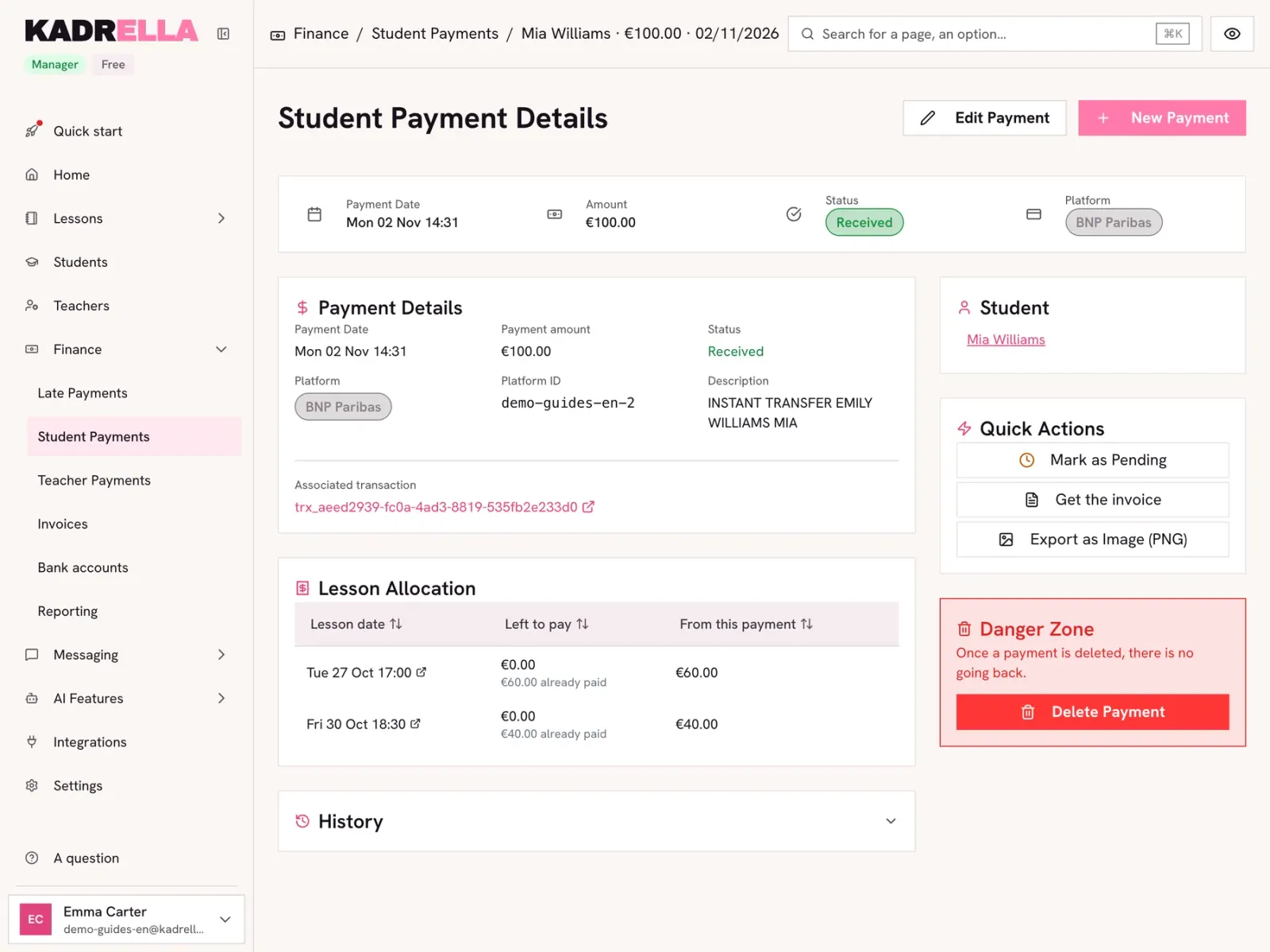
In "Finance", "Student Payments", open the payment. The "Lesson Allocation" block shows the lessons it settles. Click "Get the invoice".
 View the full-size screenshot
- "Get the invoice" generates the PDF.
Step 3
Check, download or send
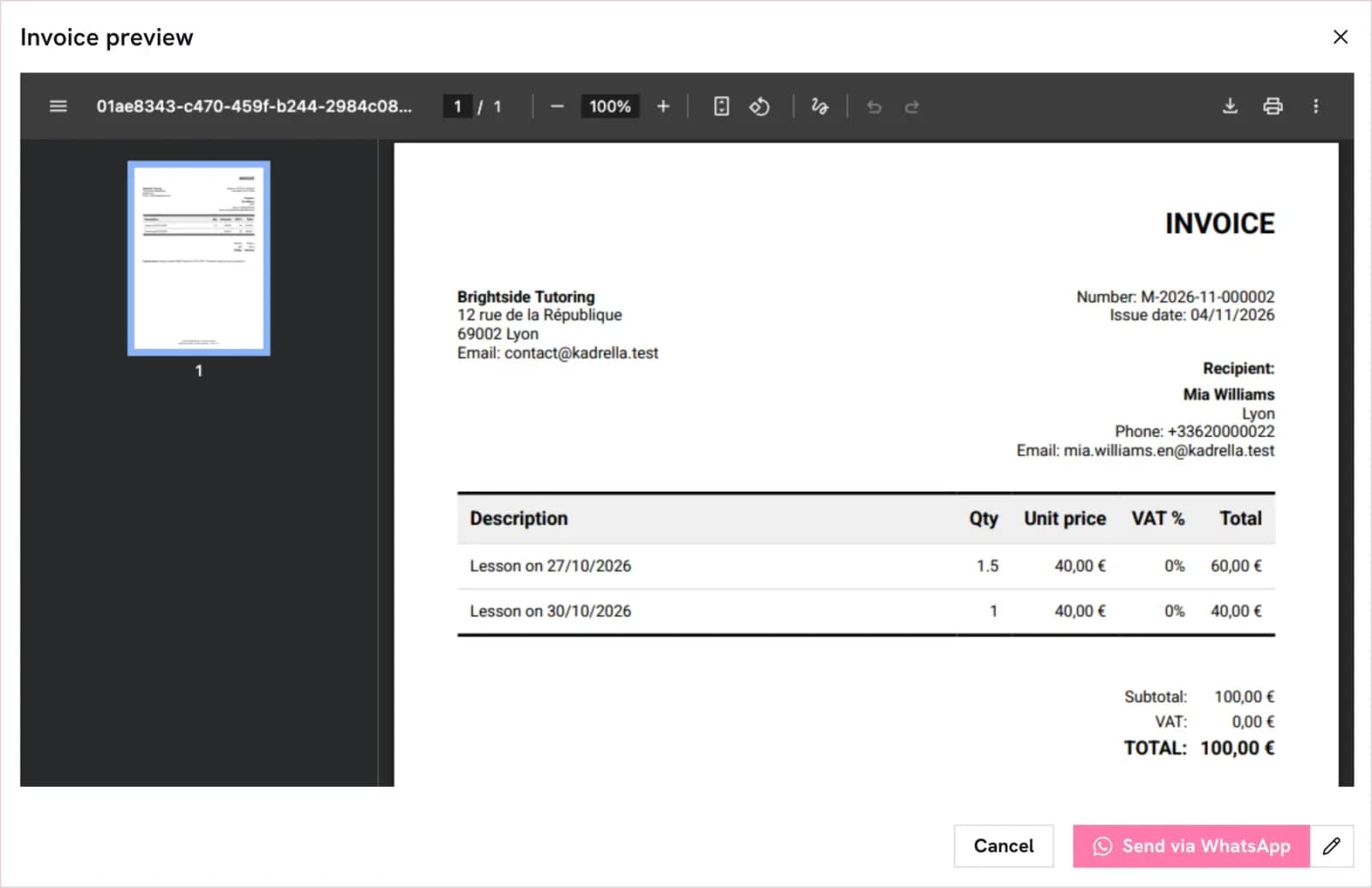
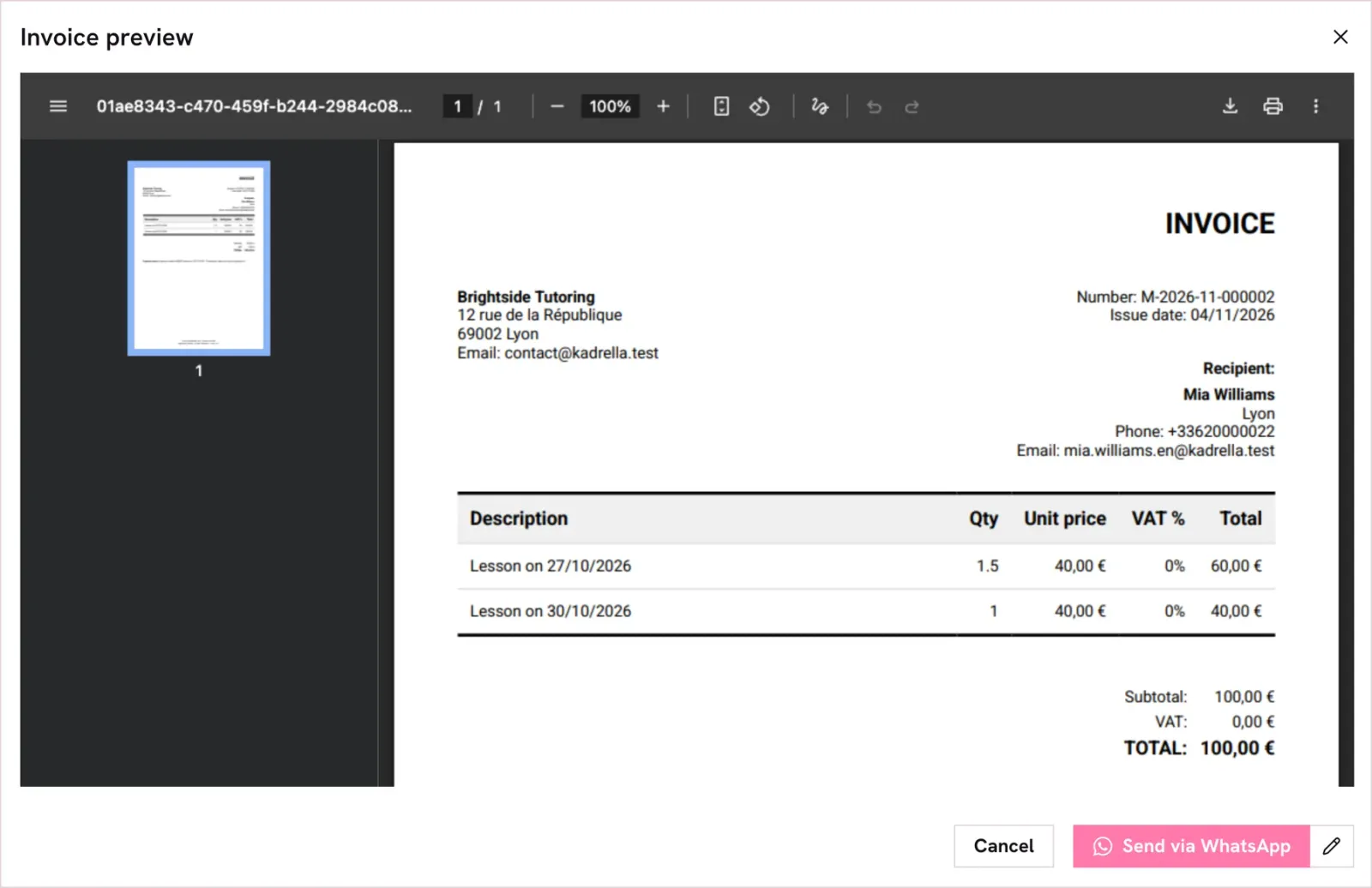
The preview shows the invoice as the student will get it: your details, the recipient, one line per lesson and the total. The icons at the top of the PDF download or print it. "Send via WhatsApp" sends it to the student, once WhatsApp is connected.
 View the full-size screenshot
- "Send via WhatsApp" with the PDF attached.
Step 4
Find all your invoices
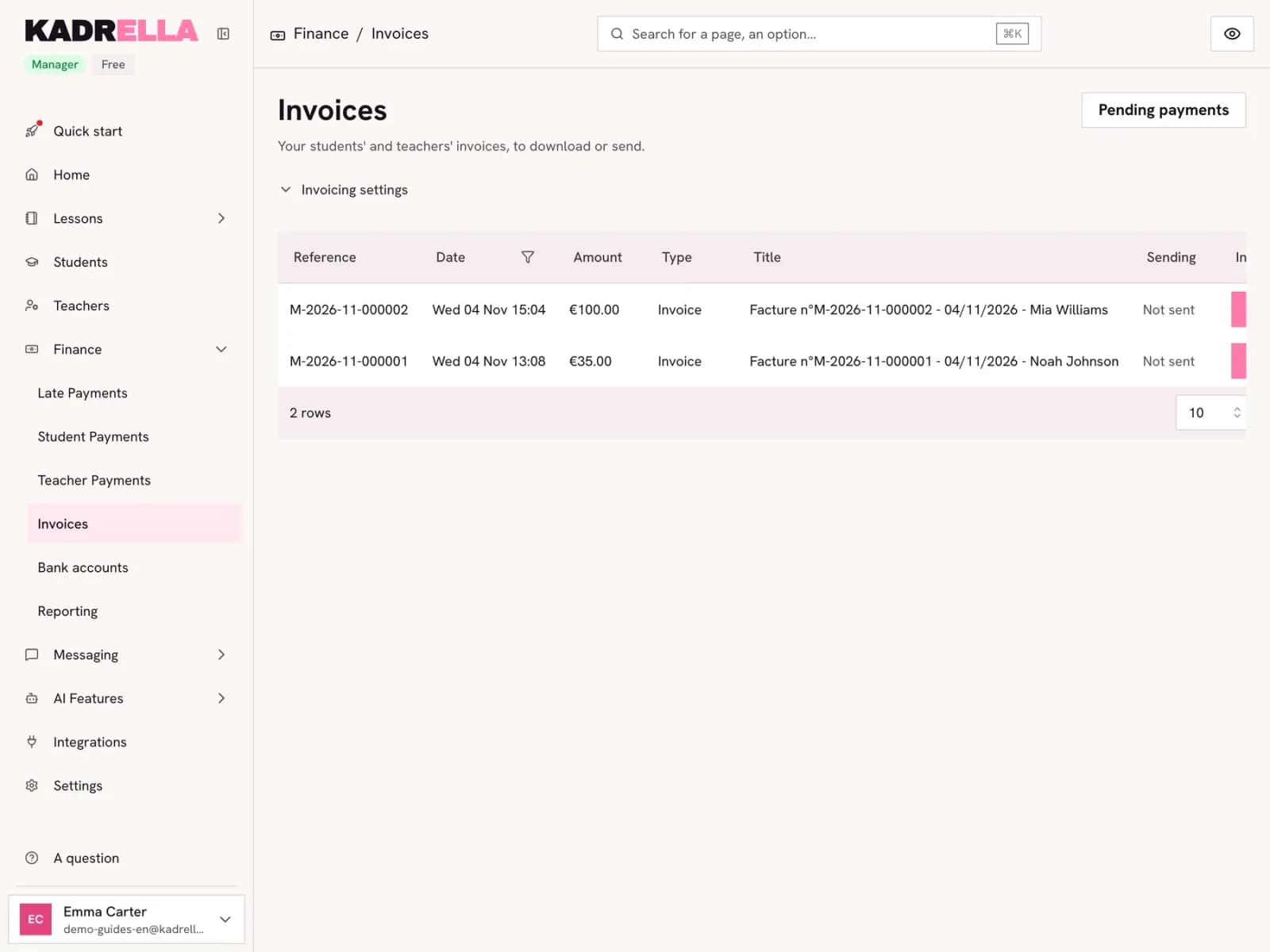
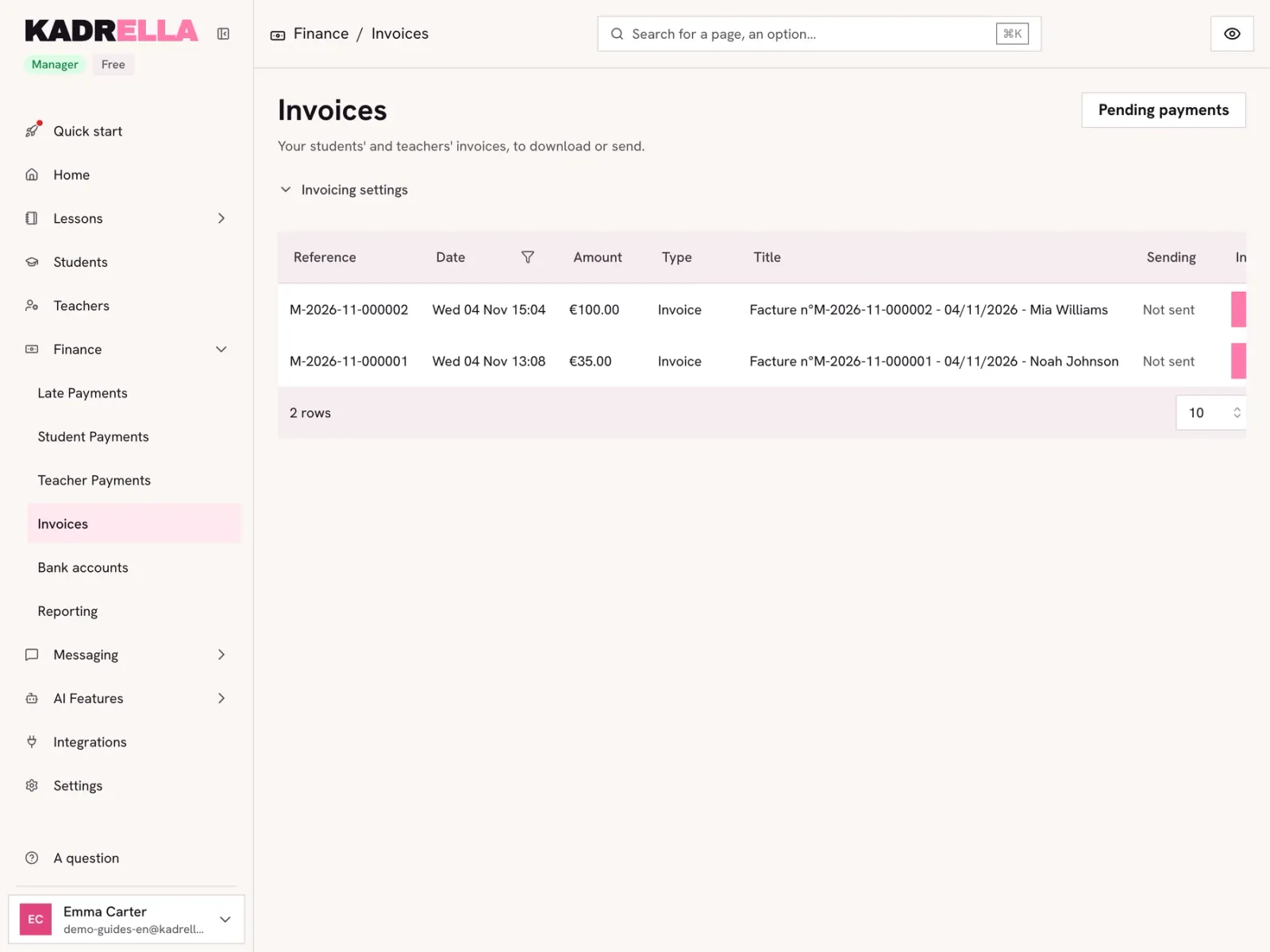
In "Finance", "Invoices" lists every invoice issued with its number, amount and whether it was sent. "Invoicing settings" holds the invoice options.
 View the full-size screenshot
- The invoice, its number and whether it was sent.
Going further
- Feature
- Invoicing
- Related reading
Screenshots taken on a demo account: names, phone numbers and amounts are made up.
Spend your Sundays teaching, not chasing payments.
Free to start, set up in minutes. No card.