Connect WhatsApp to Kadrella
Kadrella connects to your WhatsApp as a linked device, the same way WhatsApp Web does. Lesson reminders, payment summaries and invoices then go out from your own number, without copy and paste. You connect once, by scanning a QR code with your phone, on the Starter plan.
5 stepsStarter planScreenshots from 4 November 2026
Step 1
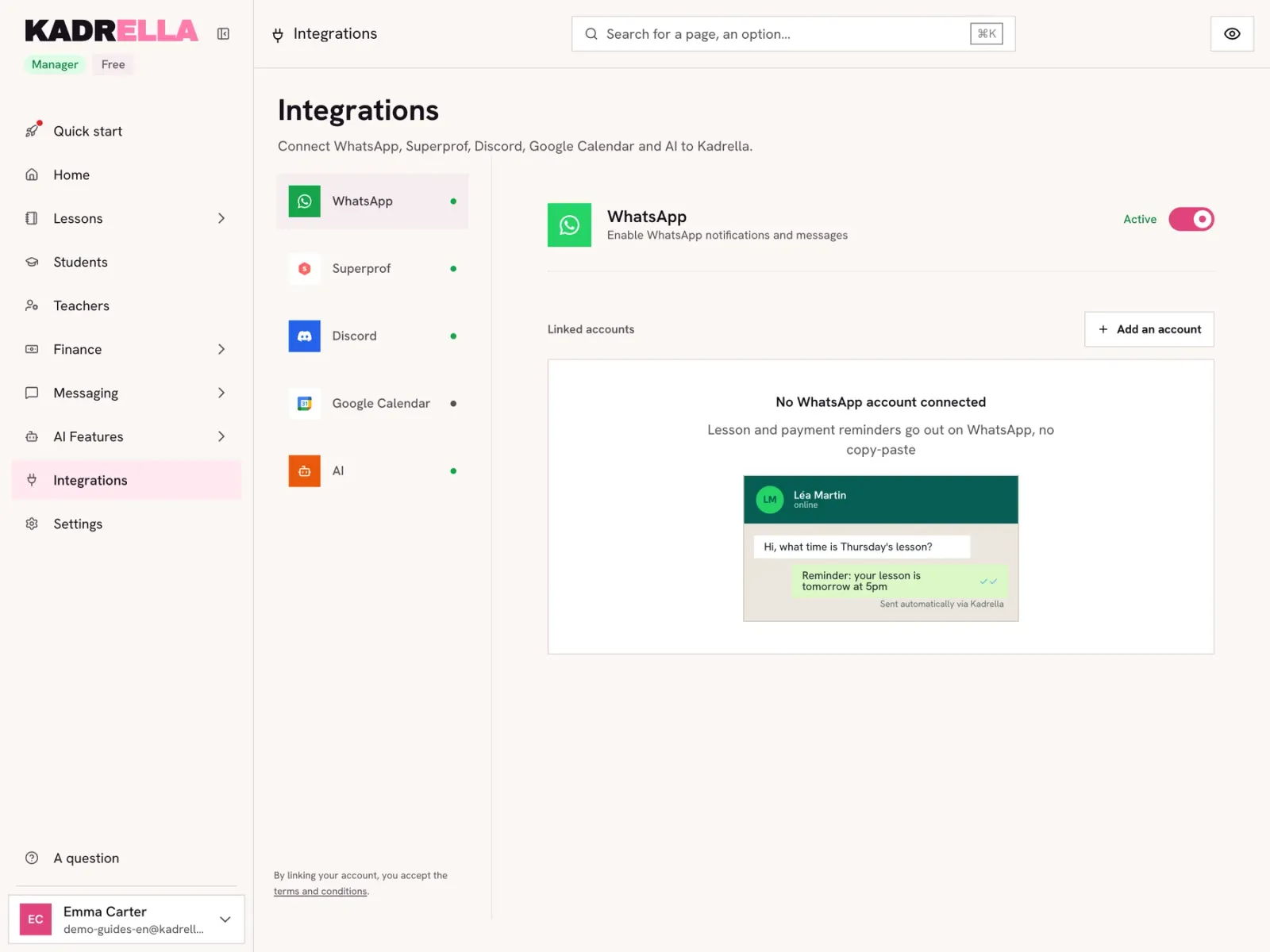
Open the WhatsApp integration
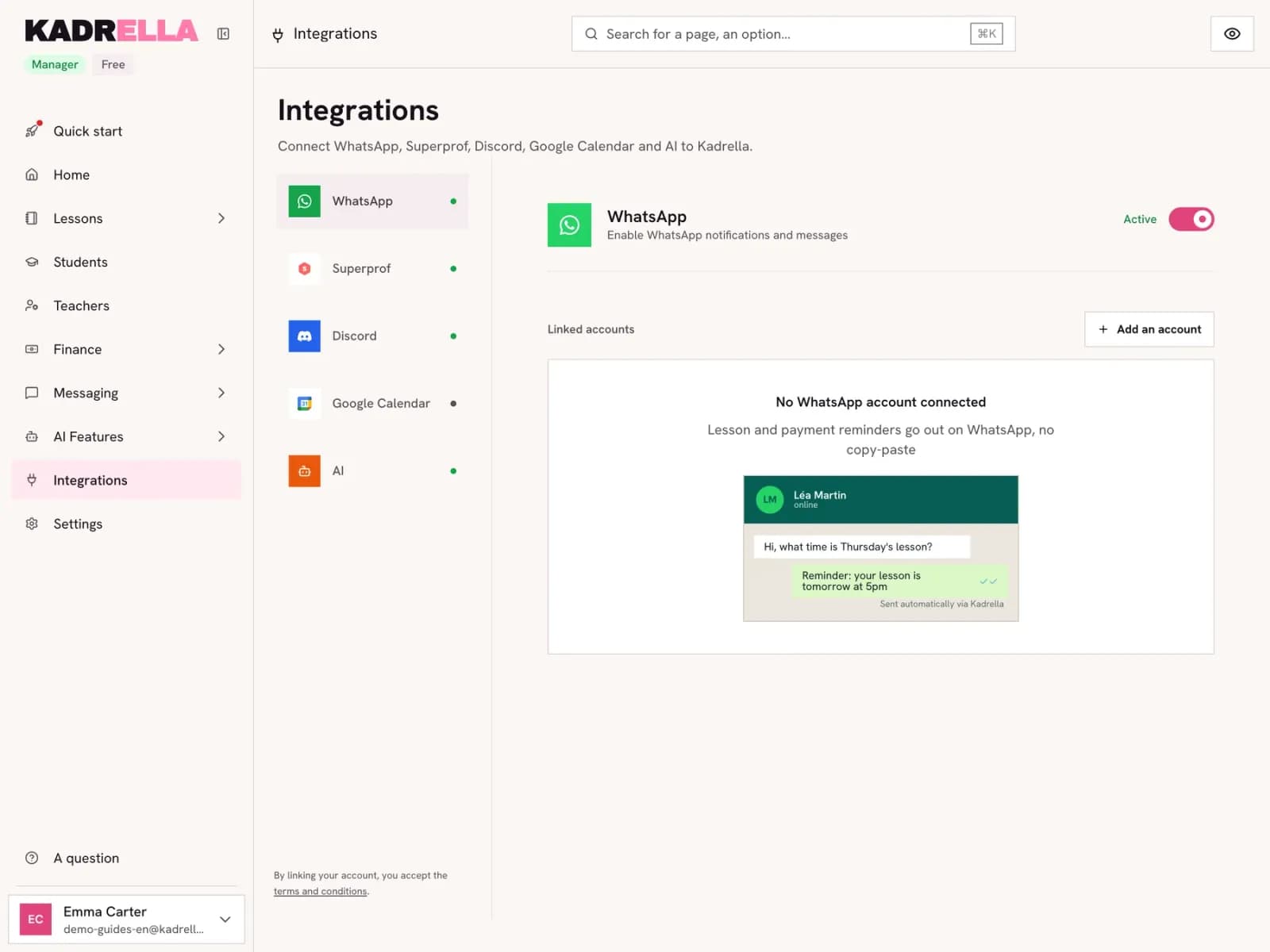
In the menu, open "Integrations" then "WhatsApp". Click "Add an account".
 View the full-size screenshot
- The WhatsApp integration.
- "Add an account" starts the connection.
Step 2
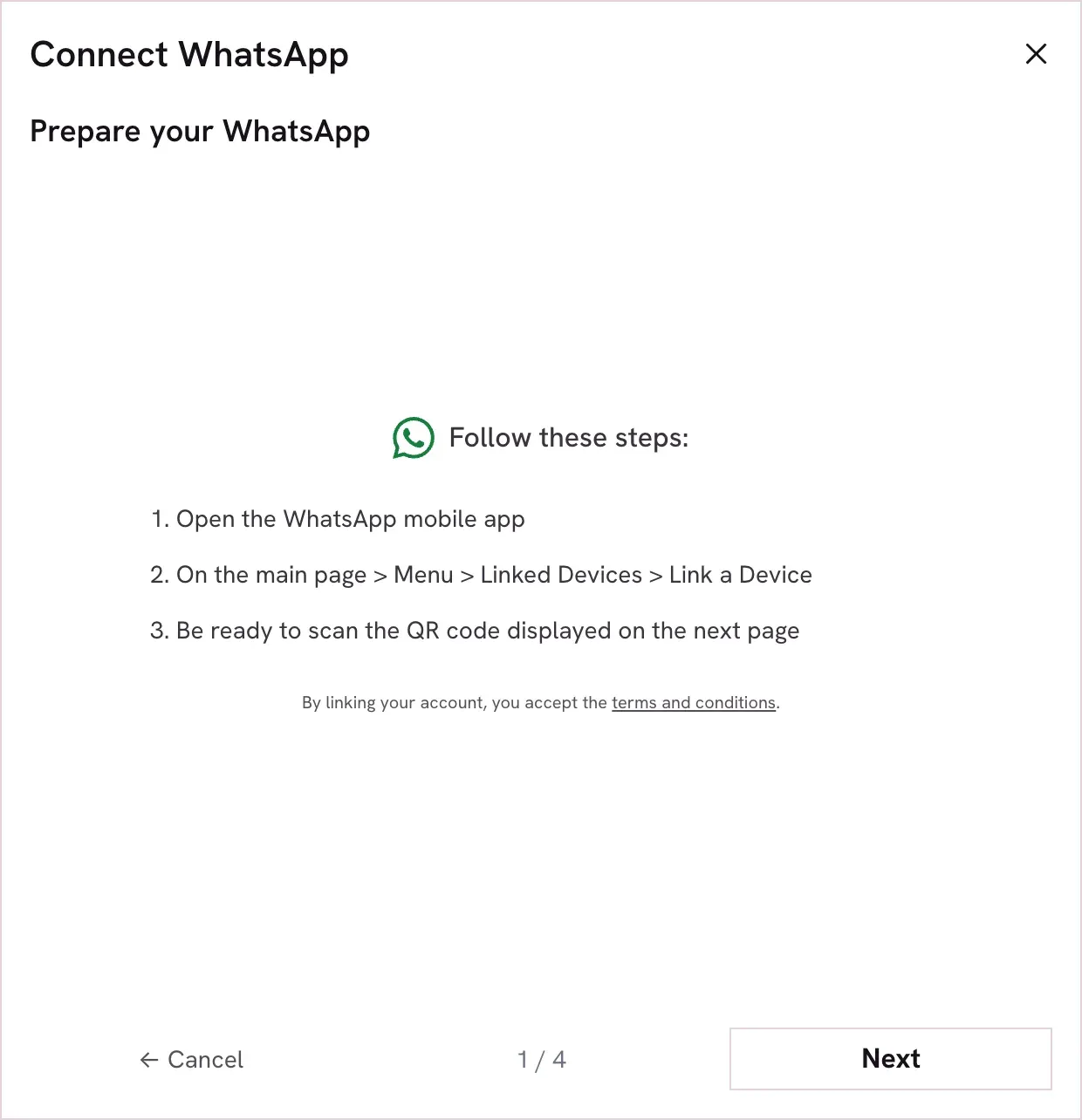
Get your phone ready
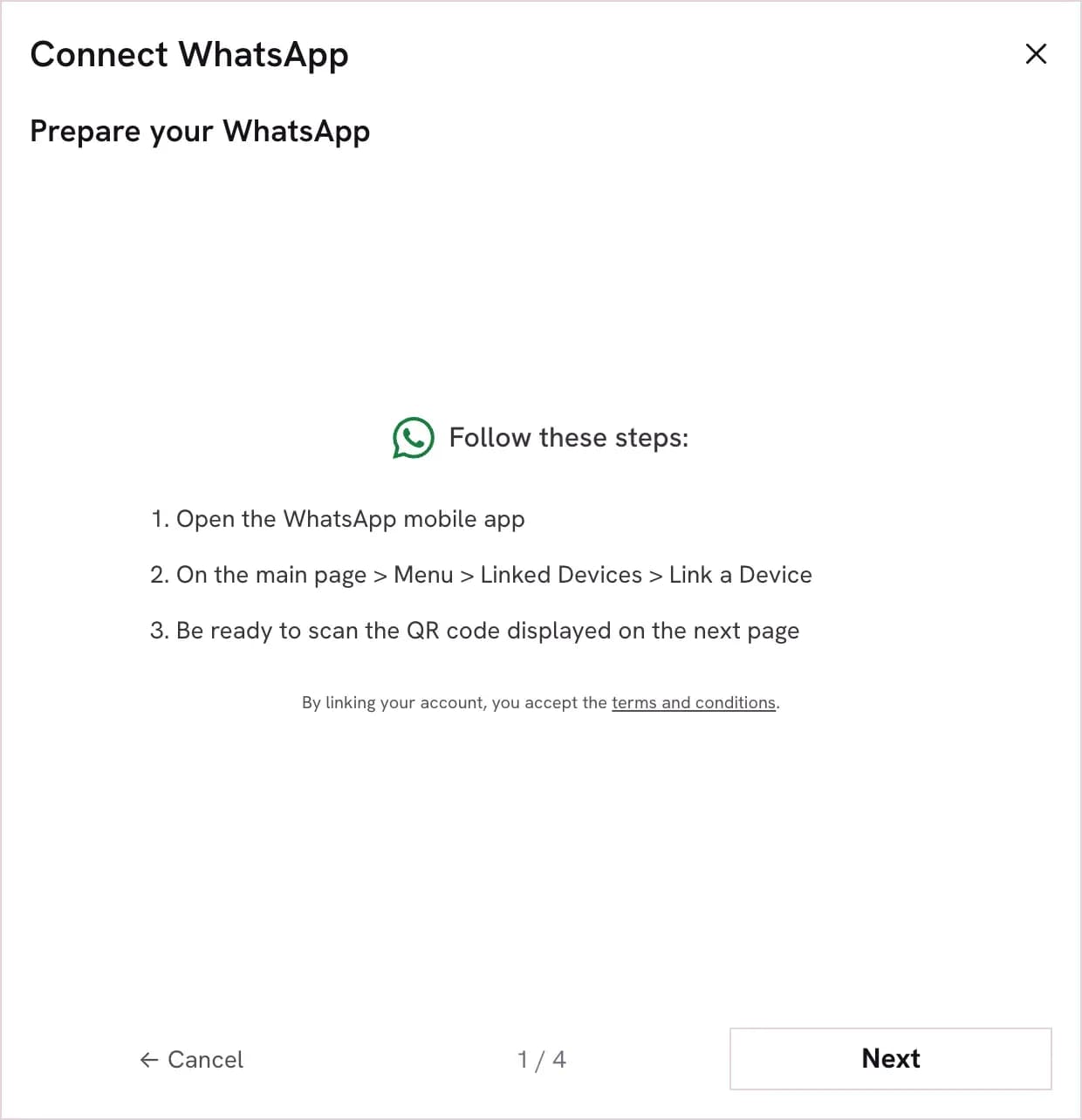
Take your phone and open WhatsApp. On the main screen, open the menu (the three dots on Android, "Settings" on iPhone), then "Linked devices" and "Link a device". WhatsApp opens the camera to scan. Click "Next" in Kadrella.
 View the full-size screenshot
- What to open in WhatsApp on the phone.
- "Next" shows the QR code.
Step 3
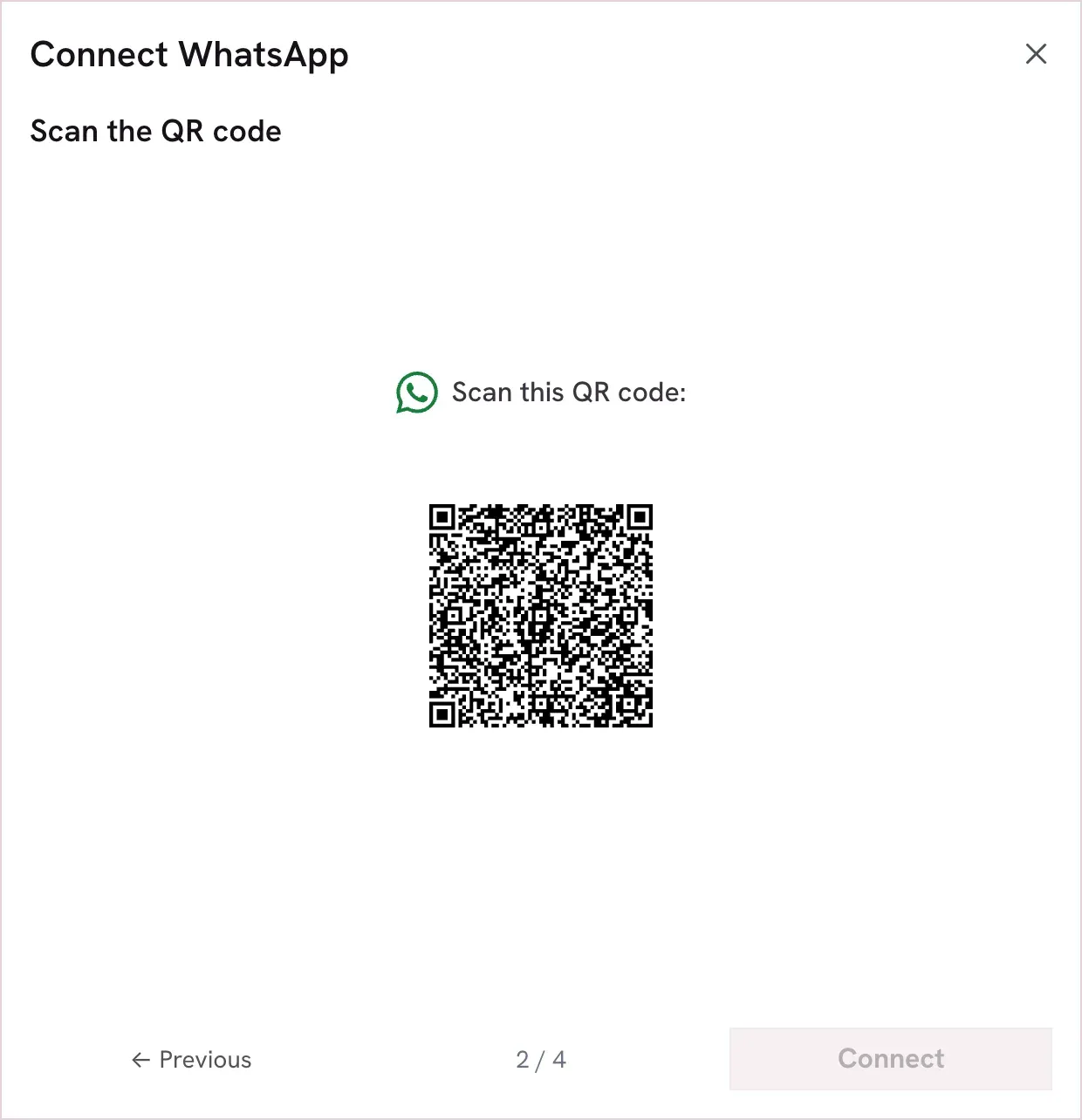
Scan the QR code
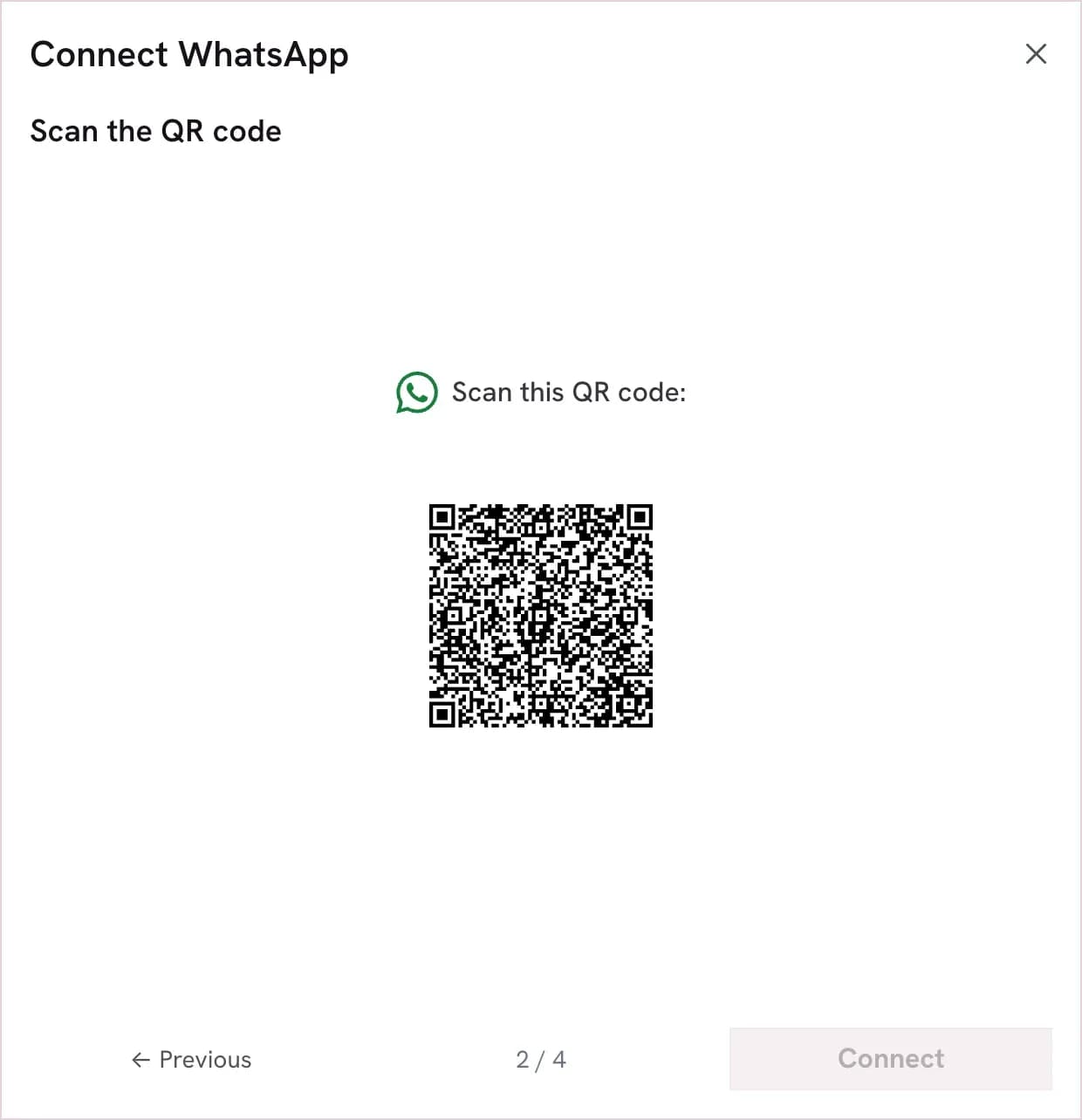
Point the phone camera at the QR code Kadrella shows. The code renews after about a minute: if it expired, wait for the next one and scan it. The phone confirms the link, then Kadrella moves on to the next step by itself.
 View the full-size screenshot
- The QR code to scan from "Link a device".
Good to know
- The QR code on this screenshot has expired: use the one shown in your account.
Step 4
Confirm and finish
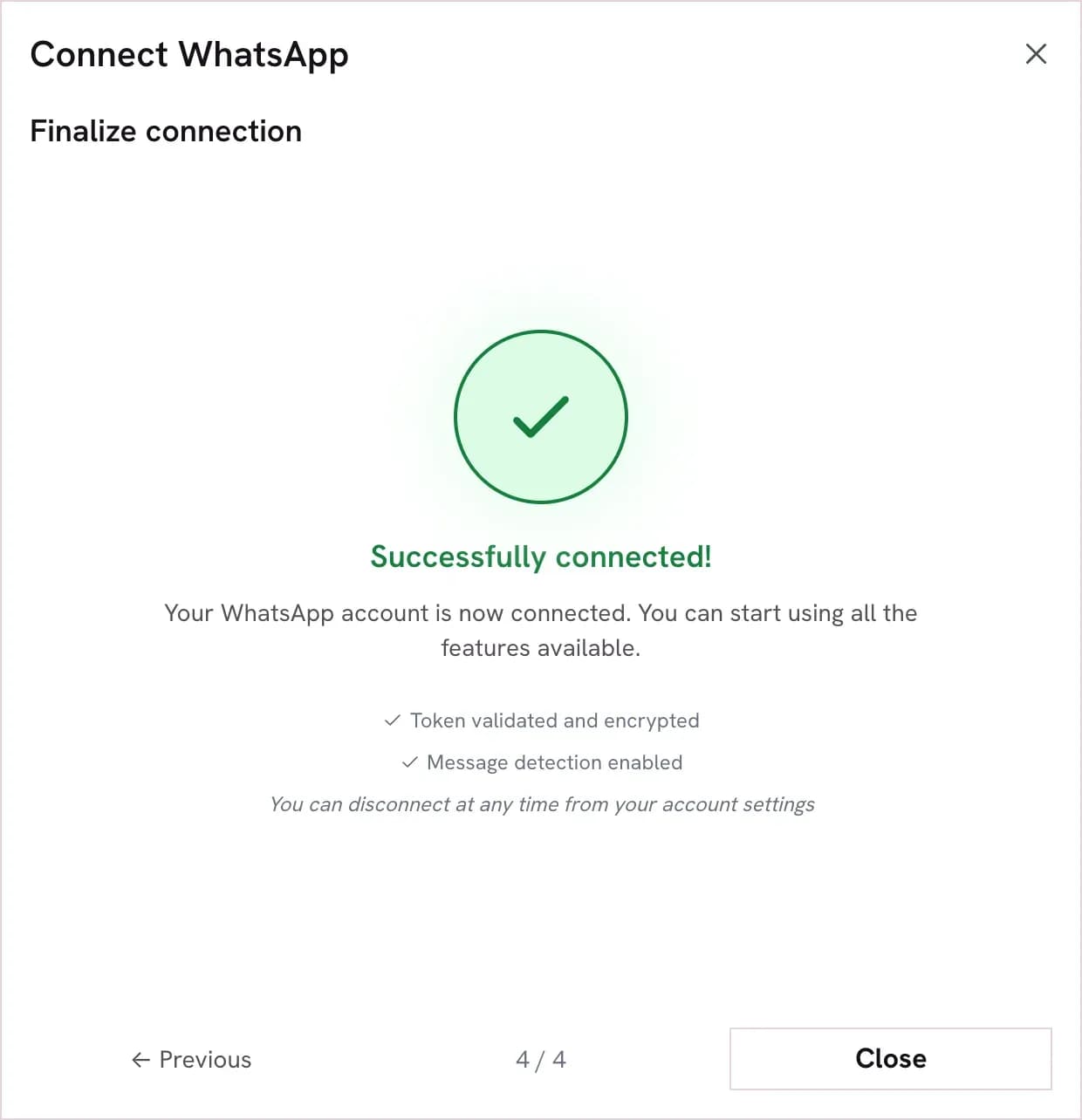
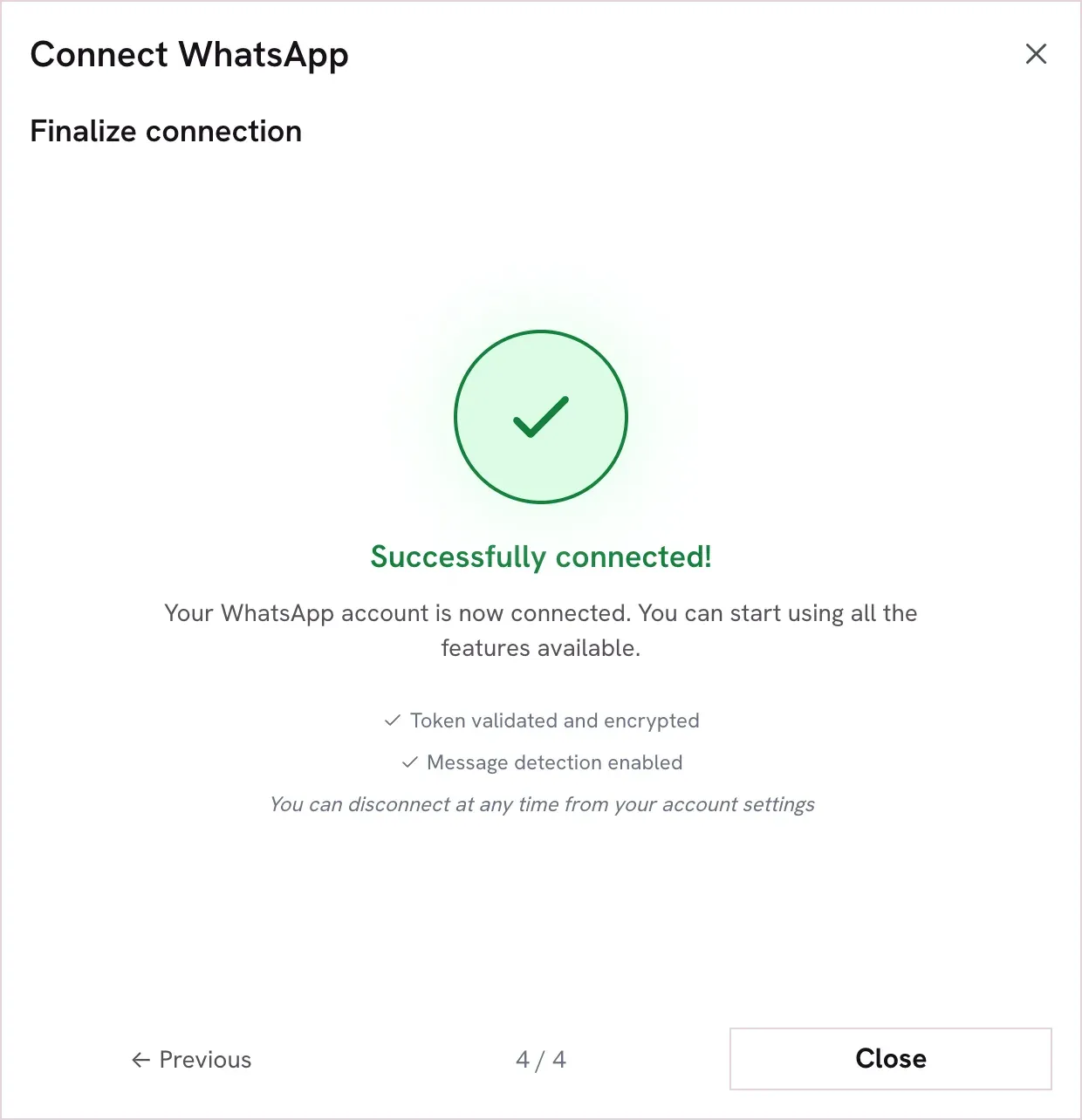
Kadrella lists what it will be able to do (read and send messages, see the profile name), then shows the success message. Click "Close".
 View the full-size screenshot
- "Close" finishes.
Step 5
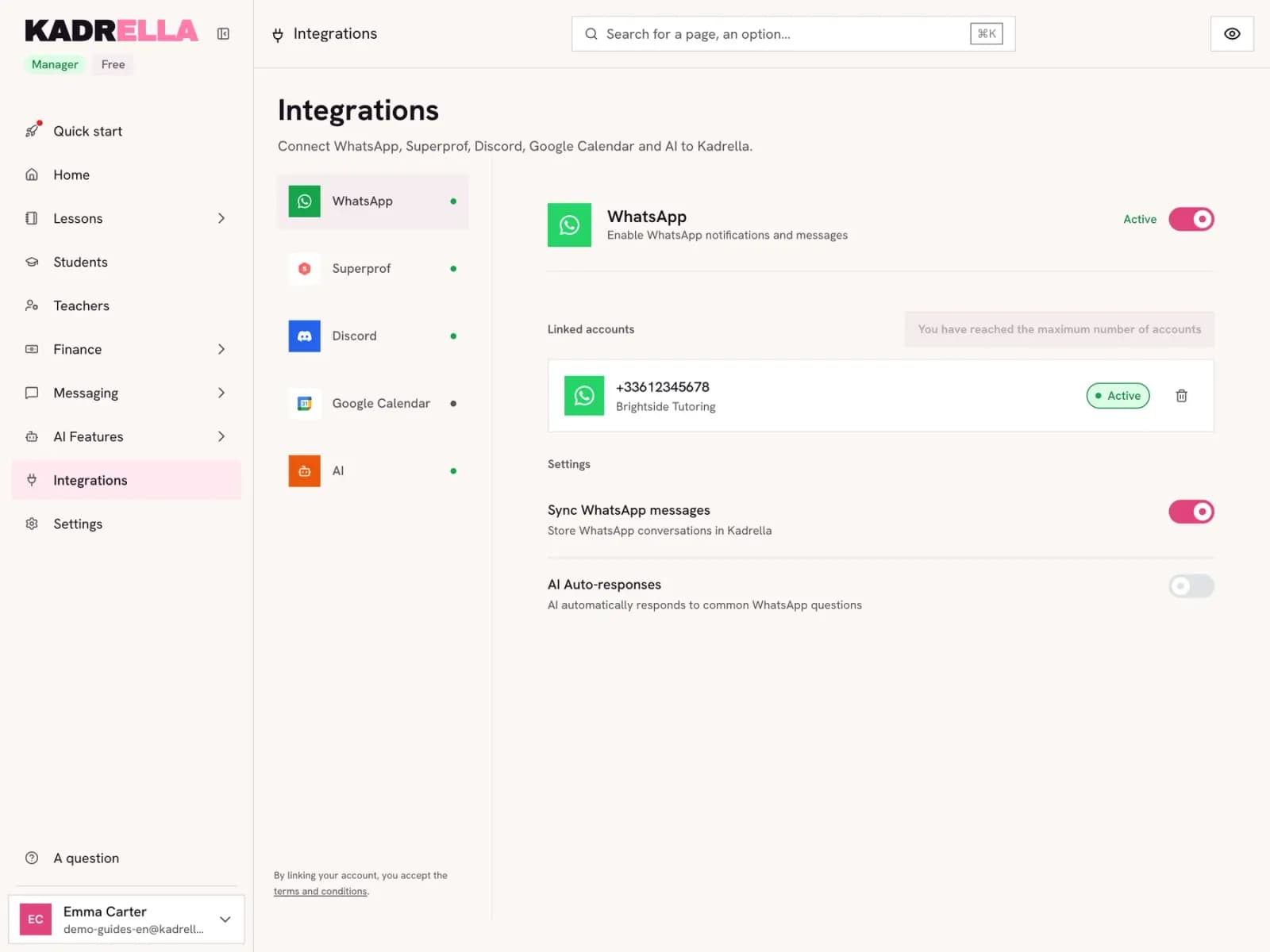
Your number is connected
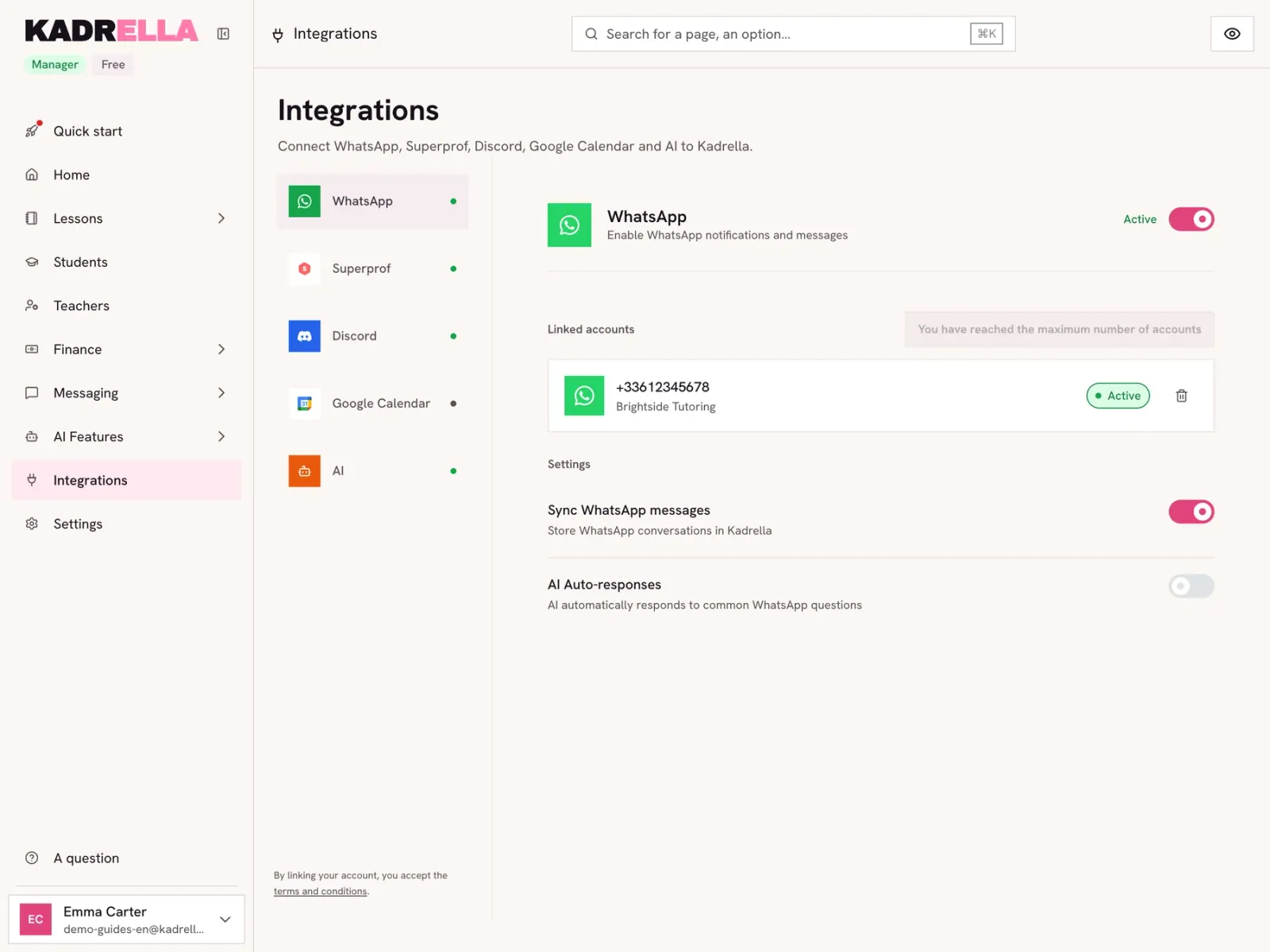
The number shows among the linked accounts with the "Active" status. The WhatsApp buttons of the lesson form, late payments and invoices now send messages from this number.
 View the full-size screenshot
- The connected number. The bin disconnects it.
| Where | Without WhatsApp | With WhatsApp |
|---|---|---|
| Lesson reminder | Sent by you | Sent from your number |
| Late payments | "Copy text" | "Send via WhatsApp" |
| Invoices | PDF to download | PDF sent on WhatsApp |
Good to know
- It is your own number: students see your messages as usual, and the conversations stay in WhatsApp on your phone.
Going further
- Feature
- WhatsApp in Kadrella
- Related reading
Screenshots taken on a demo account: names, phone numbers and amounts are made up.
Spend your Sundays teaching, not chasing payments.
Free to start, set up in minutes. No card.