A family’s automatic messages and close contacts who pay
Each student has their family in Kadrella: themselves and their close contacts (parents, or anyone who looks after them). For each person, you choose the automatic messages they get and by which channel. A person can belong to several families, for example a parent with children from two relationships, and pay for the students of each. Automatic messages are part of the Starter plan.
6 stepsStarter planScreenshots from 19 November 2026
Step 1
Open the student’s family
On the student’s record, open "Family and close contacts". The table has a row per person, the student included (marked "student"), with their phone and email. Everything is off by default: a message only goes out when a channel (WhatsApp or email) is checked for the person. Someone you add therefore starts with no message at all.
 View the full-size screenshot
- The "Family and close contacts" section.
- The note: everything is off by default.
Step 2
Choose each person’s messages
On a person’s row, tick what they get: "Lesson reminders", "Payment requests and reminders", "Paid invoices". Then the channel or channels: "WhatsApp", "Email". Without a phone number, WhatsApp is greyed out; without an email address, so is email. "Turn all on", under a column title, ticks it for the whole family. Each box is saved as soon as you click it, with no button to confirm.
 View the full-size screenshot
- A person’s boxes: messages and channels.
- "Turn all on" under a column.
Step 3
A close contact in several families
A close contact can belong to several families. For example, the mother, the father and their child in one family; the father and his son from another relationship in another. To add to this family a close contact already in Kadrella, click "Link another student's contact", search for them in "Close contact" then click "Link". They join this family without leaving their other families, and can pay for the students of each. Their boxes are set in each family. When a student has several families, their record shows them one under the other, titled "Family 1", "Family 2".
 View the full-size screenshot
- The "Close contact", searched by name.
- "Link".
Step 4
What is set for the student
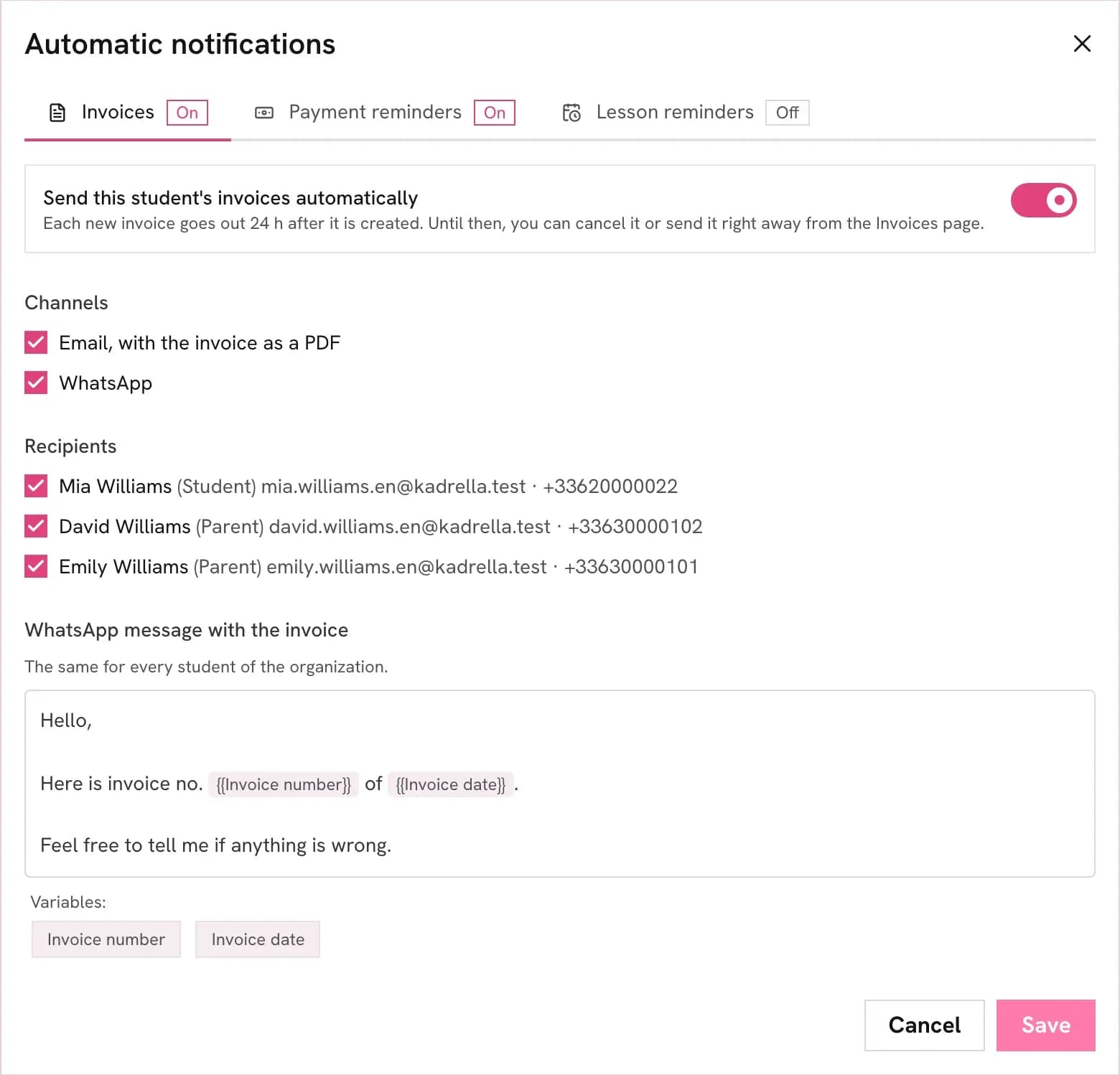
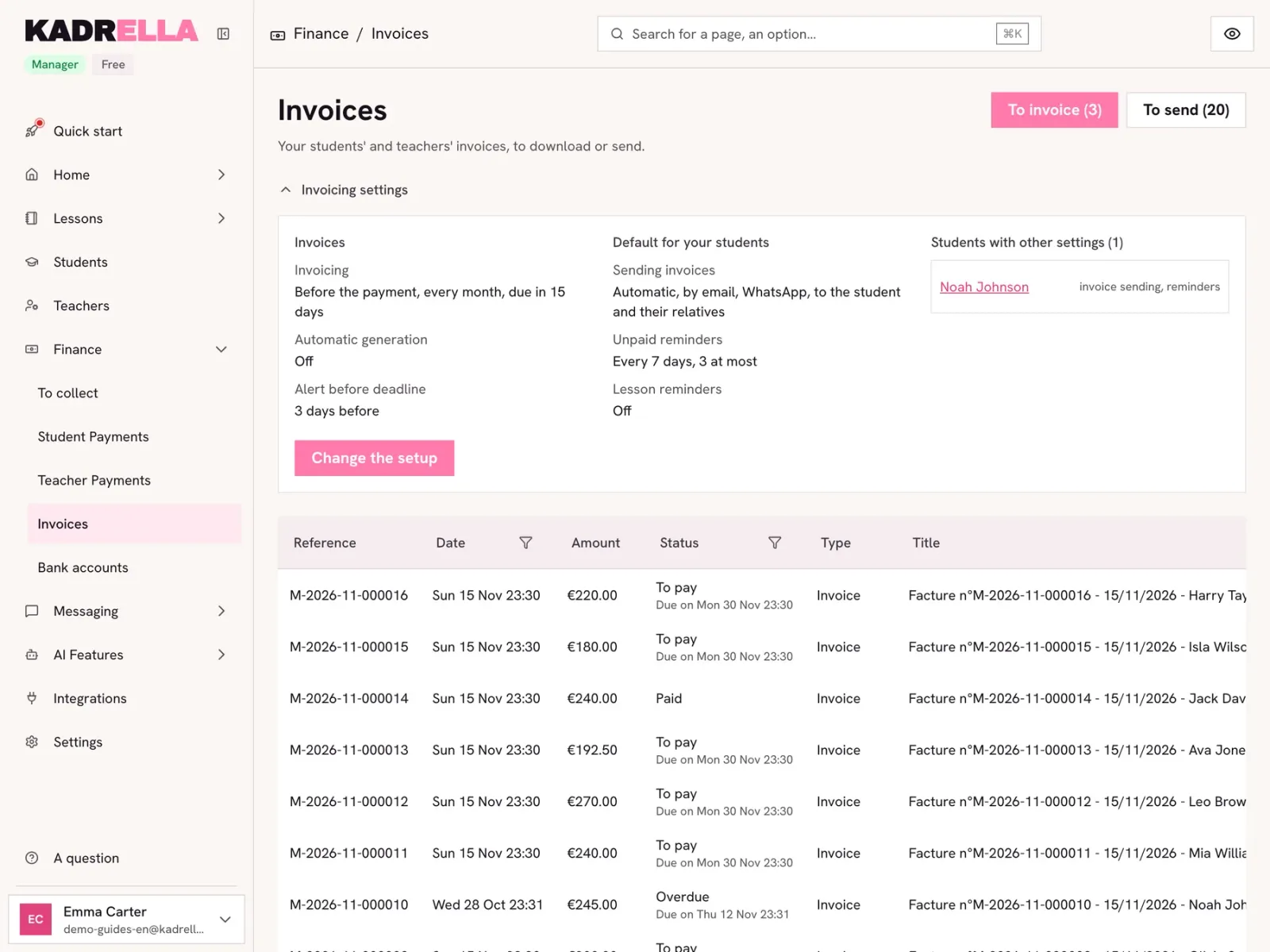
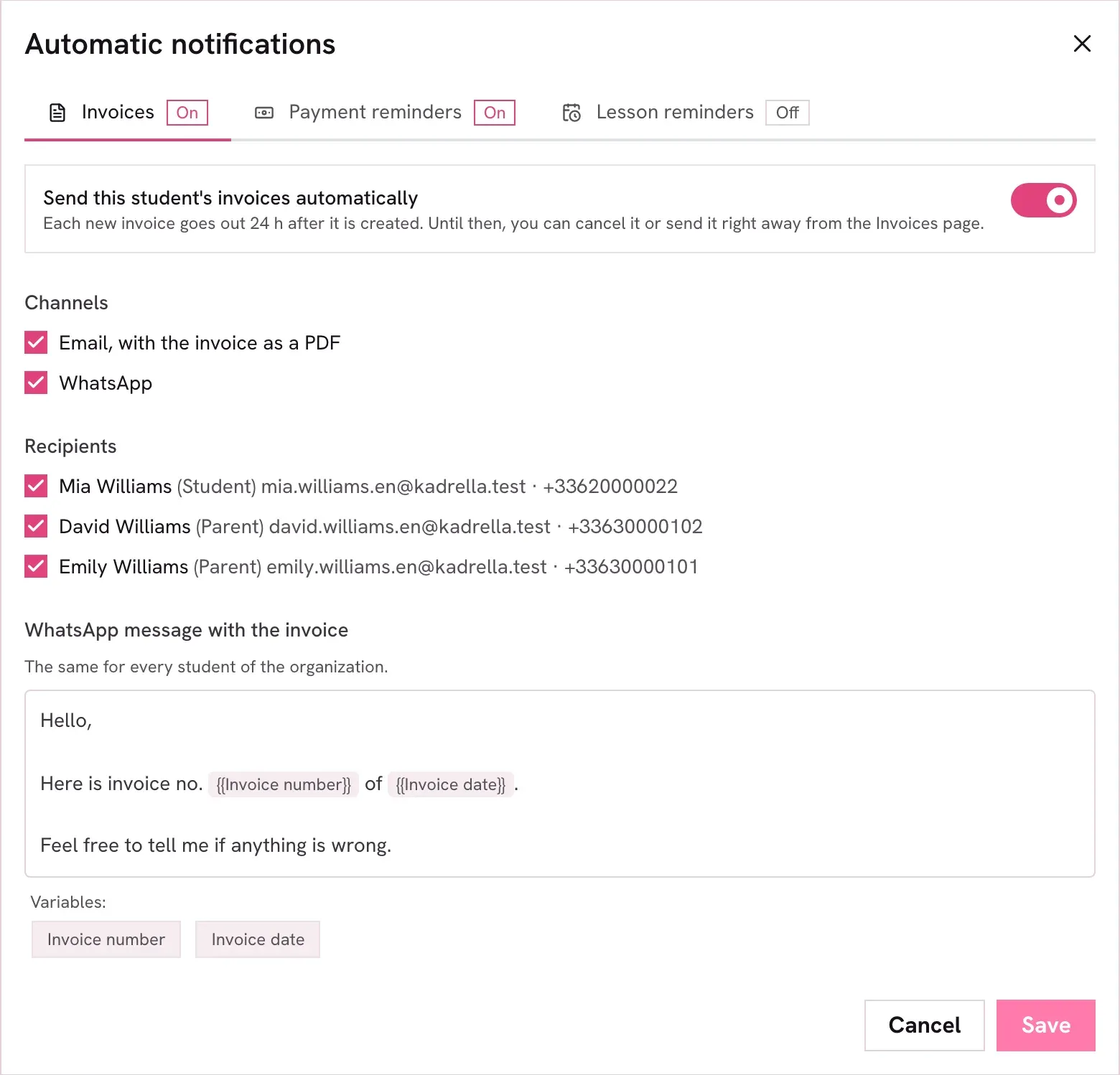
In "Quick Actions", "Automatic notifications" opens the "Automatic messages" window. For this student, the "Lesson reminders" tab sets when their reminders go out ("When") and whether "The lesson's teacher" gets one. The message texts are the same for every student of the organization, and the payment request and reminder timings are set once for the whole organization in the invoicing setup. "Save" confirms the window.
 View the full-size screenshot
- The student’s settings.
- "Save".
Step 5
Add, link or remove a close contact
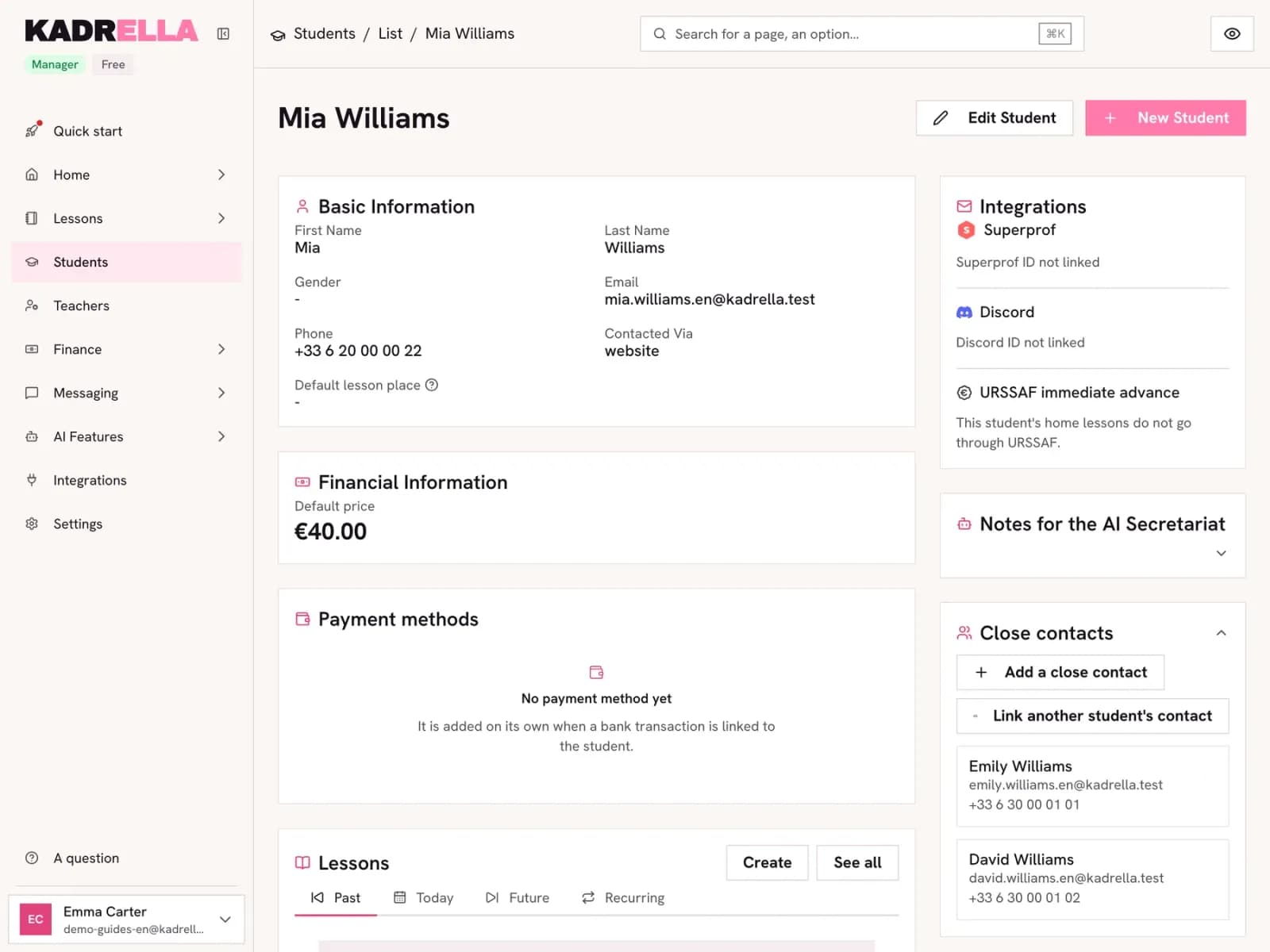
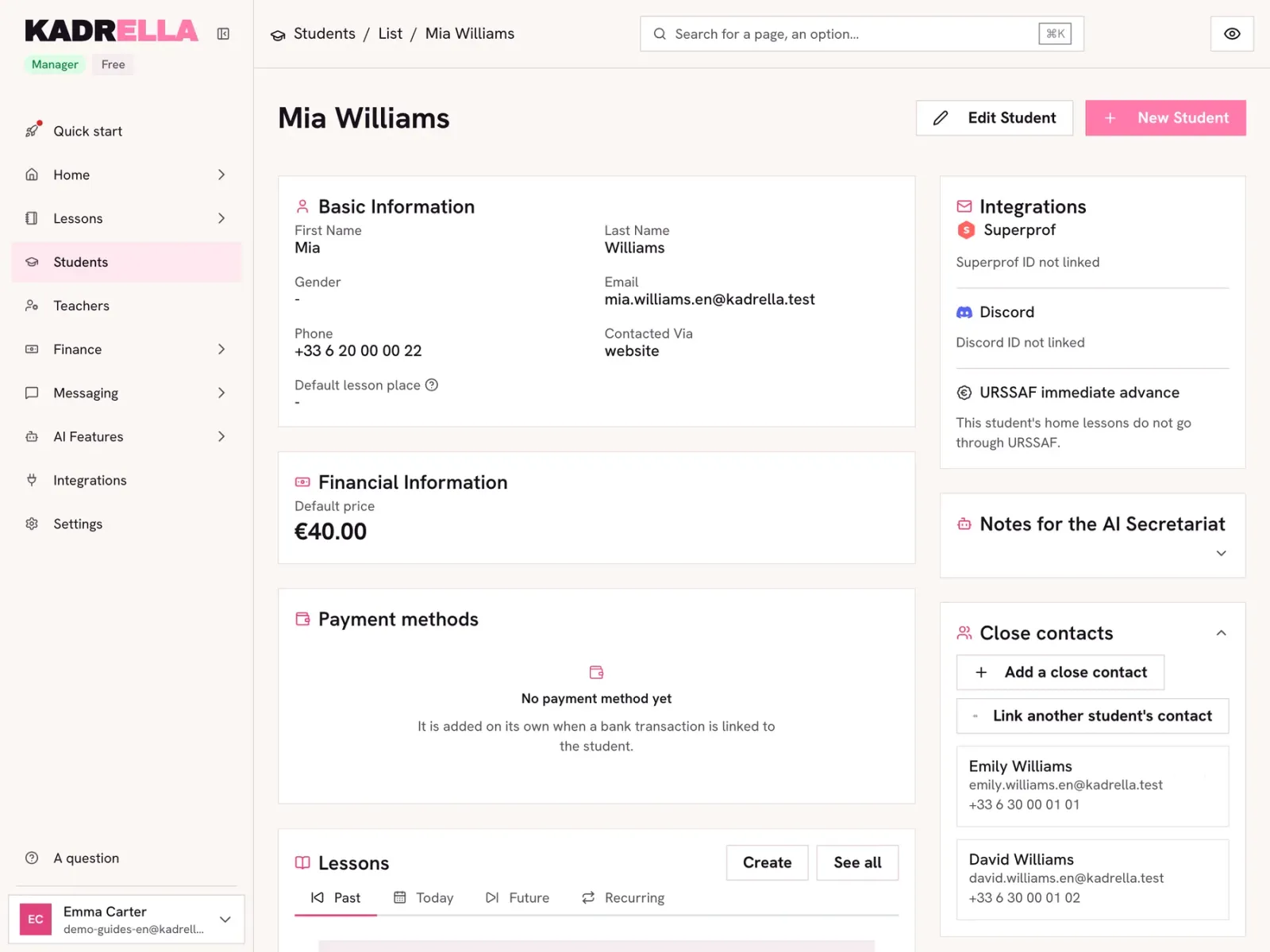
Above a family’s table, "Add a close contact" creates a person with their first name, last name, email and phone, in this family. "Link another student's contact" reuses a close contact already in Kadrella, searched by name: they join this family without leaving their other families, and can pay for the students of each. On a close contact’s row, the "Remove from this family" icon removes them from this family only: they stay in Kadrella, with their other families.
 View the full-size screenshot
- "Add a close contact".
- "Link another student's contact".
- "Remove from this family".
Step 6
Say who pays
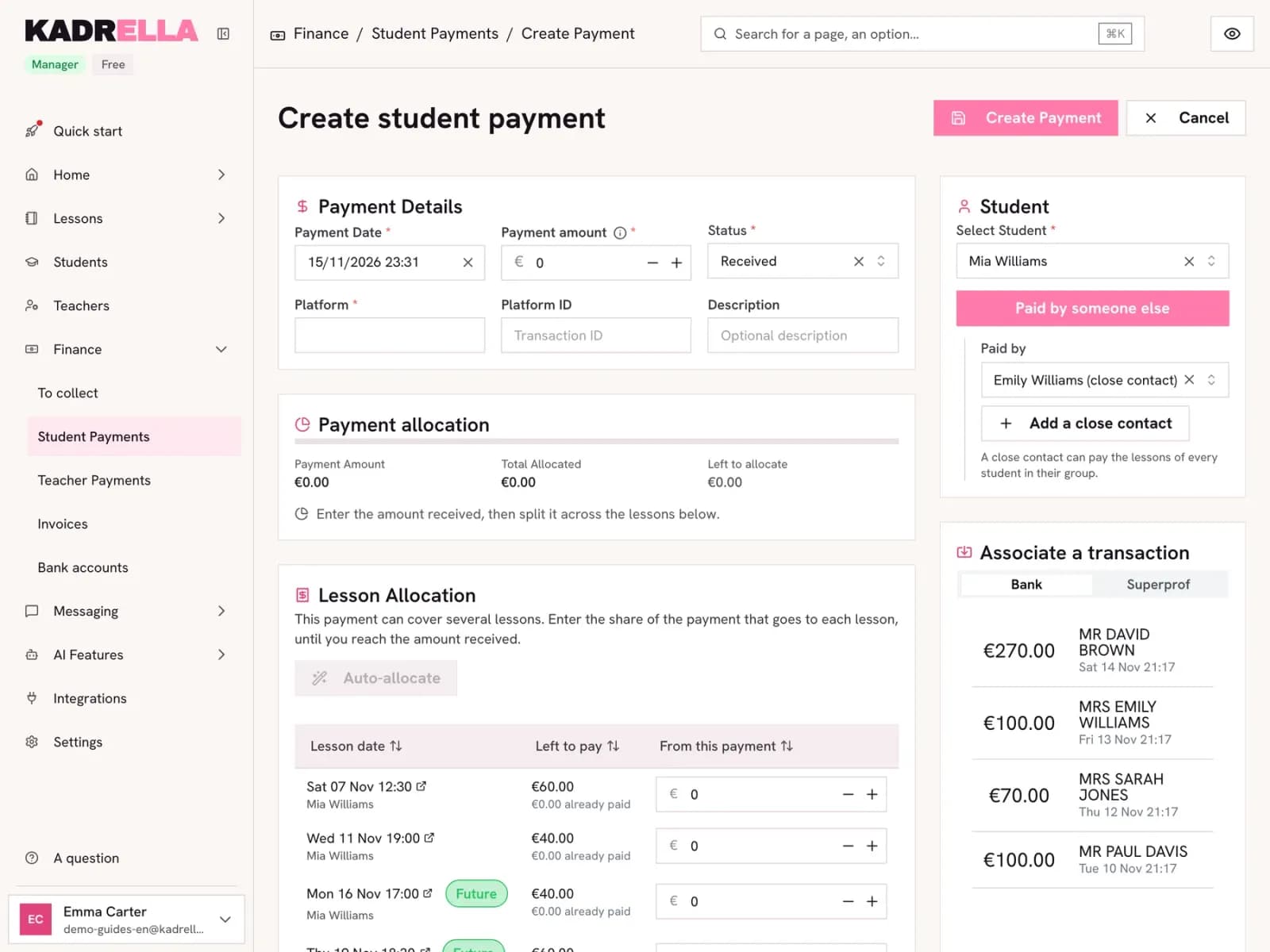
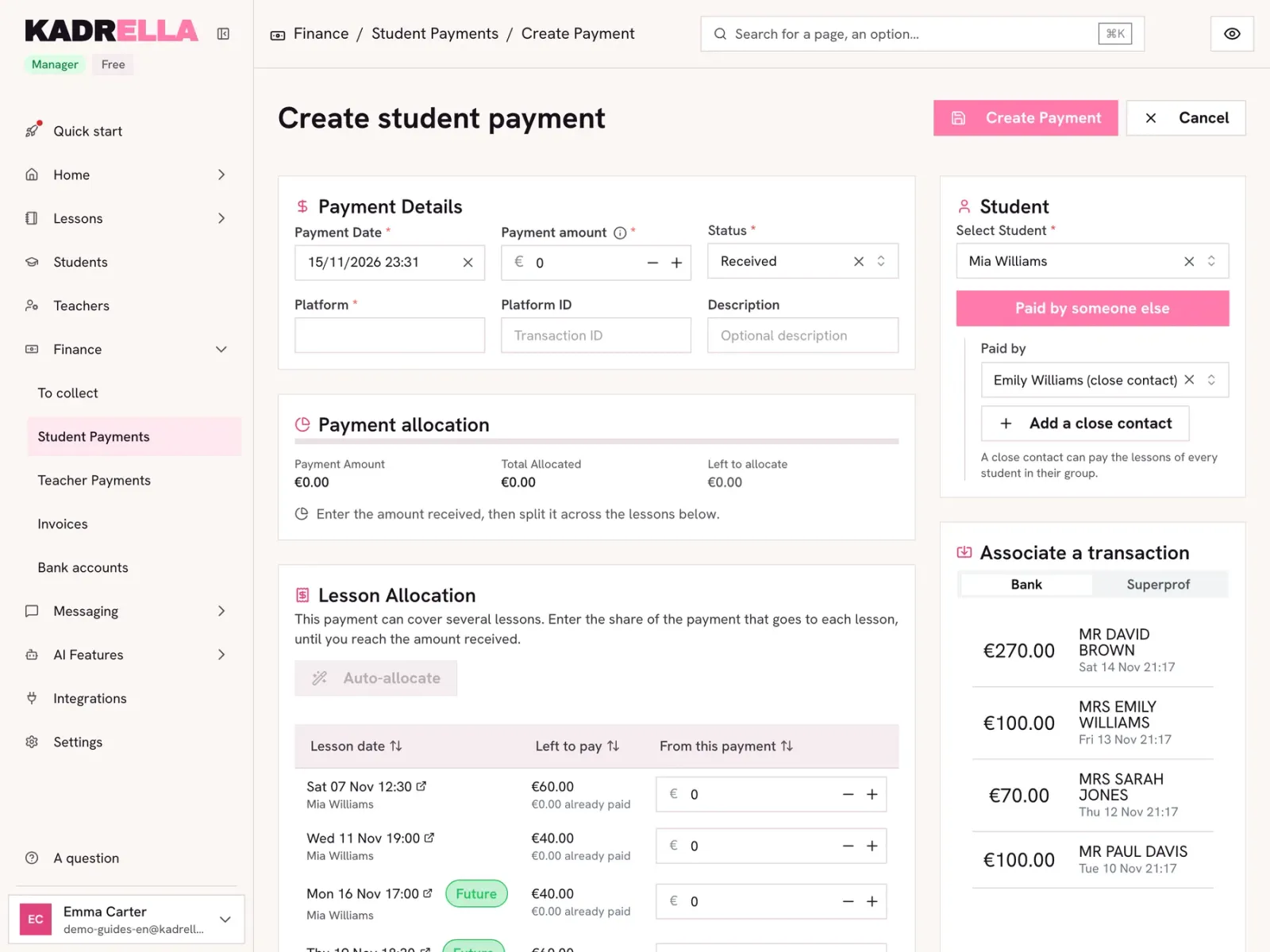
In "Finance", "Student Payments", create or open a payment. Turn on "Paid by someone else", then pick in "Paid by" a close contact or a student of the same group. A close contact can pay the lessons of the students of each of their families: the allocation then offers the unpaid lessons of each of them. In the lists, the payment shows "Paid by" followed by the name.
 View the full-size screenshot
- "Paid by someone else".
- The contact who pays.
Good to know
- A close contact’s bank account sits in "Payment methods" on the student’s record ("Move to a close contact" moves one of the student’s accounts there). Their transfers are then matched to the students of their families, first to the one with unpaid lessons.
Going further
- Feature
- Student management
Screenshots taken on a demo account: names, phone numbers and amounts are made up.
Spend your Sundays teaching, not chasing payments.
Free to start, set up in minutes. No card.