Set up invoicing
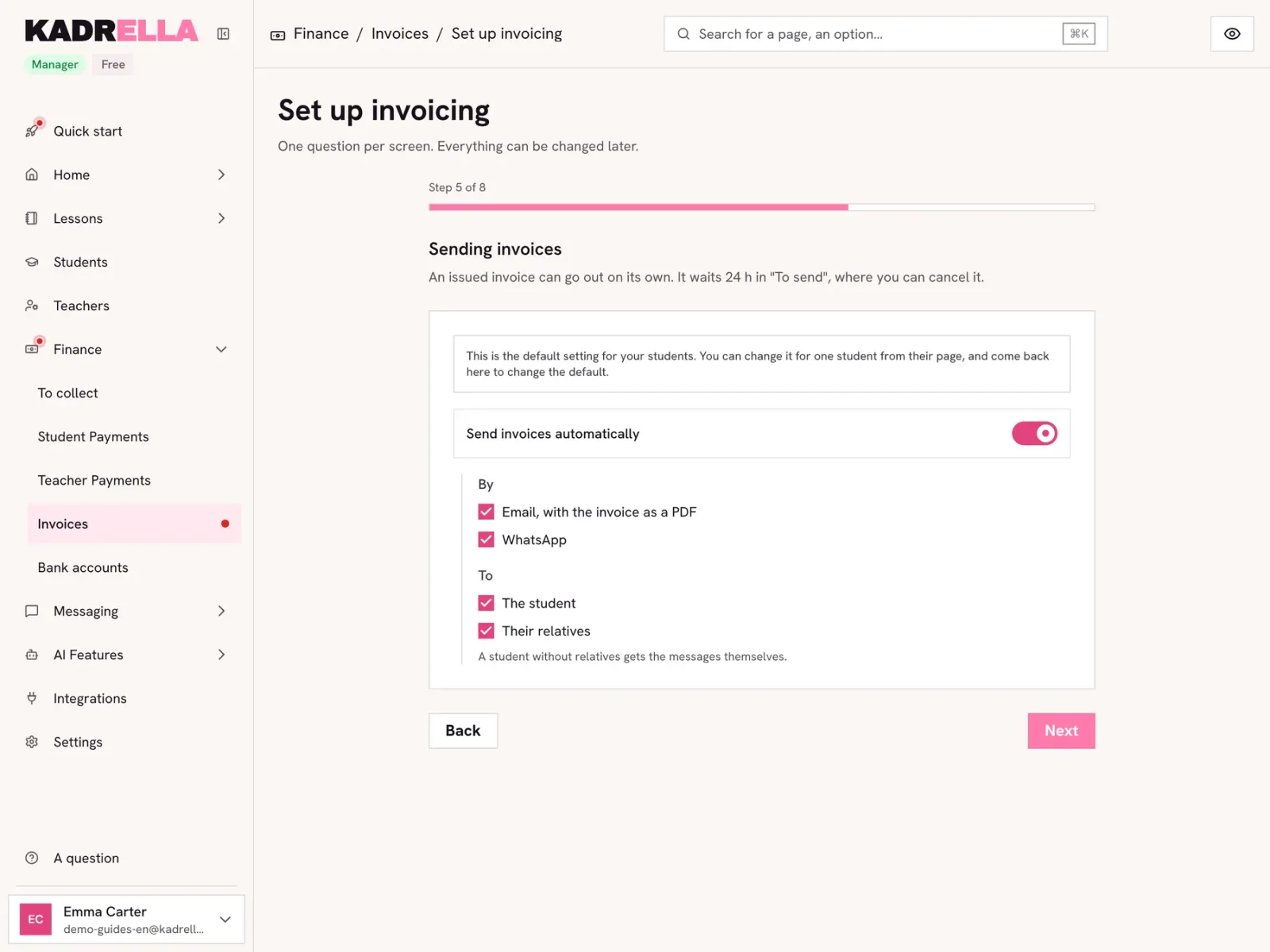
The "Set up invoicing" assistant asks one question per screen: your legal details, your invoices, when to invoice, where lessons take place, the timings of payment requests and reminders, then which lessons the first invoices take. Each screen is saved when you leave it, and "Finish" starts invoicing. Everything can be changed later. Who gets the messages is chosen elsewhere, person by person, on each student’s record. Invoicing is part of the Starter plan: even a tutor working alone needs invoices before anything else.
8 stepsStarter planScreenshots from 20 November 2026
Step 1
Start the assistant
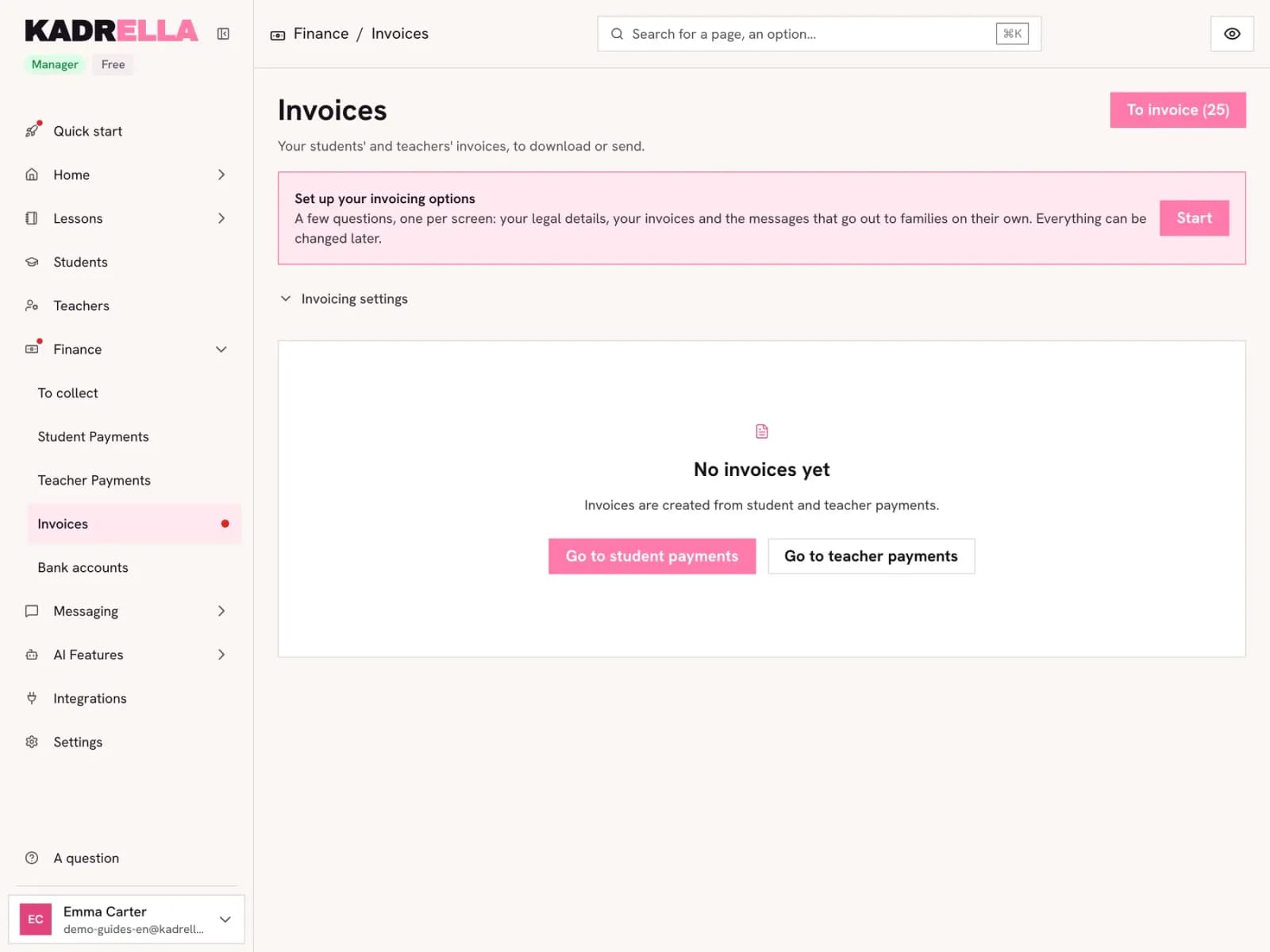
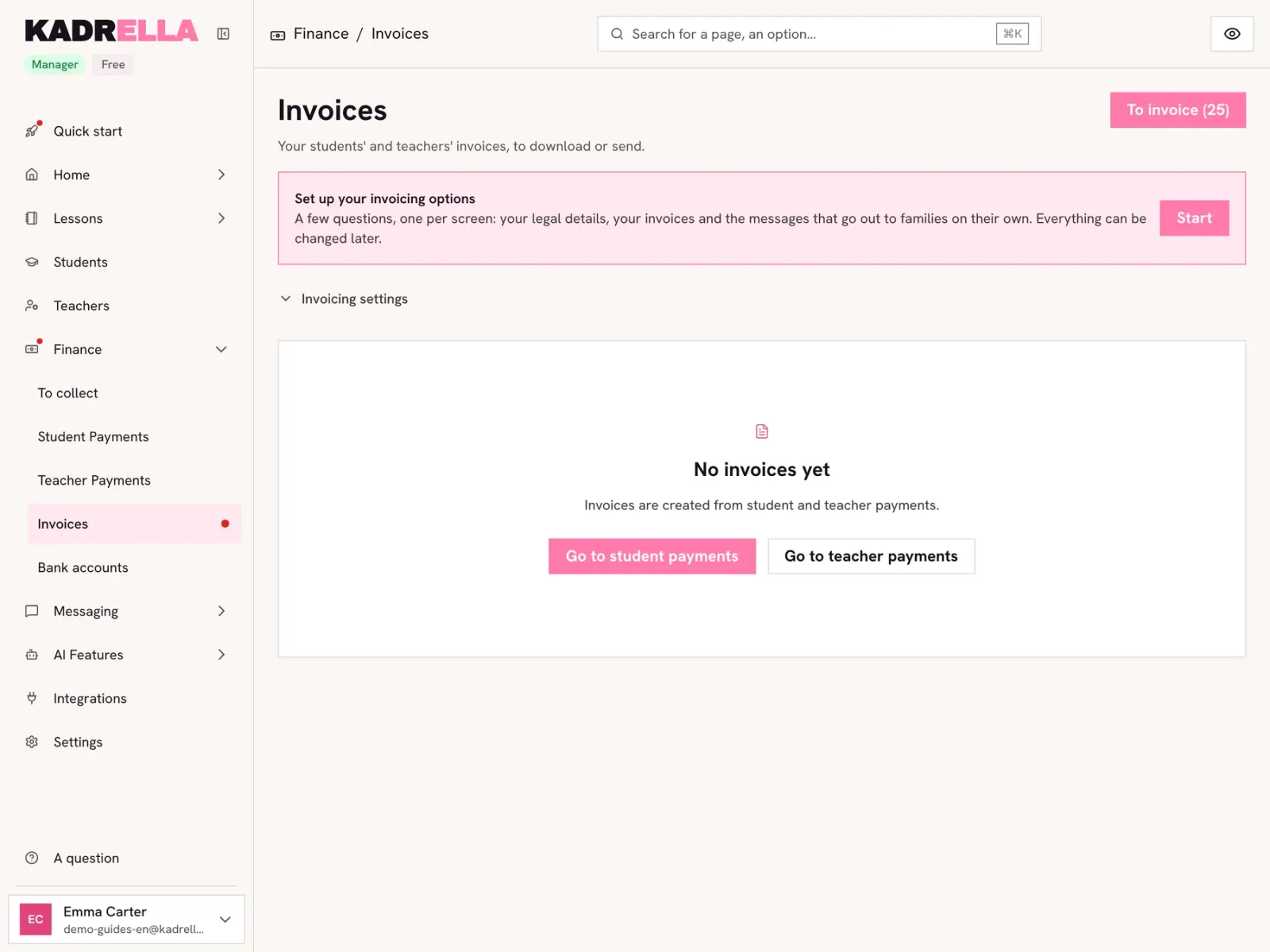
In "Finance", open "Invoices". Until invoicing is set up, a "Set up your invoicing options" box shows at the top of the page: click "Start". A bar shows the current step, "Back" and "Next" move between screens. Without a subscription, "Start" first offers to subscribe; the list of existing invoices stays available.
 View the full-size screenshot
- "Start" opens the assistant.
Step 2
Your legal details
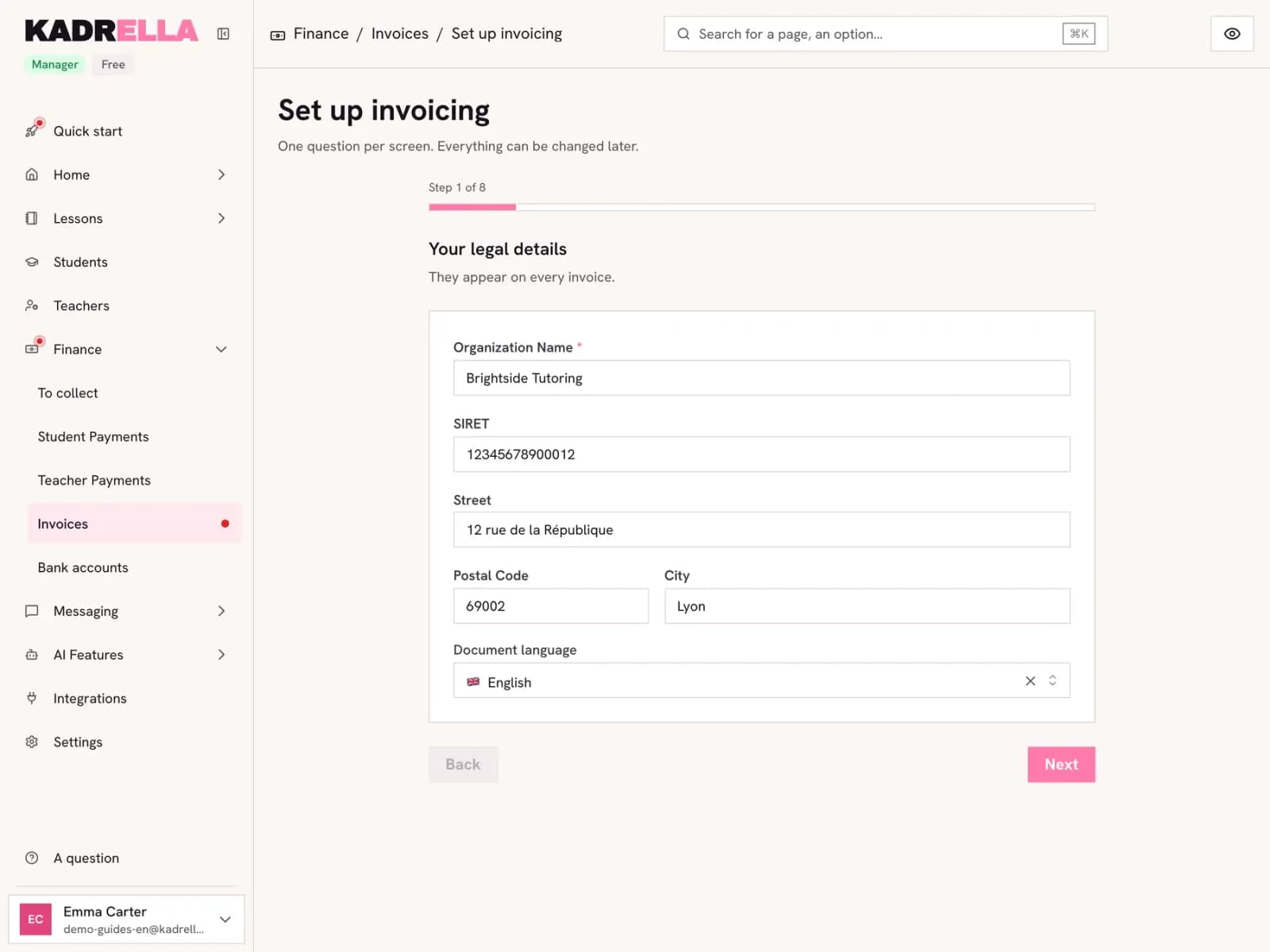
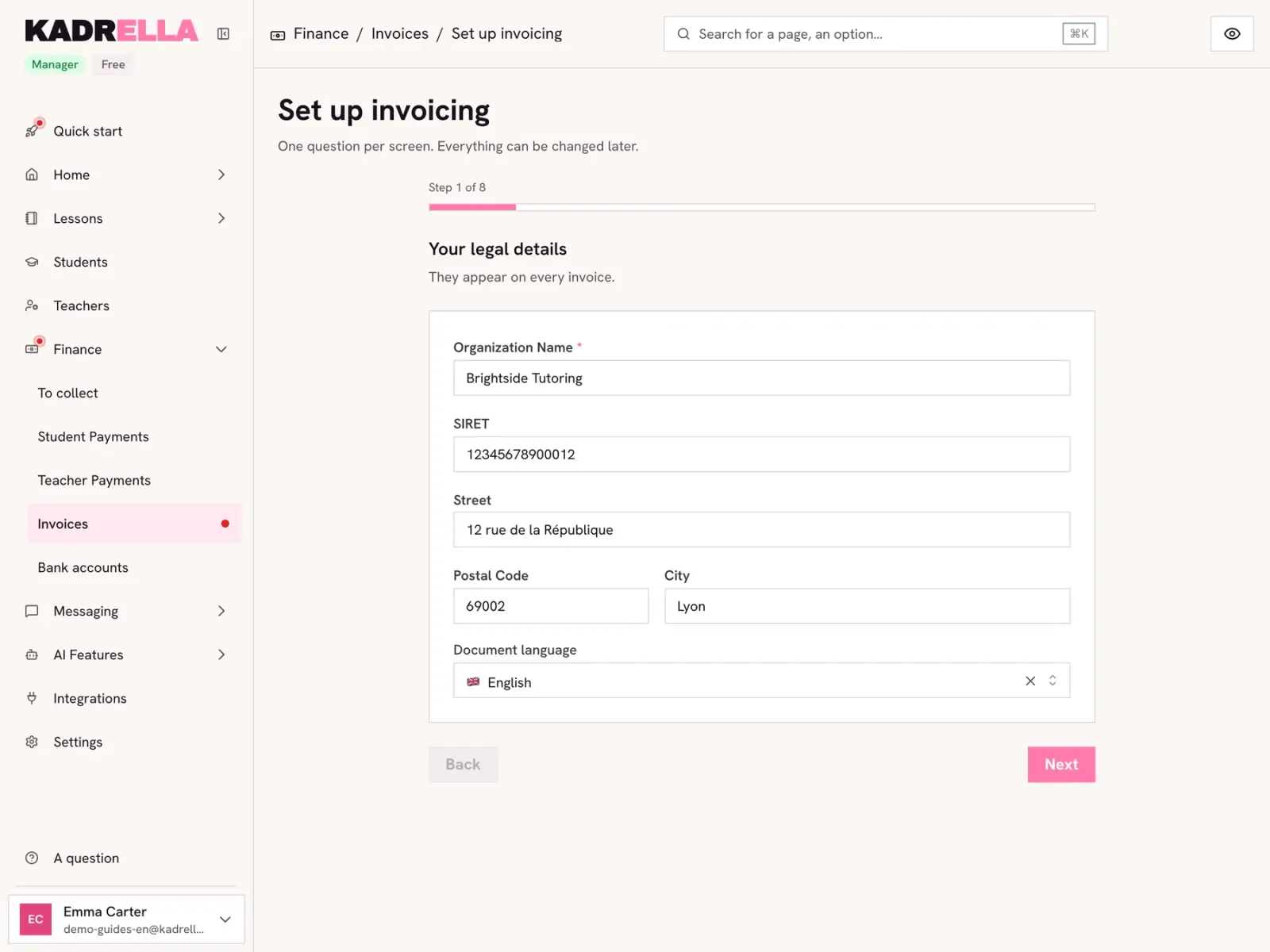
Enter the organization name (required), your company number (the SIRET in France), the address and the "Document language". They show on every invoice. Without a name and a company number, no invoice can be issued: you can add them later in Settings > Organization.
 View the full-size screenshot
- The company number printed on invoices.
- The language of the invoices.
Step 3
Your invoices
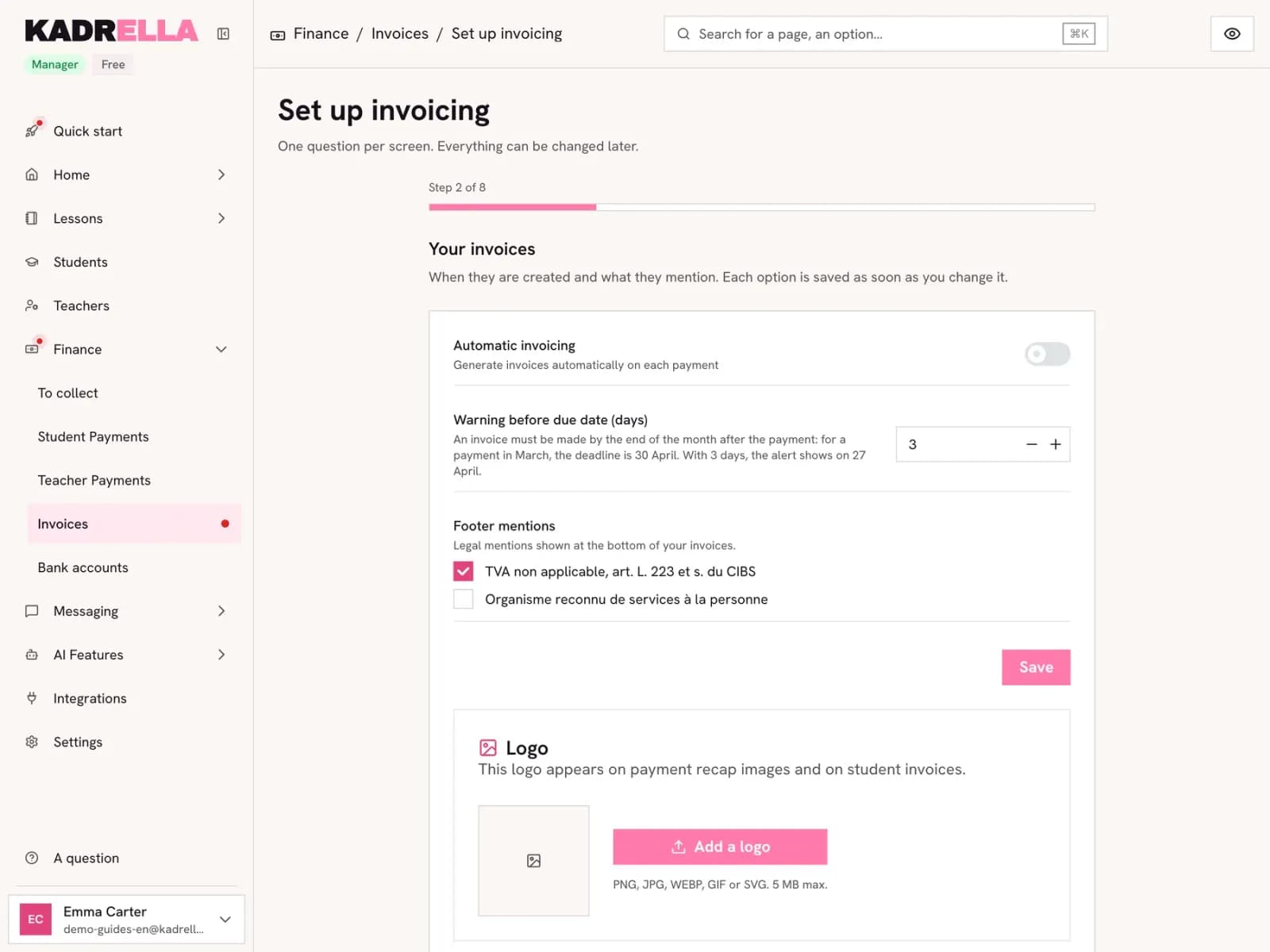
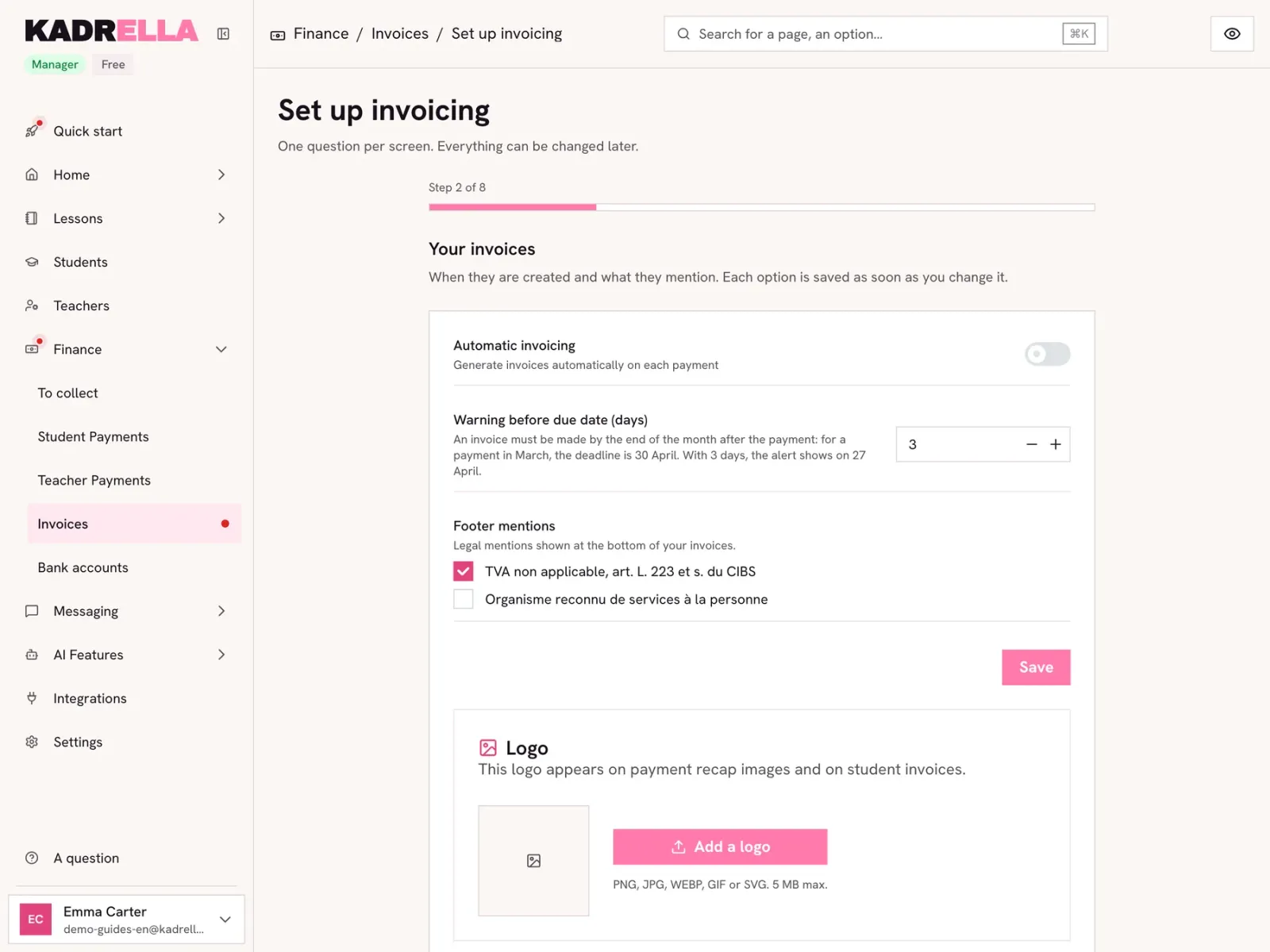
Each option on this screen is saved as soon as you change it. "Automatic mandate invoices" is about the payments you make to your tutors: each one gets its mandate invoice (number A-) without you doing anything, two weeks after its date. "Warning before due date (days)" sets when Kadrella tells you a tutor payment is still waiting for that invoice. For an organization in France, "Footer mentions" adds legal mentions at the bottom of invoices. The logo added here shows on invoices and on payment recap images.
 View the full-size screenshot
- "Automatic mandate invoices".
- The invoice logo.
Step 4
When to invoice?
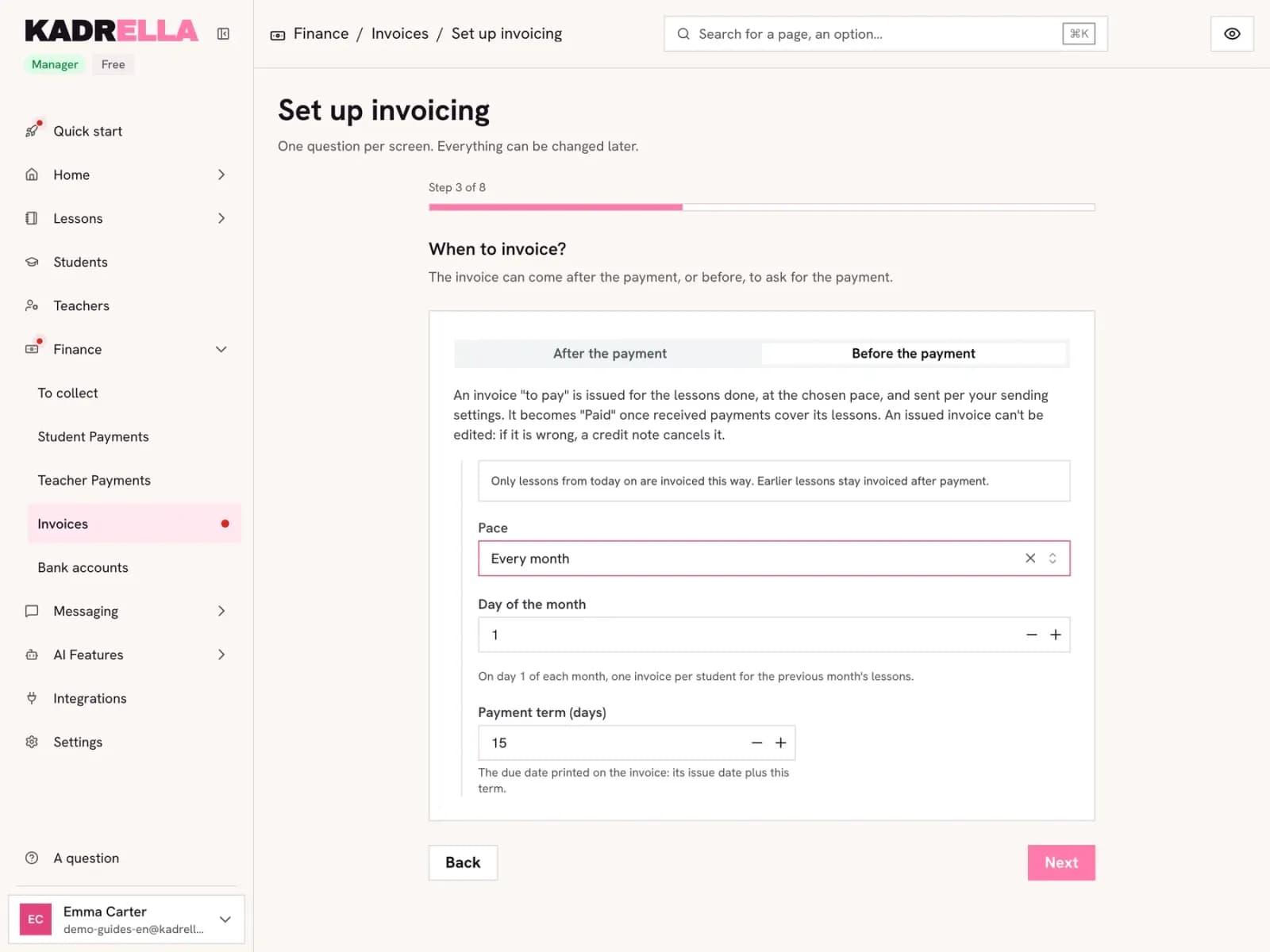
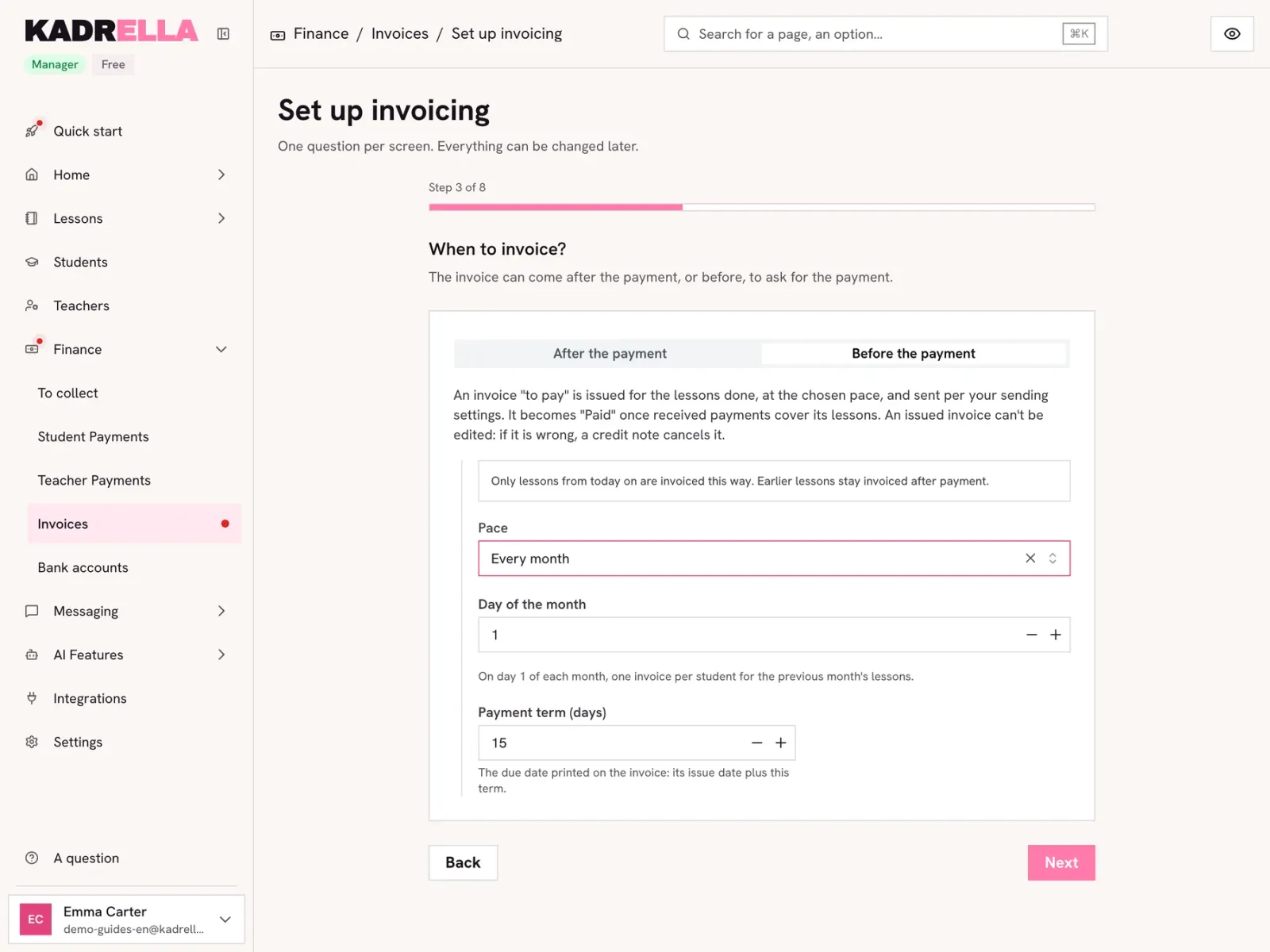
Kadrella invoices lessons once they are done. At the chosen "Pace", each student gets one invoice with every lesson done and not invoiced yet, paid or not. It starts as a draft, without a number: you can check it, issue it or delete it. If you do nothing, it is issued 24 h later and gets its number, following the previous ones (M-2026-11-000001). The due date is the issue date plus the "Payment term (days)". The invoice is "To pay" until received payments cover its lessons, then turns "Paid" on its own. A lesson already paid (paid in advance, Superprof) is on it like the others. This follows French rules: an invoice is made once the service is done, and one recap invoice a month is allowed (BOFiP, BOI-TVA-DECLA-30-20-10-40).
 View the full-size screenshot
- The invoice "Pace".
- The day they are prepared.
- The term that sets the due date.
Good to know
- The drafts of an automatic pace are prepared from 8 am, your organization’s time, and issued 24 h later.
- A recap invoice must be issued by the end of the month at the latest, with a few days’ delay tolerated: on the monthly pace, pick a day at the very start of the month.
- A past lesson still pending is not invoiced. They are listed in Lessons > Warnings, section "Past lessons still pending" (the menu shows how many): "Confirm", on a lesson’s row, marks it as done. A pending lesson that is fully paid turns "Confirmed" by itself.
- An issued invoice can no longer be changed: if there is a mistake, a cancellation invoice cancels it.
The invoicing paces Pace What Kadrella prepares After each lesson One invoice per lesson, once the lesson is done. Every week On the "Issue day", one invoice per student with their lessons done and not invoiced yet. Every 2 weeks The same, every other week. Every month On the chosen "Day of the month", one invoice per student for their lessons of the previous months not invoiced yet. Step 5
Payment requests and reminders
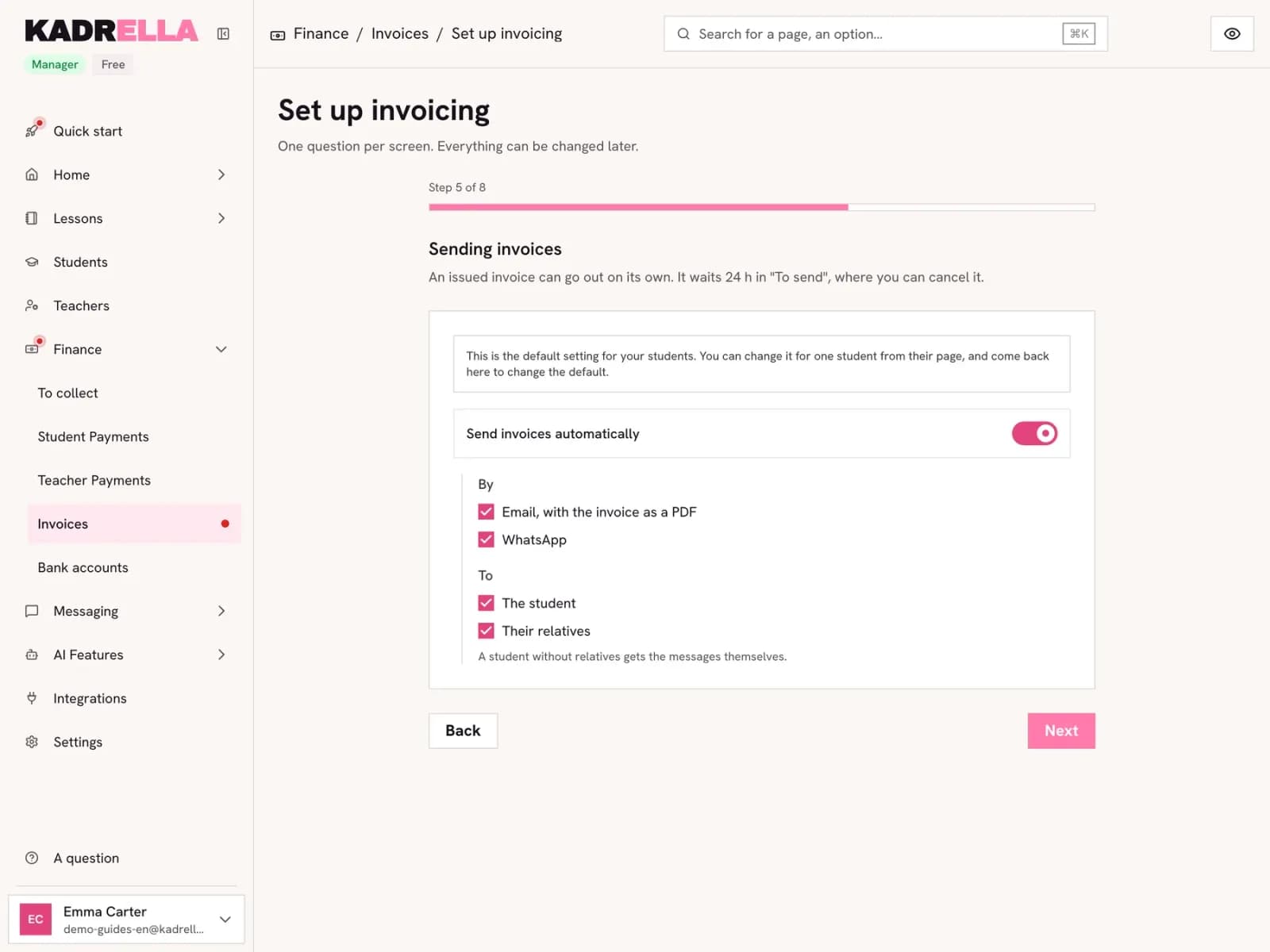
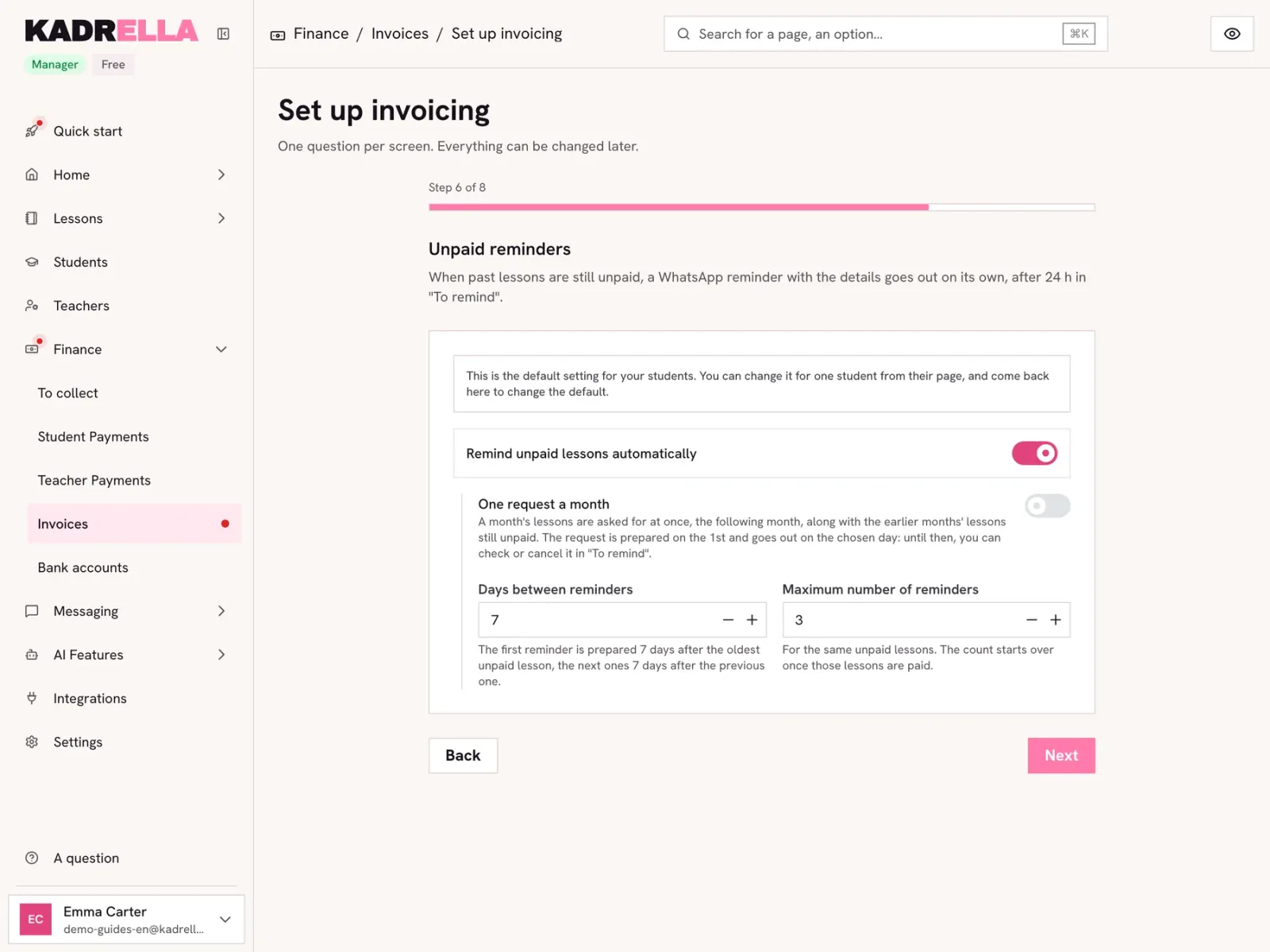
One setting for the whole organization. "Payment request (days after the invoice is issued)": the unpaid invoice goes out that many days after it is issued (0: as soon as it is issued). "Then a reminder every … days": the gap between two reminders while it stays unpaid. "Maximum number of reminders": the cap, per invoice. Messages go between 10 am and 8 pm, and the payment is checked right before. The guide on automatic reminders details what goes out, by which channel and when.
 View the full-size screenshot
- The payment request delay.
- The gap between two reminders.
- The "Maximum number of reminders".
Step 6
Who gets the messages
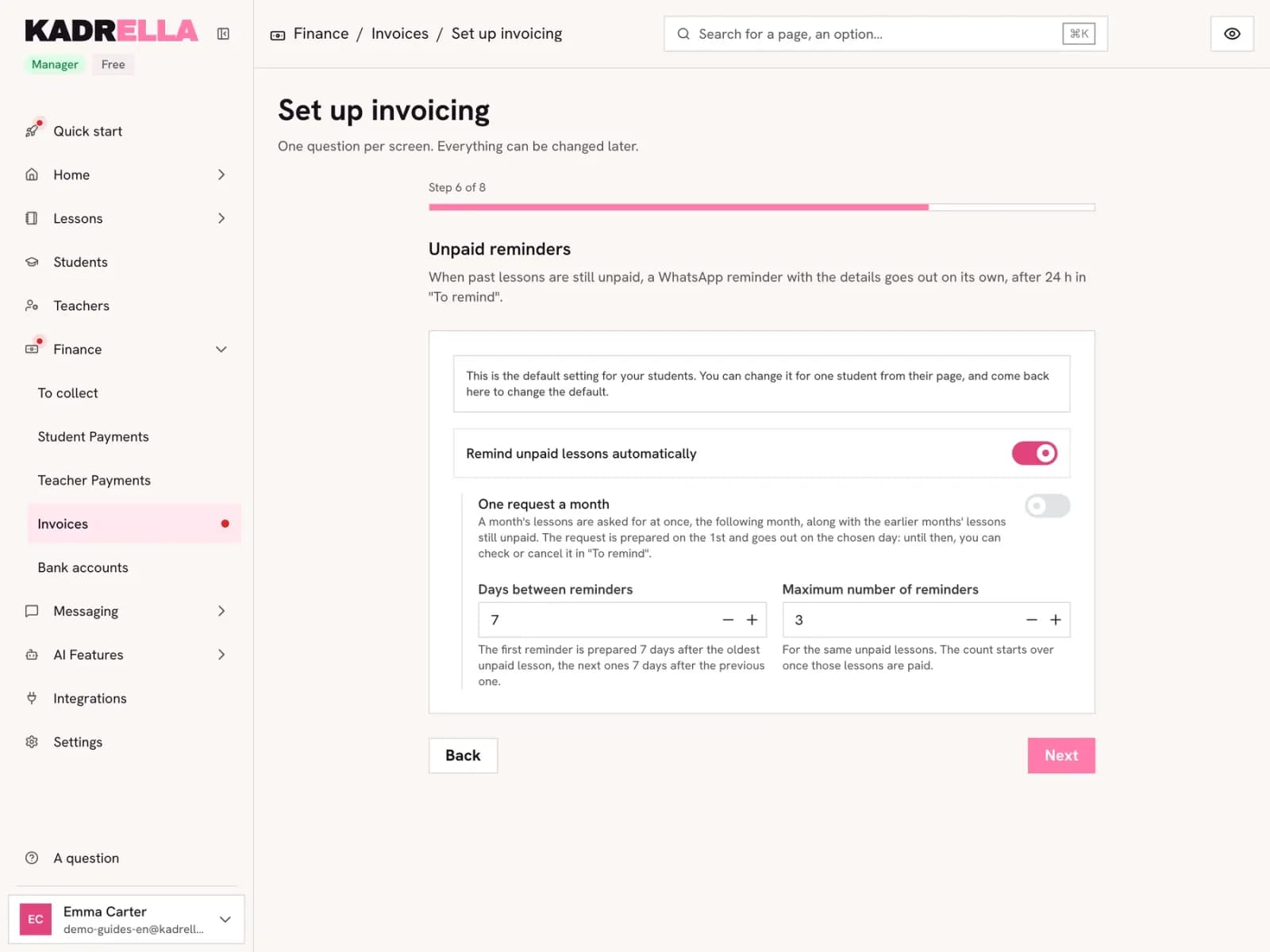
The assistant does not pick the recipients. On each student’s record, the "Family and close contacts" section has a row per person (the student included) with their messages ("Lesson reminders", "Payment requests and reminders", "Paid invoices") and their channels ("WhatsApp", "Email"). Everything is off by default: until something is ticked, no invoice or reminder goes out. If a Superprof account is linked, a "Superprof" screen of the assistant also offers "Catch up owed lessons through Superprof" for your students from Superprof.
 View the full-size screenshot
- The "Family and close contacts" section.
Step 7
Which lessons to invoice?
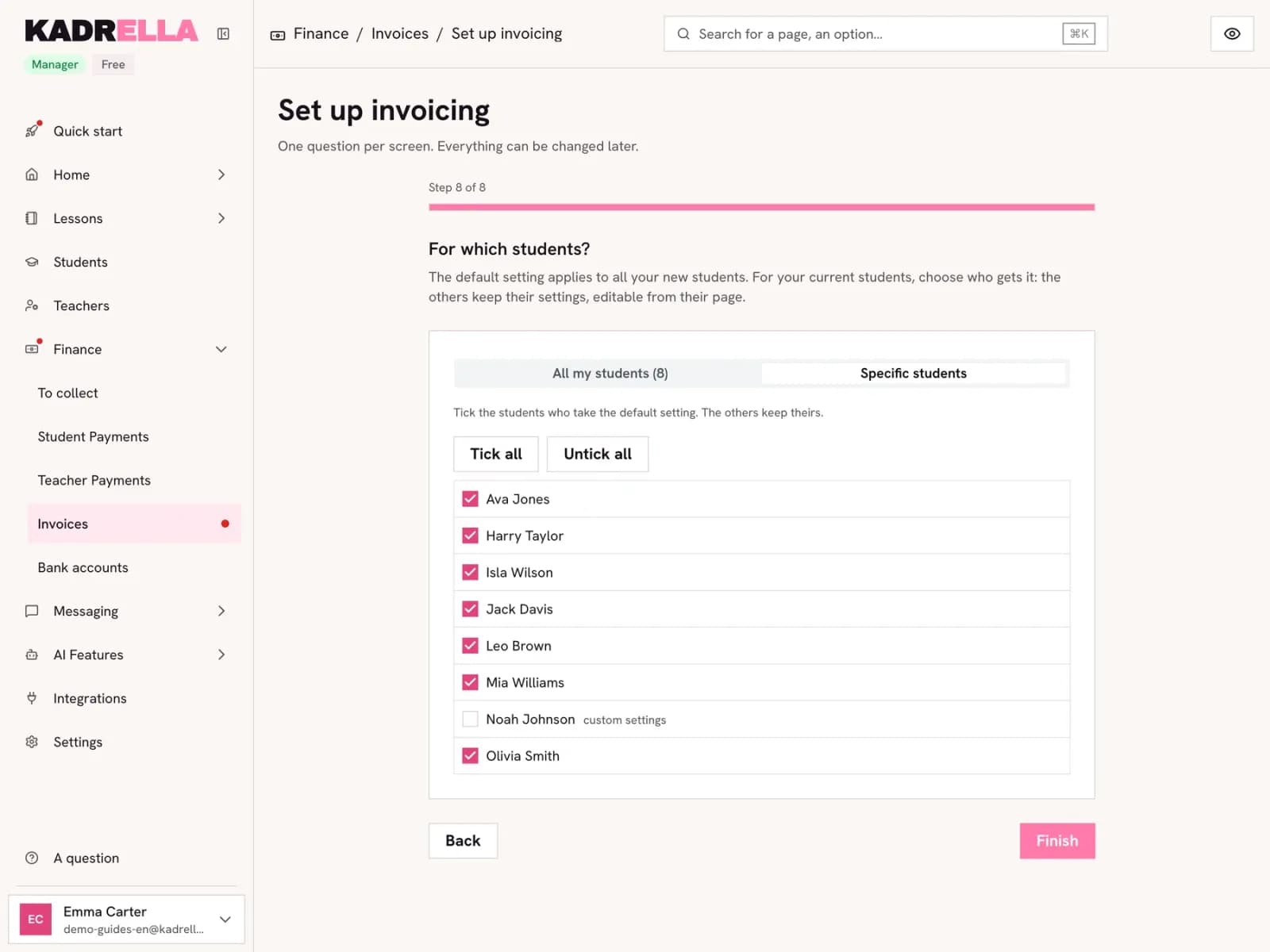
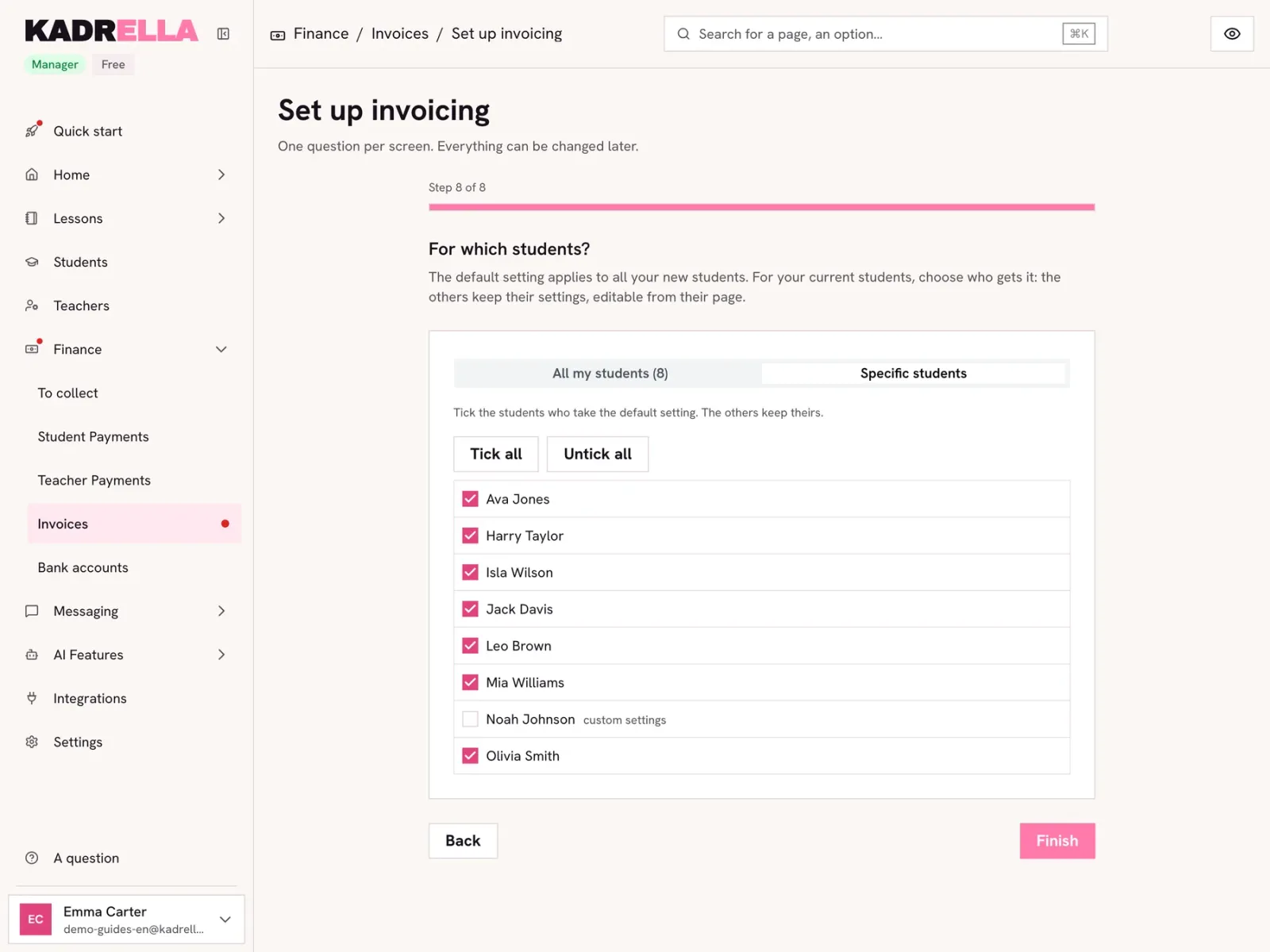
Last screen, the first time: say which lessons the first invoices take. "Only from now on": lessons done before today won’t be invoiced. "Invoice every past lesson without an invoice": every past lesson without an invoice, even an old one, gets an invoice. They arrive as drafts, which you can check, issue or delete all before they are issued automatically 24 h later. Click "Finish": you are back on the Invoices page.
 View the full-size screenshot
- "Only from now on".
- "Invoice every past lesson without an invoice".
- "Finish" starts invoicing.
Good to know
- While drafts are waiting, a banner on the Invoices page offers "Issue all", or "Delete all and invoice from now on": the drafts are deleted and their lessons won’t be invoiced.
Step 8
Find your invoicing settings
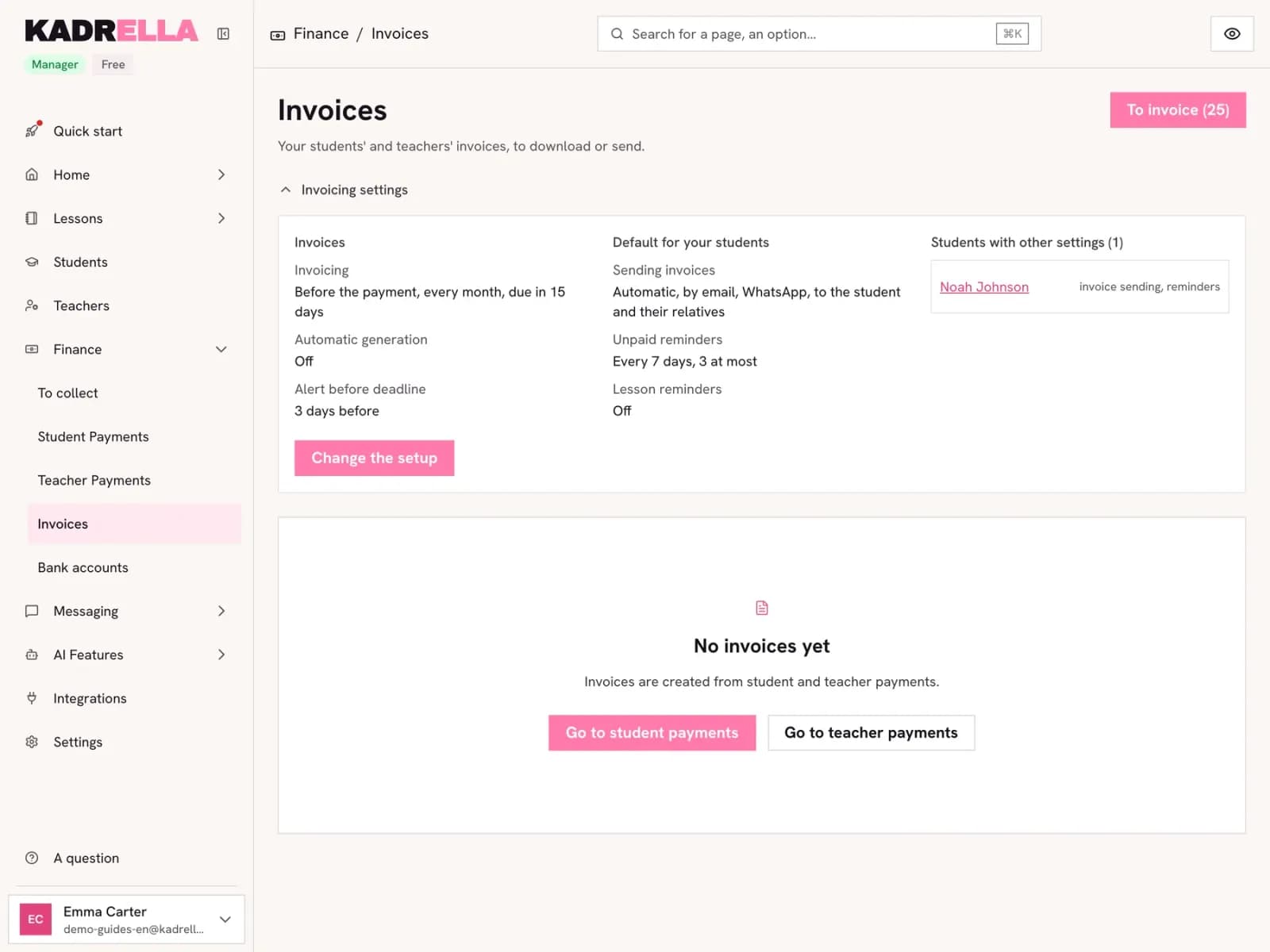
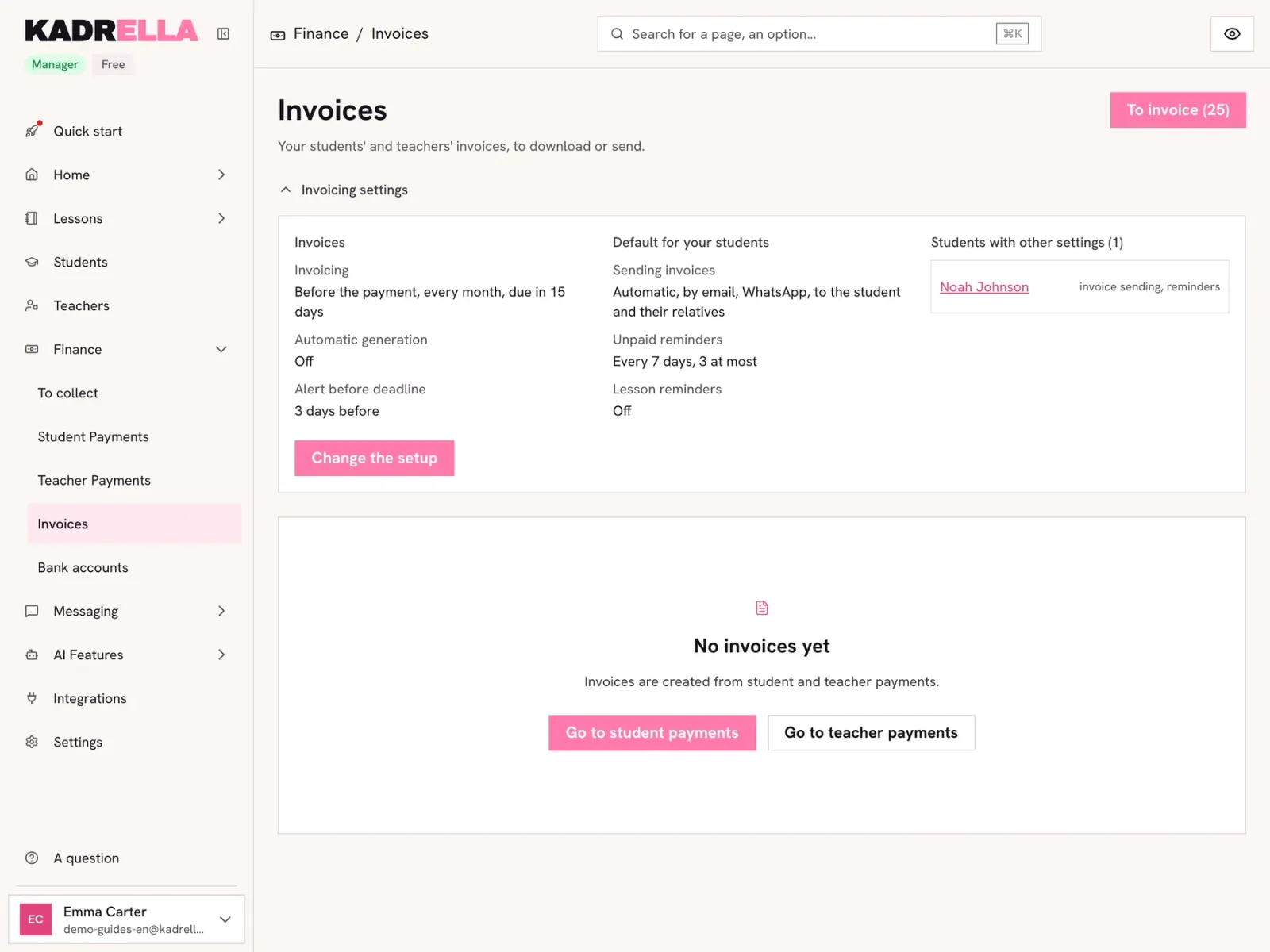
At the top of the Invoices page, open "Invoicing settings": the invoice pace and due date, the mandate invoices, then "Payment requests and reminders" with the request delay and the reminder timing. "Change the setup" opens the assistant again with your current settings.
 View the full-size screenshot
- "Invoicing settings".
- "Change the setup".
Good to know
- A "Where lessons take place" screen reminds you that each student has a default lesson place, chosen on their record: their new lessons take it, and a lesson can have another place on its page.
- While your subscription is paused, no invoice is prepared or issued. When you come back, the lessons of the pause are invoiced, as drafts.
Going further
- Feature
- Invoicing
Screenshots taken on a demo account: names, phone numbers and amounts are made up.
Spend your Sundays teaching, not chasing payments.
Free to start, set up in minutes. No card.