Issue, send and cancel an invoice
Once invoicing is set up, the Invoices page does four things: issue what is waiting for an invoice, check drafts before they are issued, follow what is paid and cancel a wrong invoice. An issued invoice can no longer be changed or deleted: to fix a mistake, you cancel it with a cancellation invoice.
4 stepsStarter planScreenshots from 19 November 2026
Step 1
Issue the pending invoices
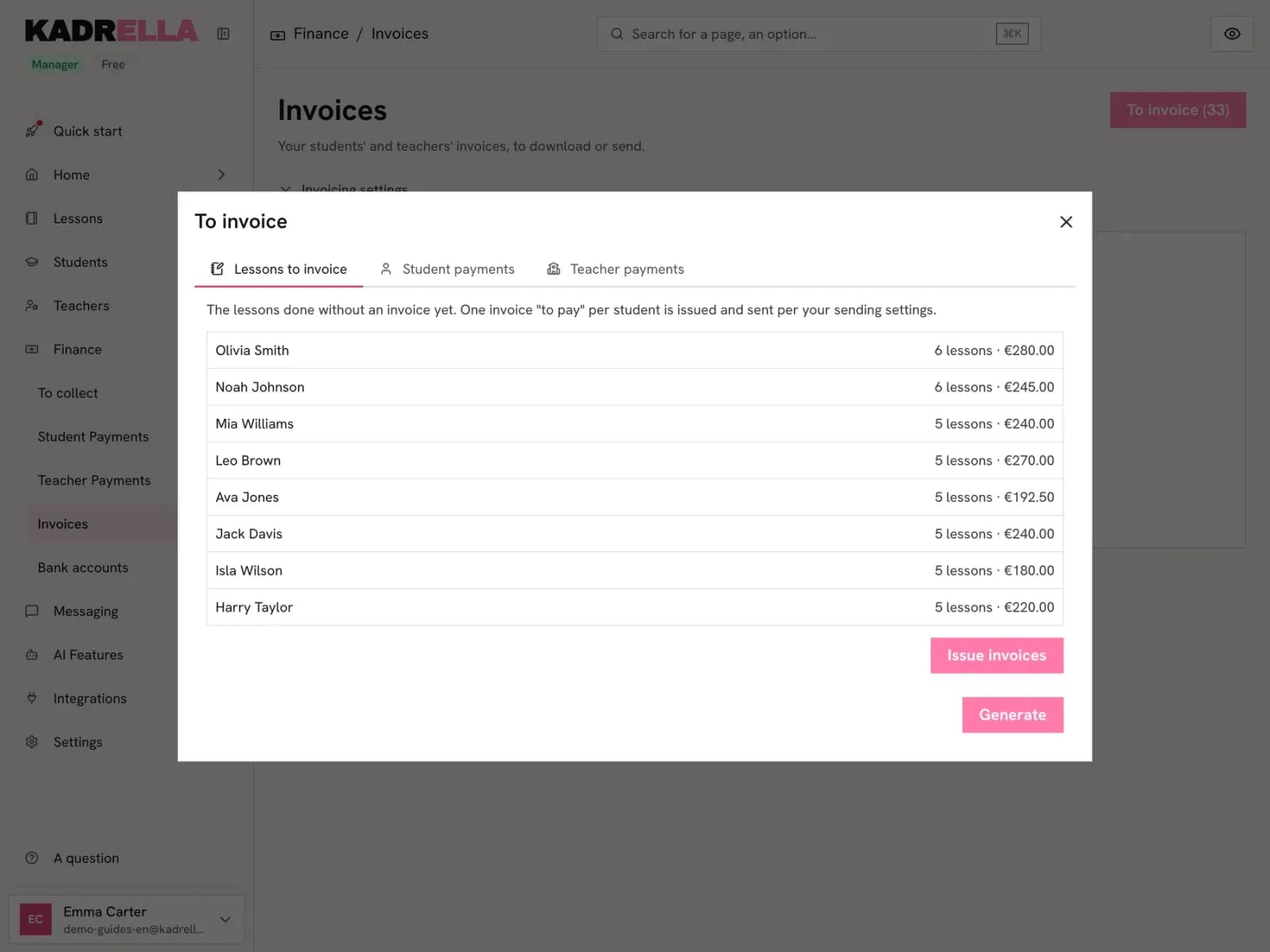
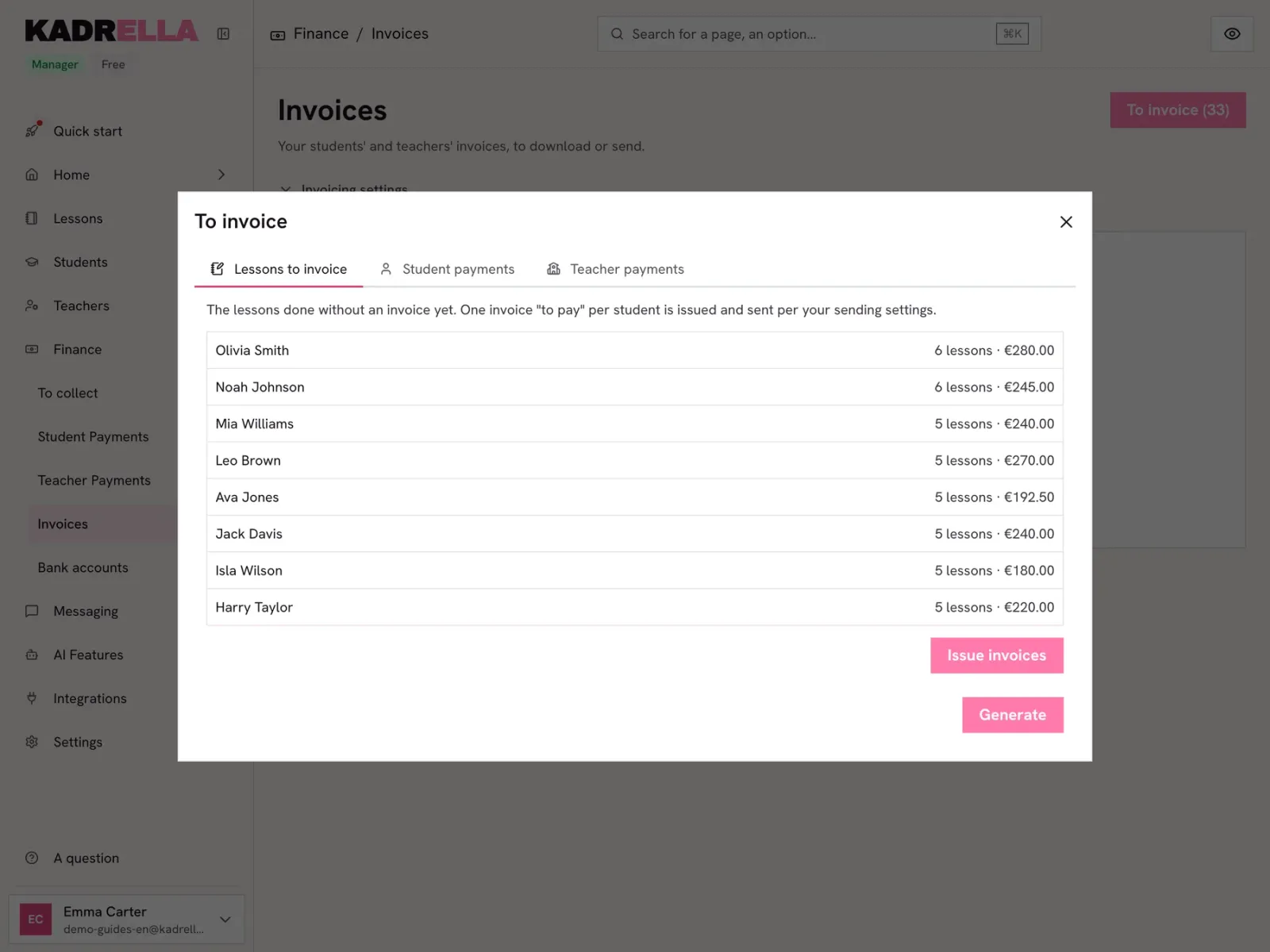
Lesson invoices are prepared on their own, at the pace chosen in the setup. To skip the wait, open "To invoice" on the Invoices page: it shows how many invoices are waiting. The "Lessons to invoice" tab lists the lessons done and not invoiced yet, paid or not. "Issue invoices" issues one invoice per student with these lessons right away (one per lesson with the "After each lesson" pace), without the draft stage. The "Teacher payments" tab lists the payments made to your tutors without a mandate invoice: "Generate mandate invoices" issues them. A student payment has no invoice of its own: it settles lessons, and the invoice holding them turns "Paid".
 View the full-size screenshot
- "To invoice" and the number waiting.
- "Issue invoices".
Step 2
Check the drafts
An invoice prepared at the chosen pace first shows in the list with the "Draft" status, "No number yet" instead of the reference and the date it will be "Issued automatically on". "View draft" downloads its PDF, without a number. "Issue" issues it right away and gives it its number. "Delete" removes it: its lessons go on the next invoice. Until it is issued, a draft follows the changes of its lessons (price, length, cancellation). When drafts are waiting, a banner at the top of the page offers "Issue all" or "Delete all and invoice from now on".
 View the full-size screenshot
- "View draft".
- "Issue".
- "Delete".
Good to know
- "Delete all and invoice from now on" removes every draft: their lessons won’t be invoiced, only the lessons done from now on will be.
Step 3
Follow what is paid and what goes out
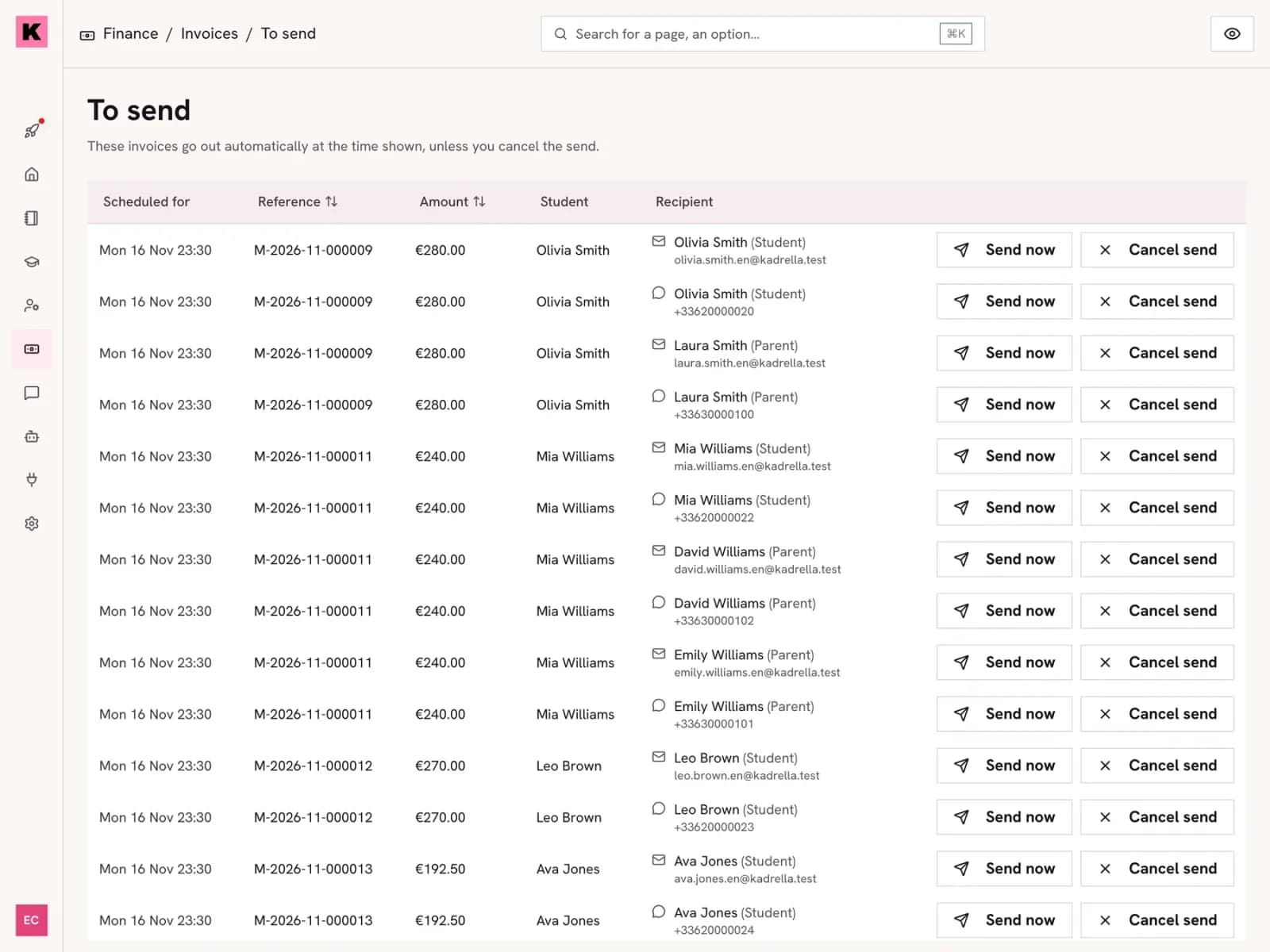
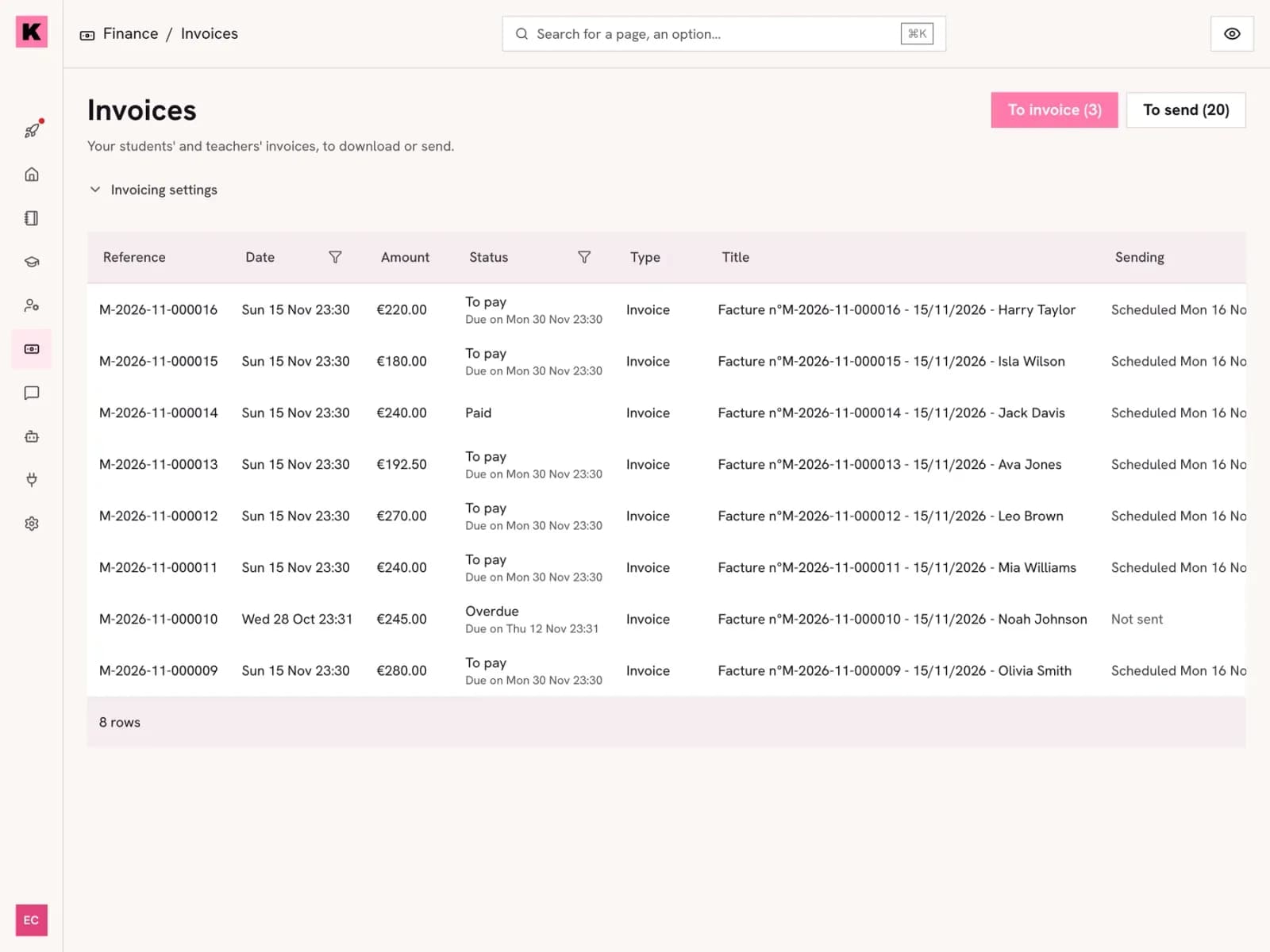
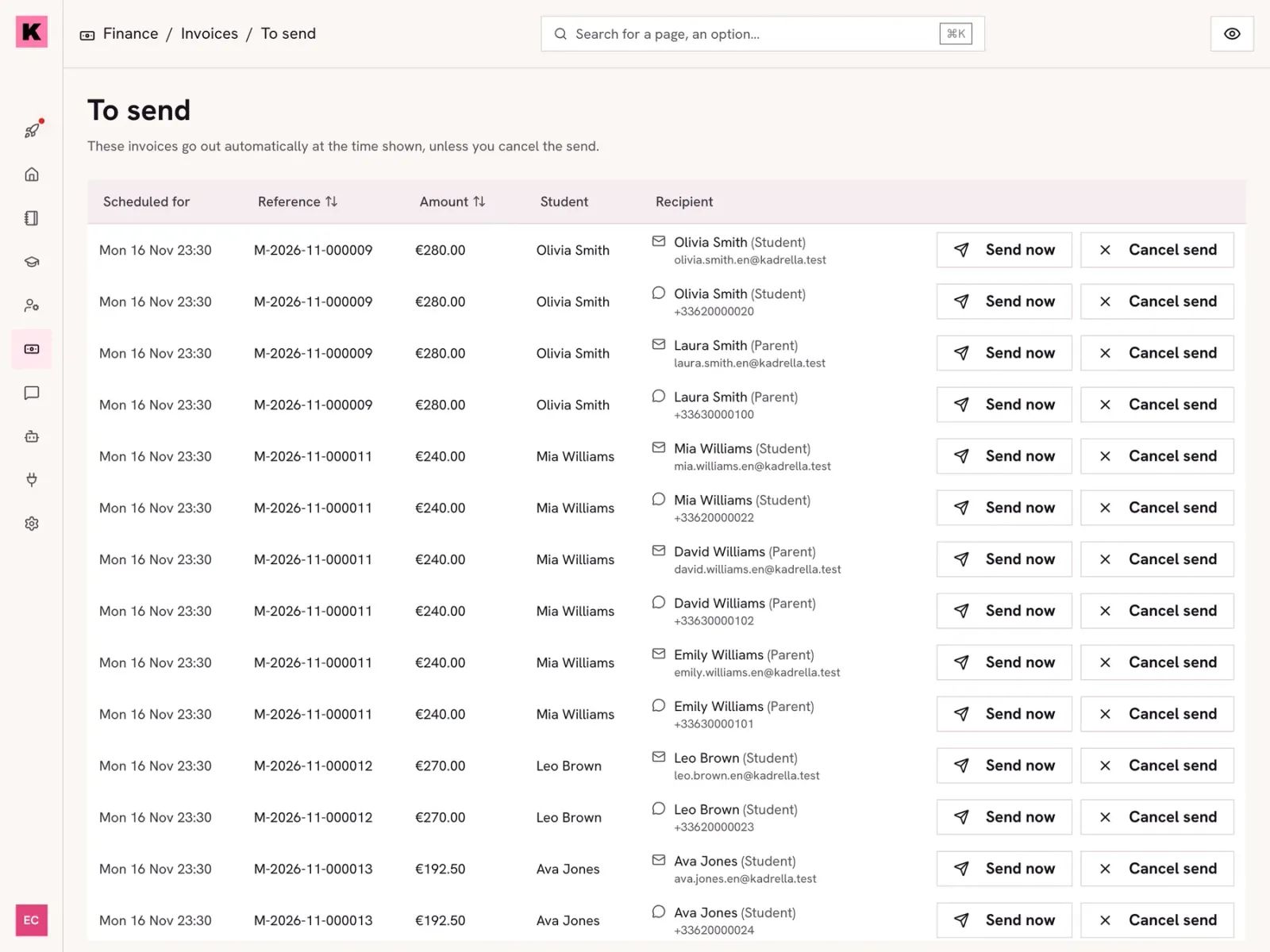
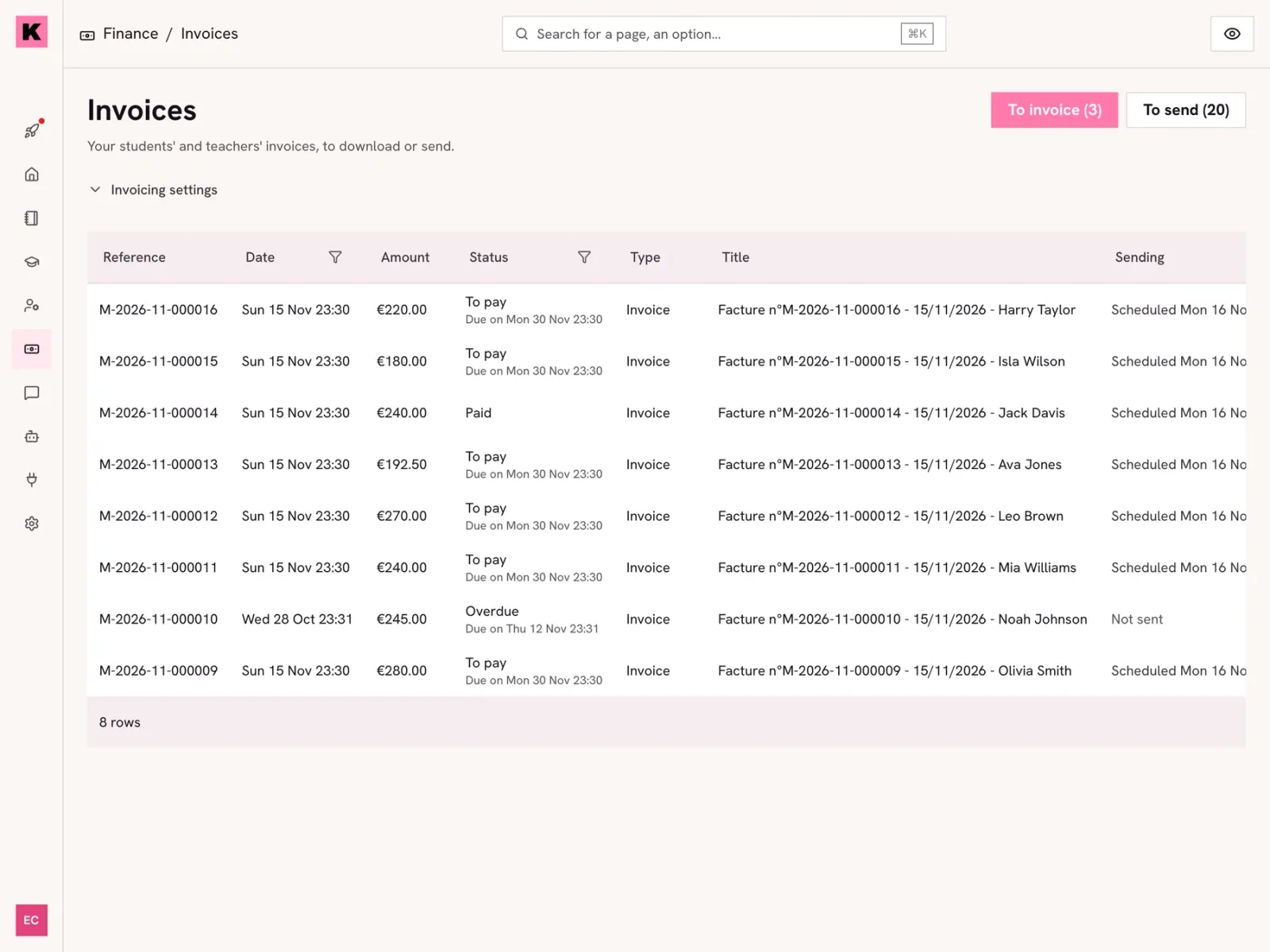
The list shows each invoice’s status: "Draft", "To pay" with "Due on", "Overdue" once the due date has passed, "Paid", or "Cancelled". An invoice to pay turns "Paid" on its own when received payments cover its lessons. Partly paid, it stays "To pay" with all its lessons. A cancellation invoice is "Issued", never to pay nor overdue. The "Sending" column shows "Sent on", "Scheduled" or "Not sent": planned sends are handled in "Scheduled sends", at the top of the page. "History" opens the invoice’s status changes, with their date and where they came from: "by" the person’s name, "by the payments received" or "automatically".
 View the full-size screenshot
- The status and due date.
- The "Sending" column.
Good to know
- "View invoices", in the quick actions of a student, a lesson or a payment, opens the list filtered on it. The filter shows above the table (for example "Student:" followed by the name) and the "Remove filter" cross clears it.
Step 4
Cancel an invoice
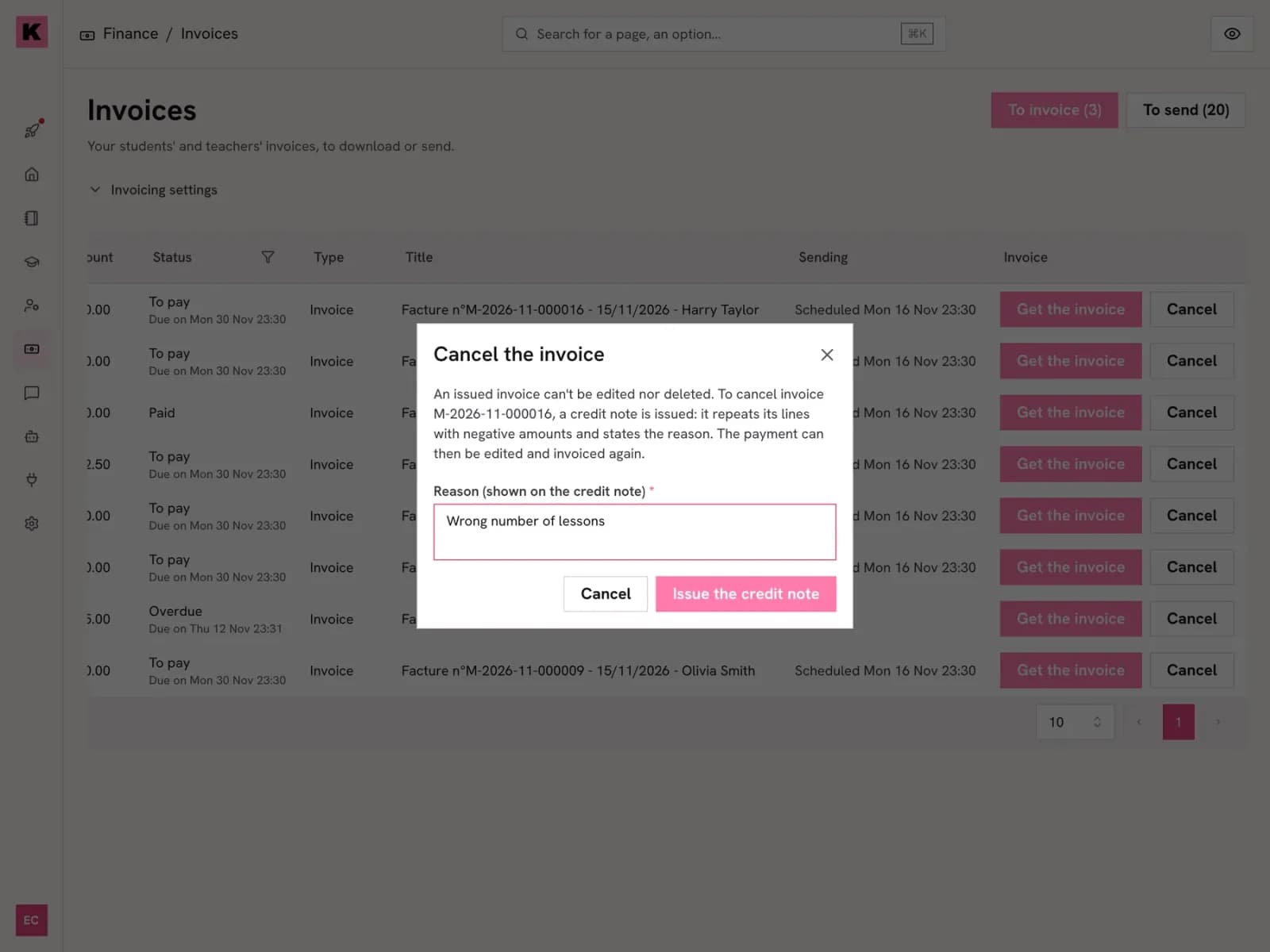
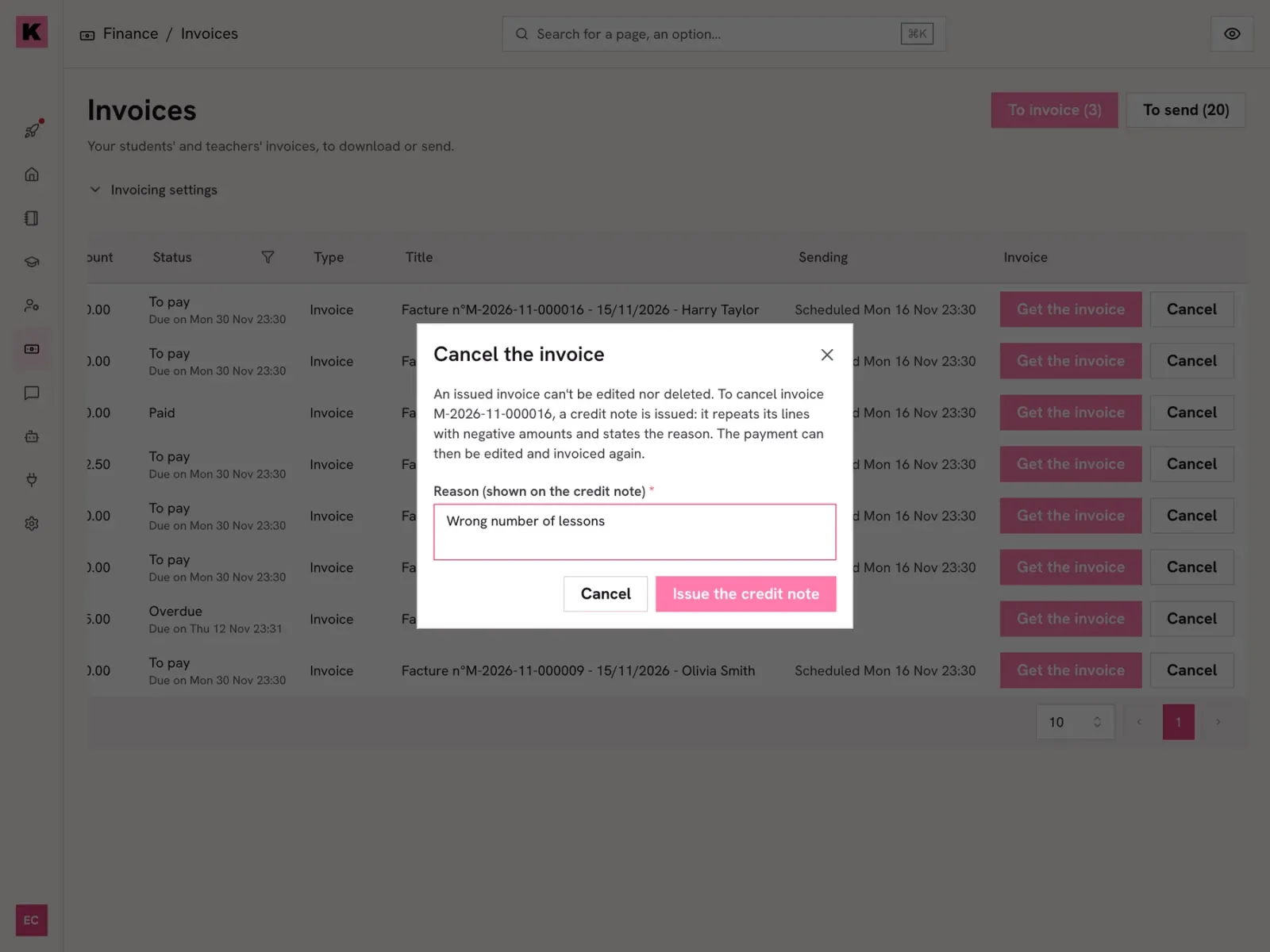
On the row of an issued invoice, to pay or paid, click "Cancel". The "Cancel the invoice" window asks for a "Reason (shown on the cancellation invoice)", required. "Issue the cancellation invoice" issues it right away: a negative invoice taking the next number of the same series, with the invoice lines as negative amounts and the reason. The invoice turns "Cancelled" with "Cancelled by invoice" followed by its number, and the cancellation invoice shows in the list with "Cancels invoice". The payments allocated to its lessons are free again, and its lessons go on the student’s next invoice.
 View the full-size screenshot
- "Cancel" on the invoice row.
- The reason printed on the cancellation invoice.
- "Issue the cancellation invoice".
Good to know
- The cancellation invoice goes out on its own to those who got the cancelled invoice, by the same channels. "Get the invoice" on its row downloads the PDF.
- A lesson on an issued invoice cannot be deleted, re-priced, changed in length or cancelled free of charge until the invoice is cancelled: its page greys out these actions and says "On invoice", with its number and "View the invoice". A paid cancellation is still possible.
Going further
- Feature
- Invoicing
Screenshots taken on a demo account: names, phone numbers and amounts are made up.
Spend your Sundays teaching, not chasing payments.
Free to start, set up in minutes. No card.