Automatic lesson reminders and payment reminders
Kadrella can message families for you: a reminder before each lesson, the unpaid invoice a few days after it is issued, then reminders while it stays unpaid, and the invoice once it is paid. You choose, person by person, what each one gets and by which channel (WhatsApp, email). The timings of payment requests and reminders are the same for the whole organization. By default everything is off: nothing goes out until you tick something. All of it is part of the Starter plan.
6 stepsStarter planScreenshots from 19 November 2026
Step 1
Choose who gets what
On the student’s record, open "Family and close contacts". Each person in the family, the student included, has a row, with a box per message: "Lesson reminders", "Payment requests and reminders", "Paid invoices", and a box per channel: "WhatsApp", "Email". A message only goes out if the person has that message and at least one channel ticked. Without a phone number, WhatsApp is greyed out; without an email address, so is email. "Turn all on", under a column, ticks it for the whole family. Each box is saved as soon as you click it.
 View the full-size screenshot
- The messages, one column each.
- The channels: "WhatsApp" and "Email".
Good to know
- A close contact can belong to several families (a parent with children from two relationships, for example): their boxes are set in each one. When a student has several families, the messages about them go to the people of each family who ticked them.
Step 2
Lesson reminders
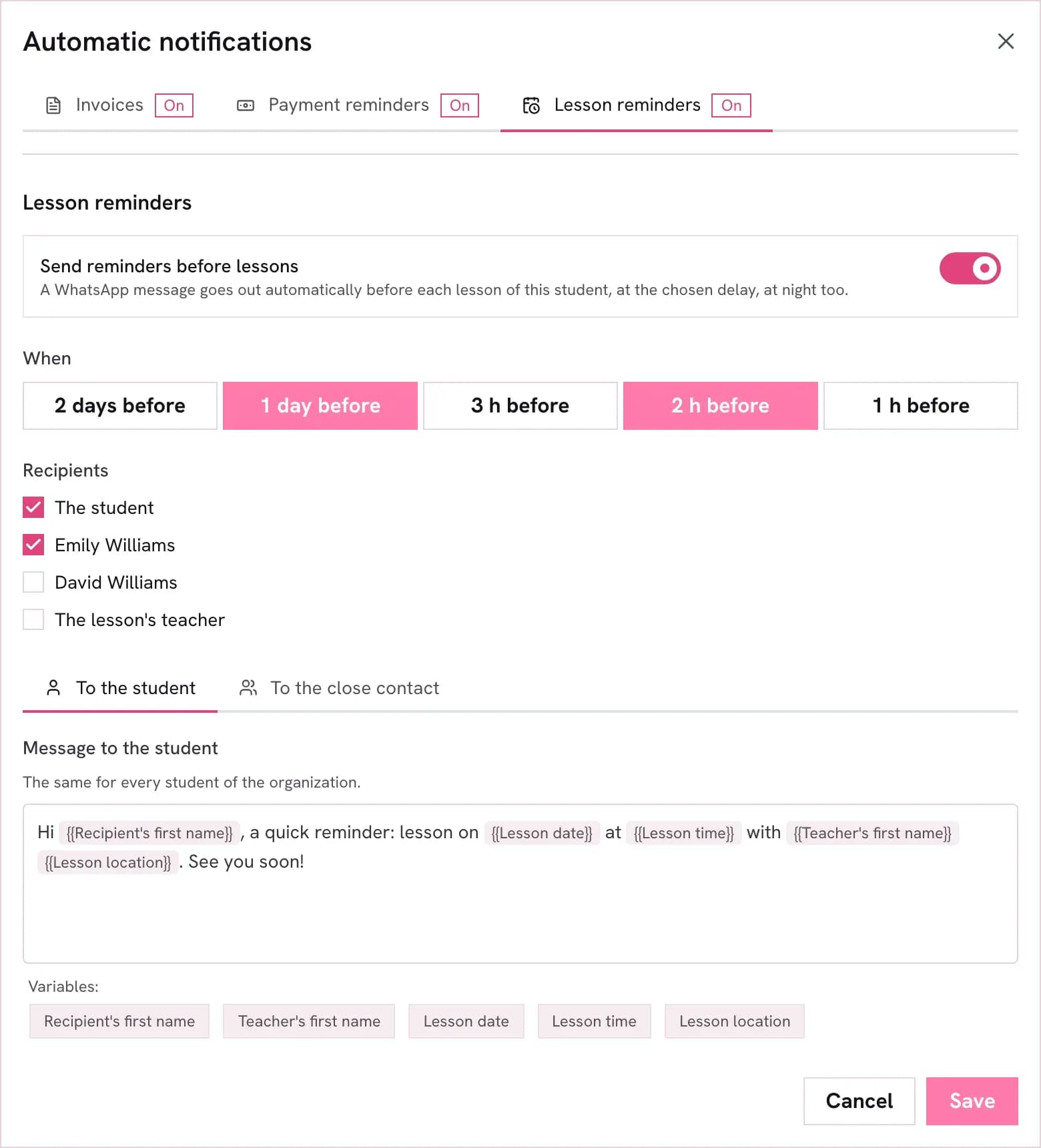
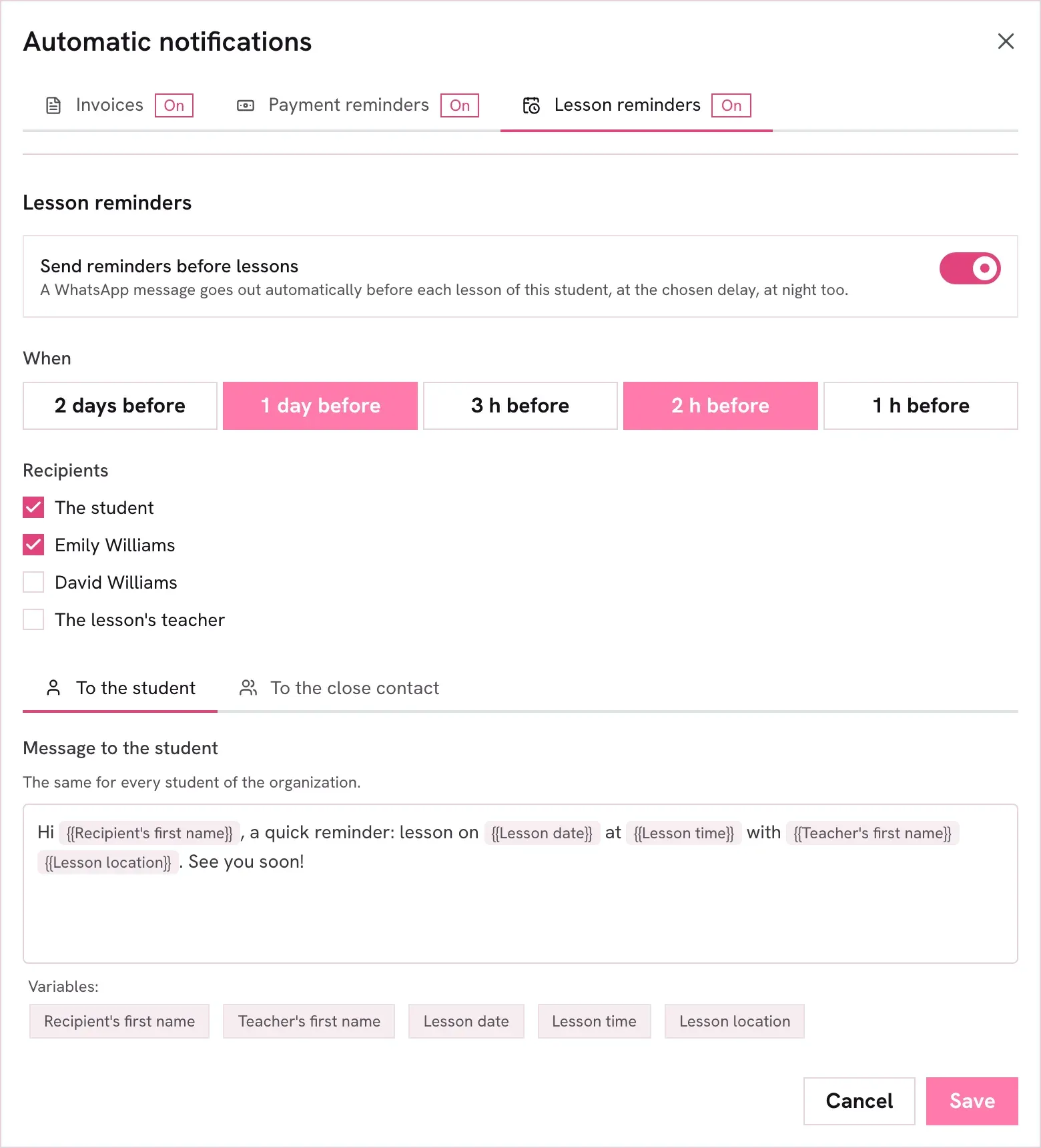
In "Quick Actions", "Automatic notifications" opens the "Automatic messages" window. In the "Lesson reminders" tab, pick under "When" one or more moments: 2 days before, 1 day before, 3 h before, 2 h before, 1 h before (1 day before by default). Tick "The lesson's teacher" so the tutor gets a WhatsApp reminder too. Kadrella then sends a reminder, at each chosen moment, for every lesson of the student that is not cancelled, even at night, to the family members who have "Lesson reminders" ticked, by their channels. A moved lesson gets new reminders at its new date. "Save" confirms the window.
 View the full-size screenshot
- The moments ("When").
- "The lesson's teacher".
- The reminder text, to the student and to the close contact.
Good to know
- If WhatsApp is disconnected, WhatsApp reminders wait and go out as soon as it is back, as long as the lesson has not started. After that they are dropped and you are told. Email reminders go out anyway.
Step 3
Set the payment timings
Payment request and reminder timings are set once for the whole organization, on the "Payment requests and reminders" screen of the invoicing setup. "Payment request (days after the invoice is issued)" (0 to 60, 0: as soon as it is issued), "Then a reminder every … days" (1 to 60) and "Maximum number of reminders" (1 to 10, per invoice). To change them later, on the Invoices page, open "Invoicing settings" then click "Change the setup".
 View the full-size screenshot
- "Payment request (days after the invoice is issued)".
- "Then a reminder every … days".
- "Maximum number of reminders".
Step 4
What goes out, and when
For each invoice to pay, the payment request goes out once, the chosen number of days after it is issued: it is the invoice as a PDF, sent to the people who have "Payment requests and reminders" ticked. While it stays unpaid, a reminder then goes out at the chosen interval, up to the maximum. On WhatsApp, a reminder is the text with the image of the lessons due; by email, the text, the list of lessons due and the unpaid invoice as a PDF. An invoice that turns "Paid" goes to the people who have "Paid invoices" ticked, except whoever already got it on that channel. A cancellation invoice goes to those who got the cancelled invoice, by the same channels.
 View the full-size screenshot
- "Payment request".
- "Reminders".
Good to know
- An old invoice that got all its reminders never holds back those of a newer one.
- Until invoicing is set up, unpaid lessons without an invoice are reminded too: the first reminder goes out the same delay after the oldest unpaid lesson is over. While a past lesson of the student is still to verify, it waits: the lesson shows under "Past lessons still pending" in "Lessons" > "Warnings".
- When a Superprof request waits to be accepted, the reminder only asks to accept it.
Example: request 2 days after issue, a reminder every 7 days, at most 3 reminders Date What happens 3 November The invoice is issued, to pay. 5 November The payment request goes out with the invoice as a PDF. 12 November Still unpaid: reminder #1. 19 and 26 November Reminders #2 and #3. The maximum is reached: nothing more goes out for this invoice. Step 5
Stay in control in "Scheduled sends"
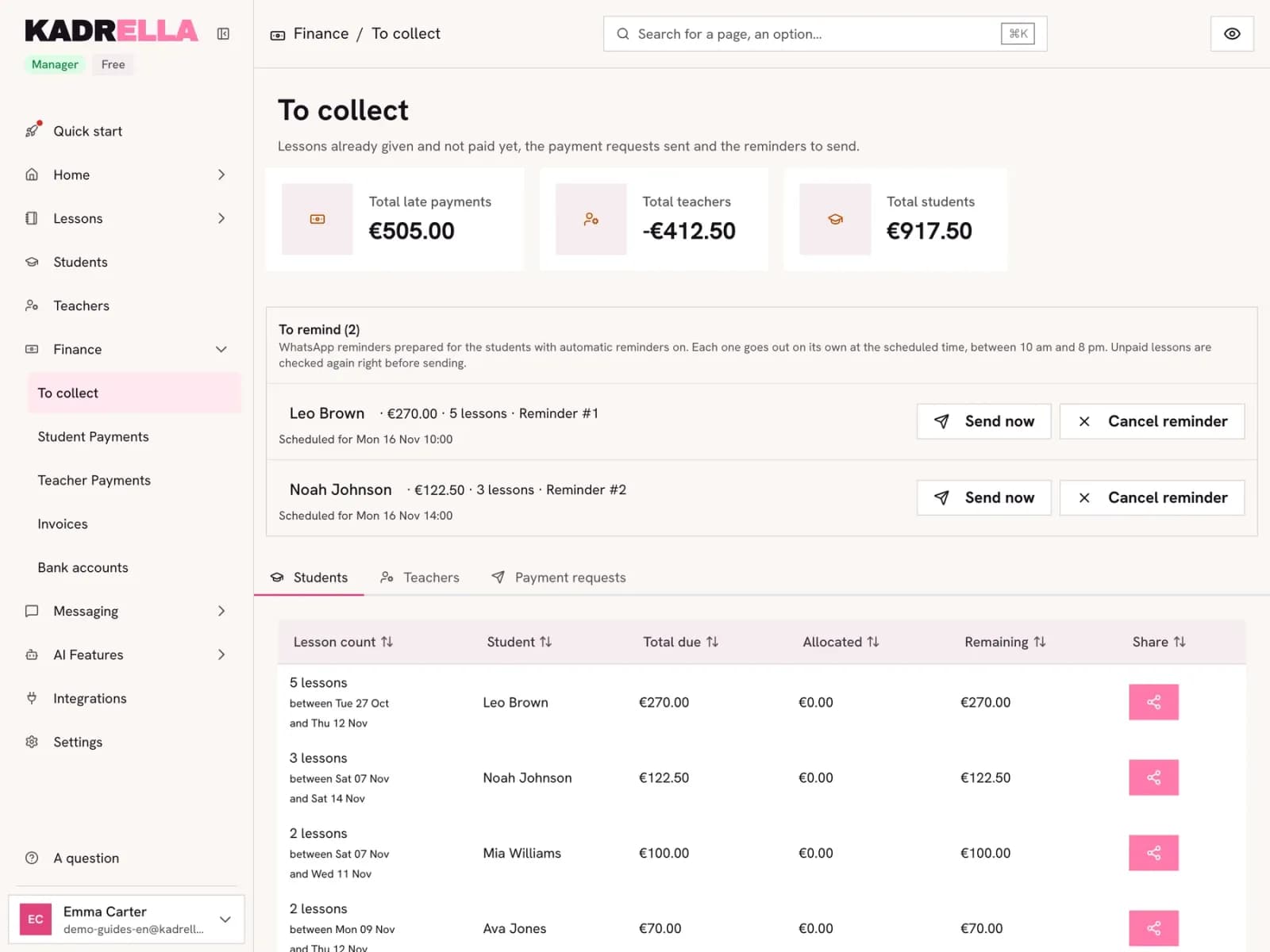
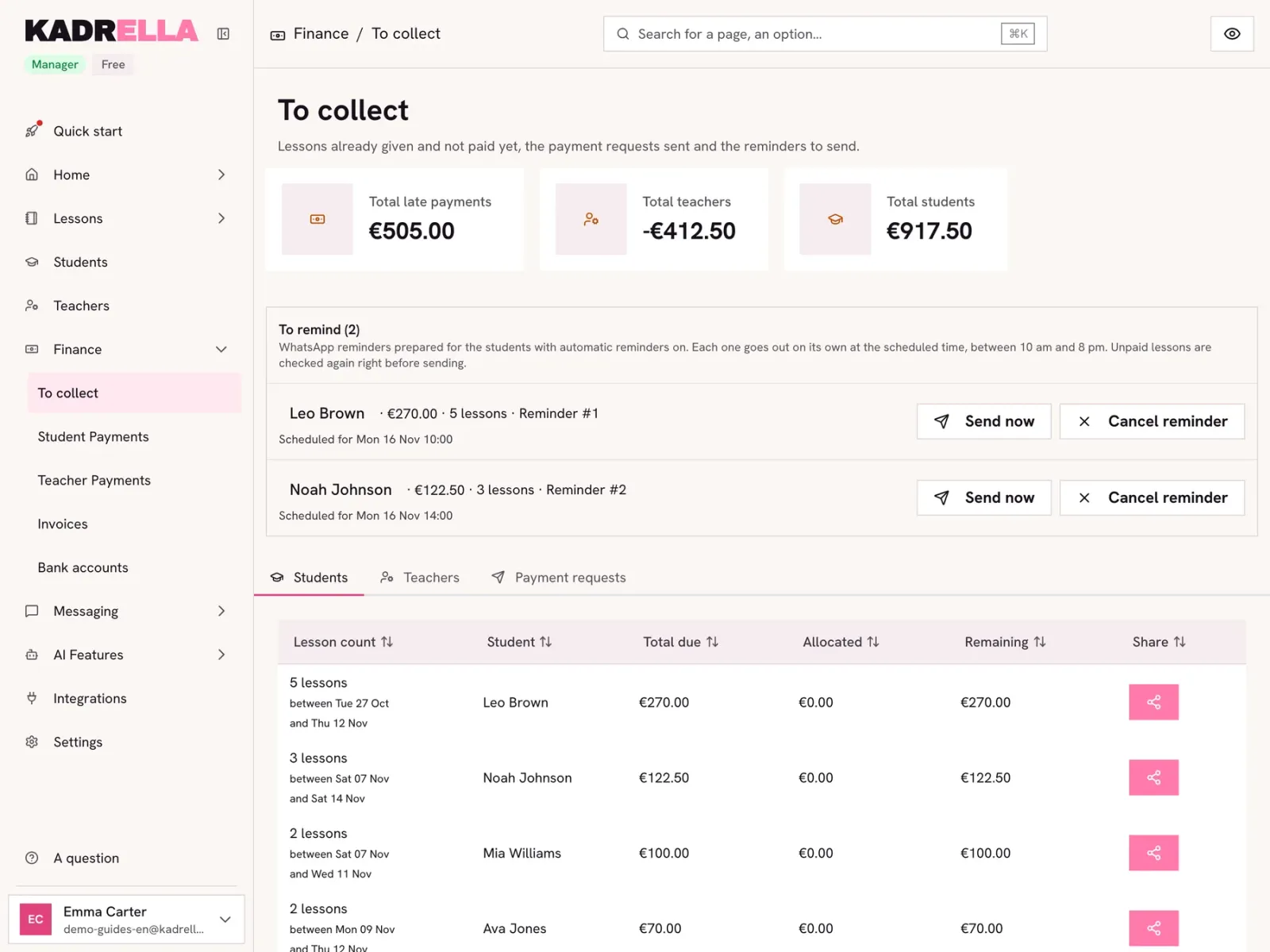
In "Messaging", open "Scheduled sends" (or click "Scheduled sends" at the top of the Invoices page). The table lists each planned send: payment request, reminder, paid invoice or cancellation invoice, with the student, the invoice, the amount, the planned date and each recipient with their channel. "Send now" sends it right away, "Cancel the send" stops it. Otherwise it goes out on its own at the planned time, between 10 am and 8 pm, with no waiting period. The payment is checked right before: nothing goes out once paid. A failed send shows at the top, in red, with "Retry". When a student owes lessons but nobody in the family can receive the reminders, they show under "Reminders on hold", below this table.
 View the full-size screenshot
- The table of sends.
- "Send now".
- "Cancel the send".
Good to know
- At most 5 automatic reminders go out per day for your organization: the others wait for the next day. A reminder you cancel counts toward the invoice’s maximum.
Step 6
Edit the automatic messages
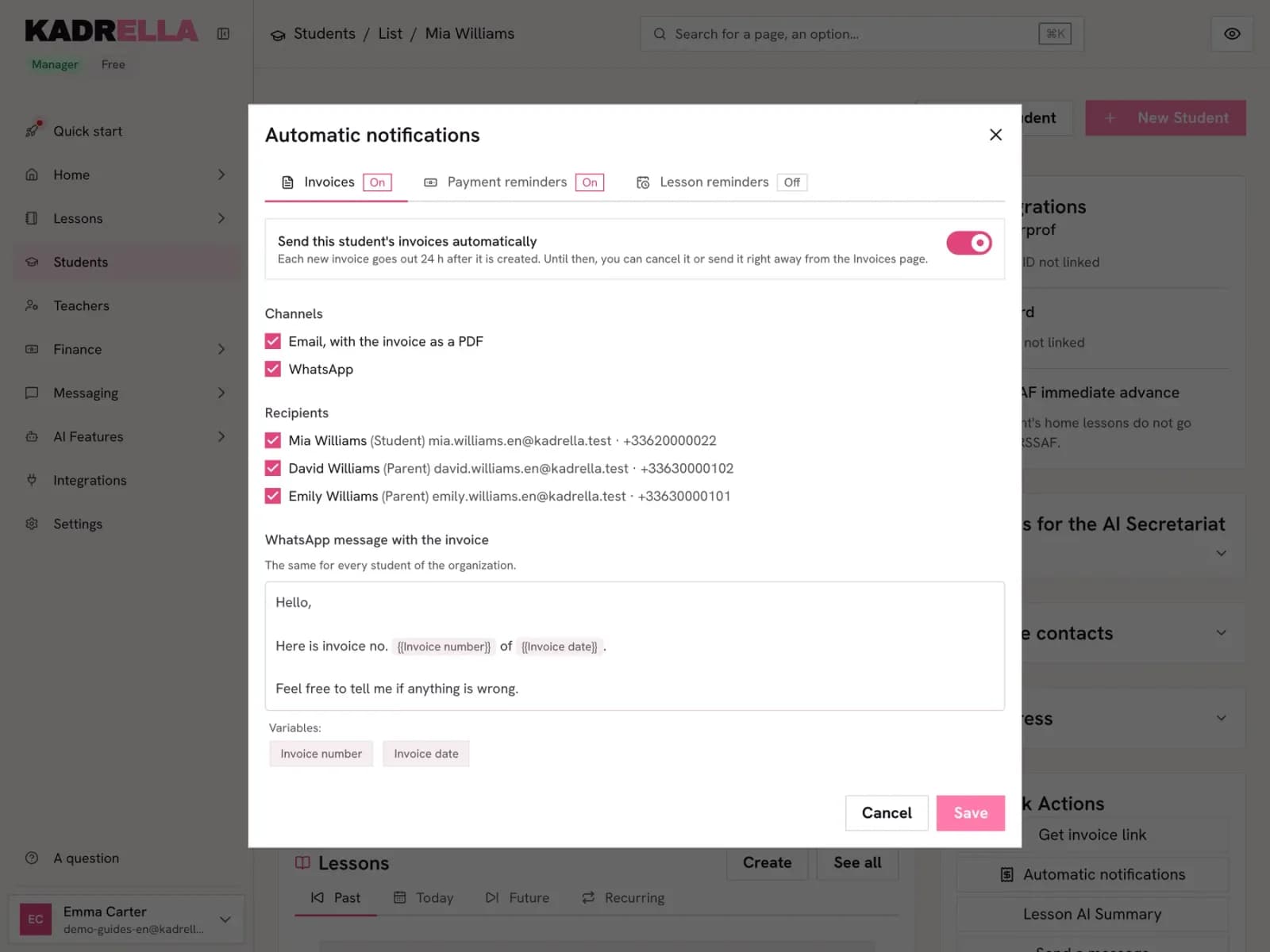
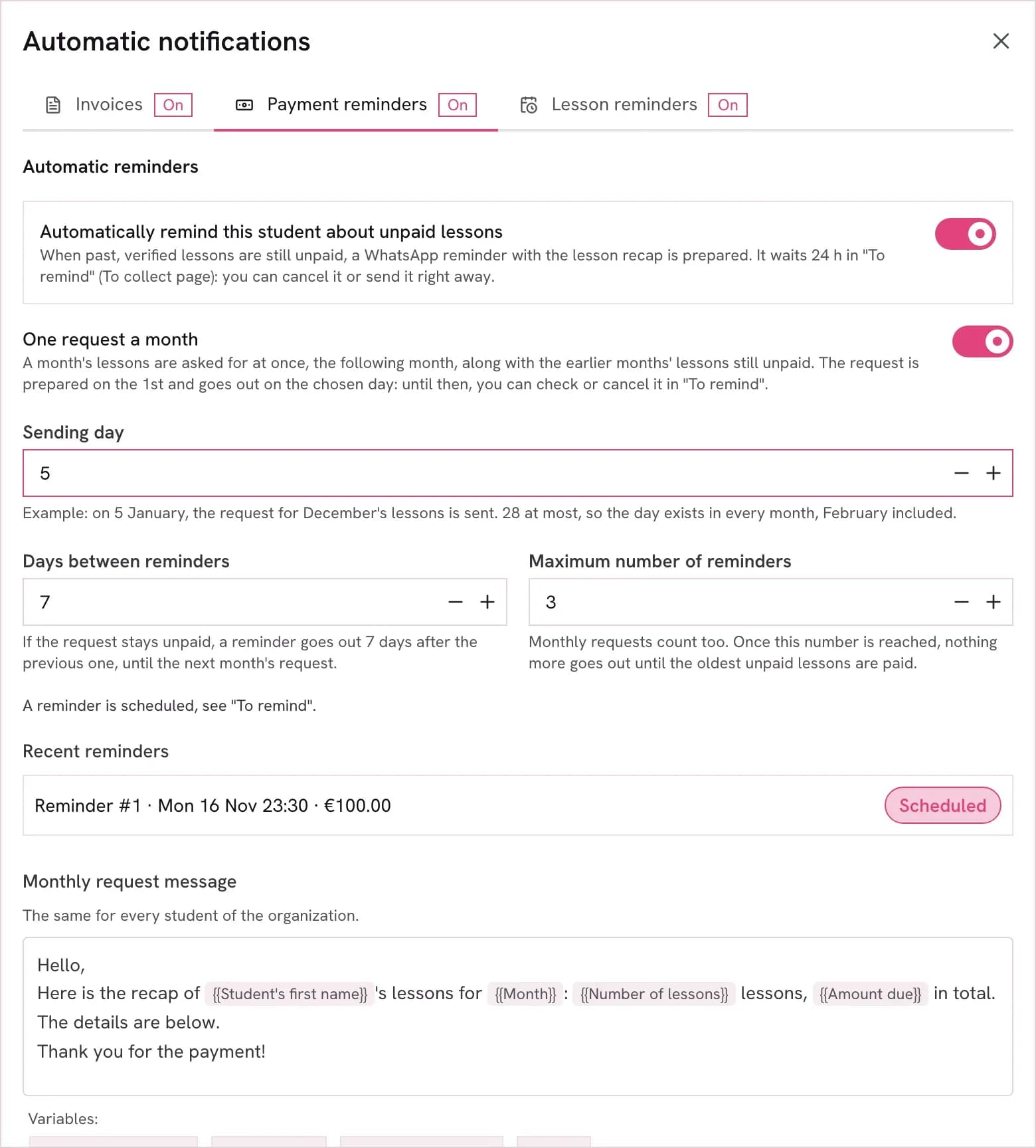
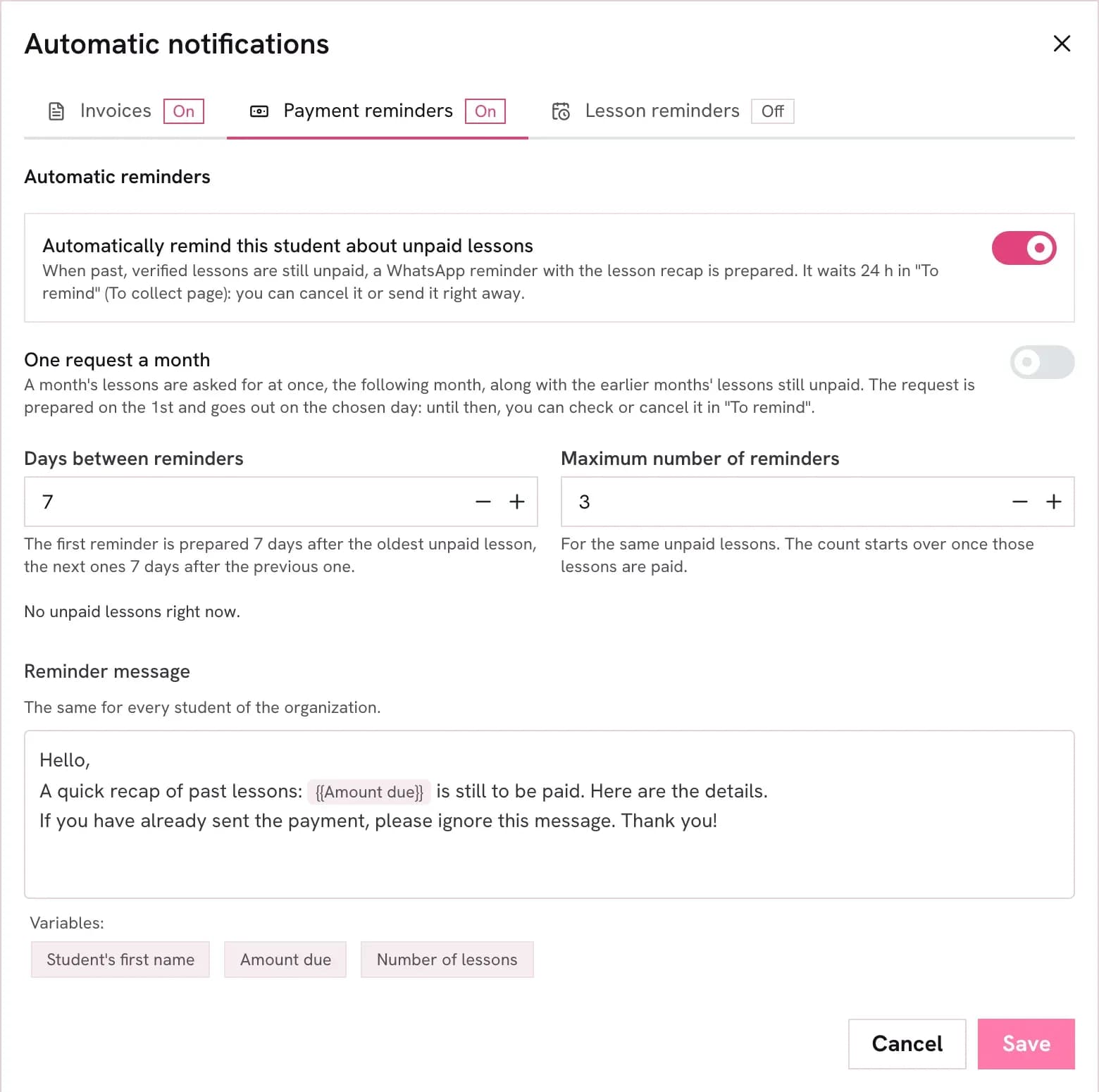
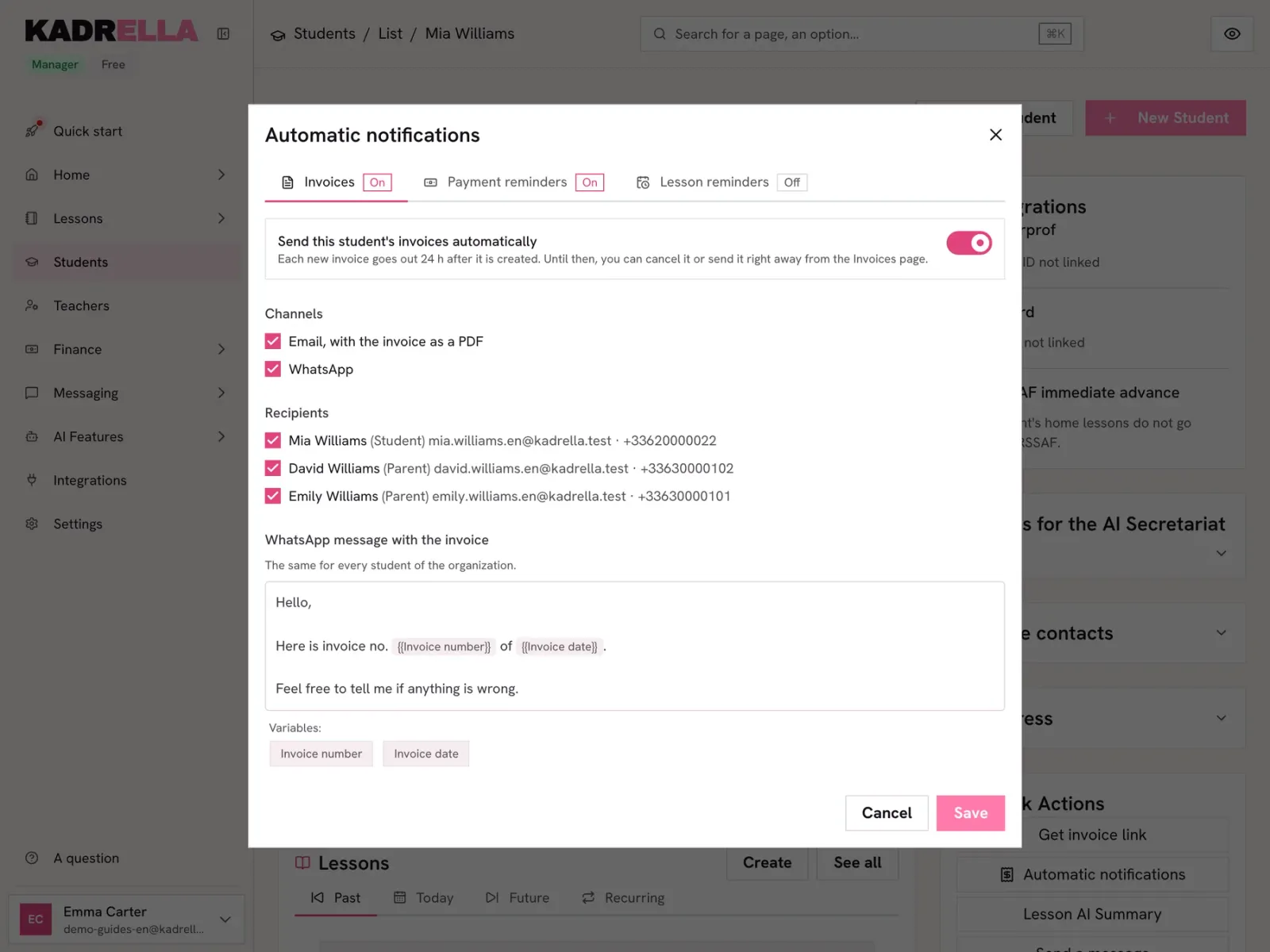
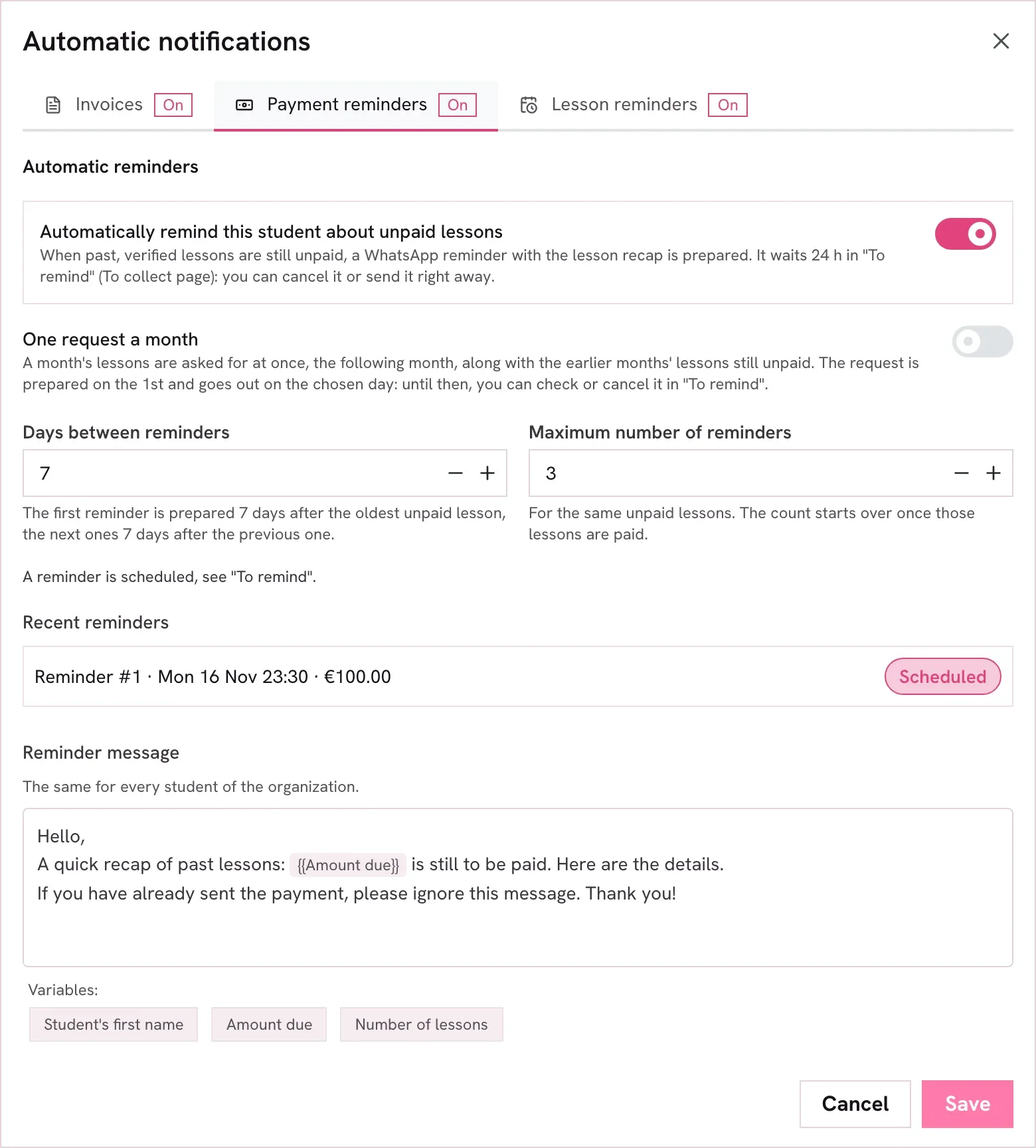
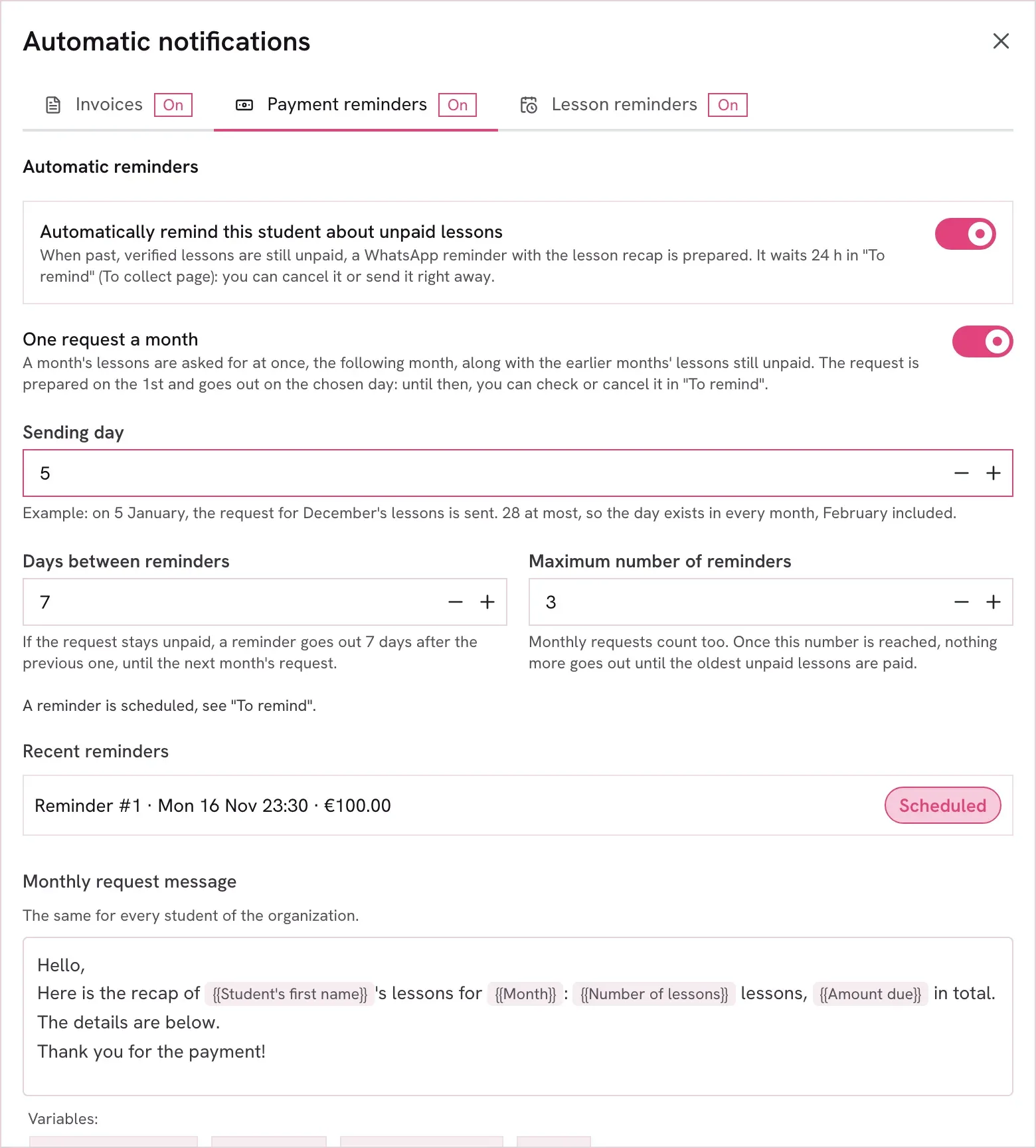
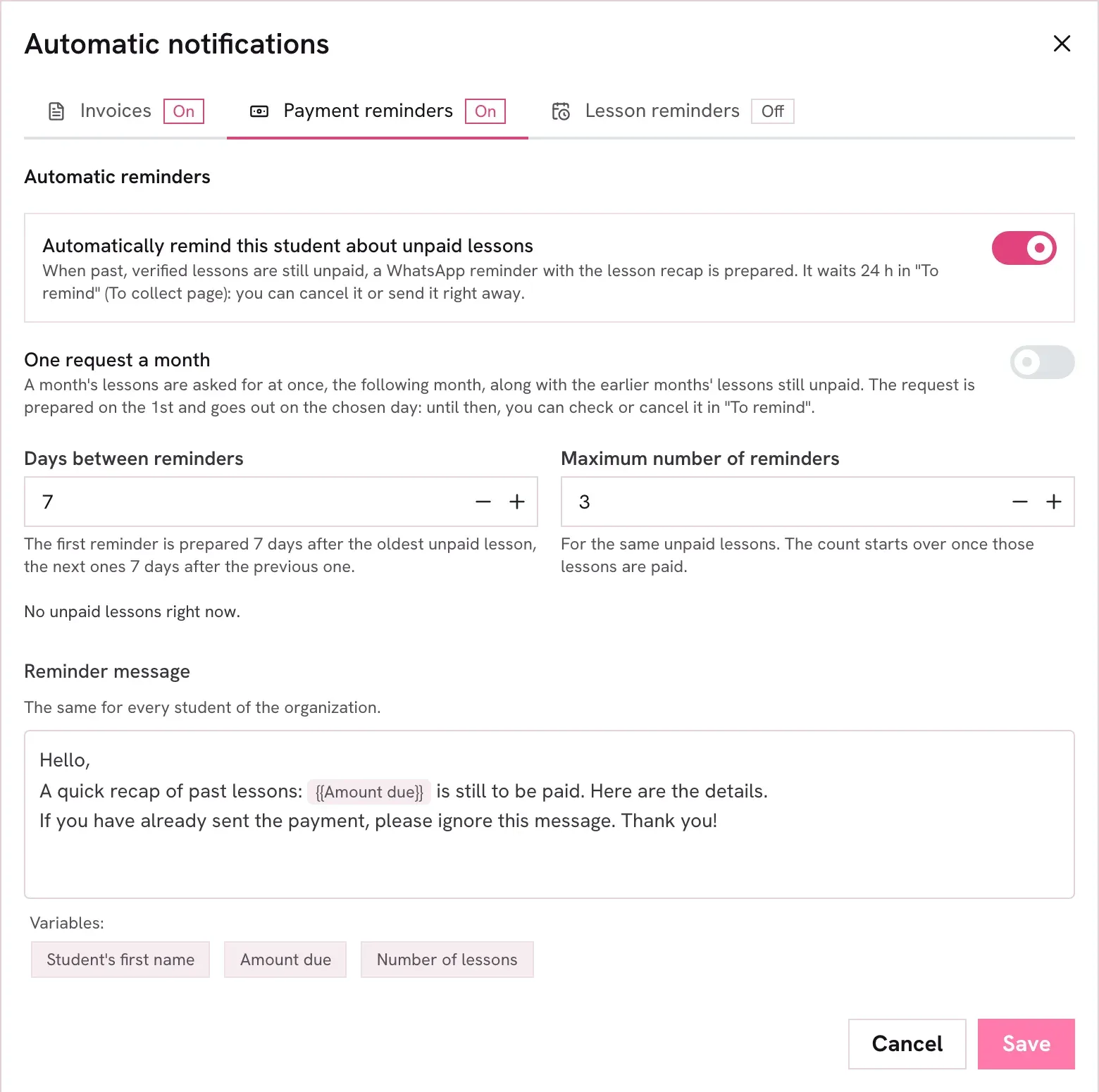
The "Automatic messages" window holds the texts that go out. "Payments" tab: "Reminder message" and "WhatsApp message with the invoice". "Lesson reminders" tab: "Message to the student" and "Message to the close contact". The "Variables" buttons insert the values of each send, such as "Student's first name", "Amount due" or "Number of lessons". In the reminder, {{LESSONS_LIST}} becomes the list of lessons due (one line per lesson, as DD/MM/YYYY HH:mm duration) and {{LESSONS_IMAGE}} attaches the image of the lessons due, on WhatsApp only. The same text is used for WhatsApp and email. A text is the same for every student of the organization: changing it on one record changes it for all.
 View the full-size screenshot
- The message text.
- The "Variables" to insert.
Good to know
- In the email, the list of lessons due shows below the text when it has no {{LESSONS_LIST}}.
Good to know
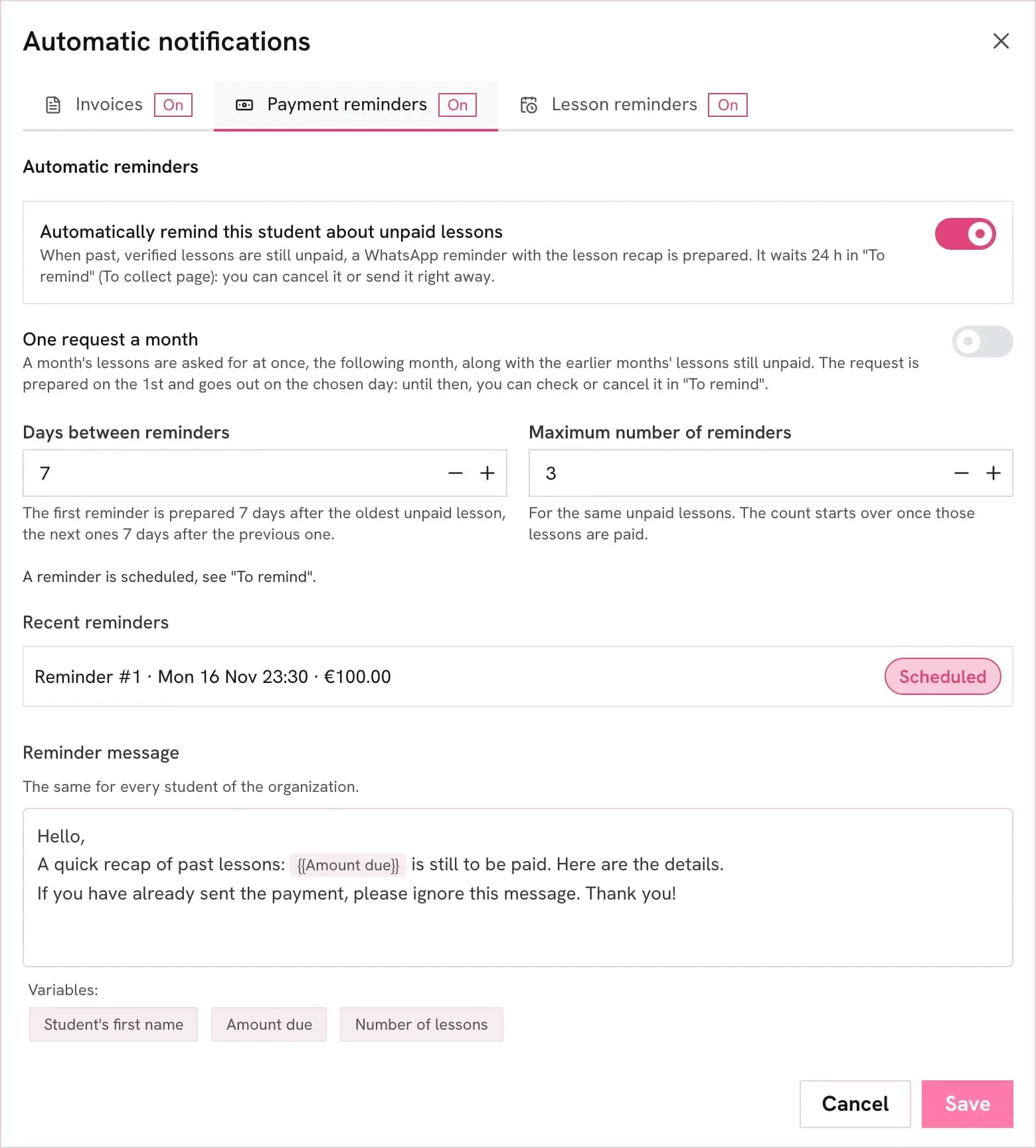
- The same "Payments" tab lists the "Latest reminders of the student", with their status.
- While the AI secretary’s payment recaps are on, automatic reminders stay on hold.
- For a student from Superprof, the "Catch up owed lessons through Superprof" option asks for their owed lessons on Superprof instead of the payment requests and reminders. If the family refuses the demand or lets it expire, its lessons get the usual reminders.
Going further
- Feature
- Related reading
Screenshots taken on a demo account: names, phone numbers and amounts are made up.
Spend your Sundays teaching, not chasing payments.
Free to start, set up in minutes. No card.