Add a student (and their parents)
The student record holds their contact details, rate, lessons and payments. The hourly rate entered here fills in the price of each new lesson, so you never type it again. For a minor, you then add one or more parents to the record.
3 stepsFree planScreenshots from 4 November 2026
Step 1
Open the student list
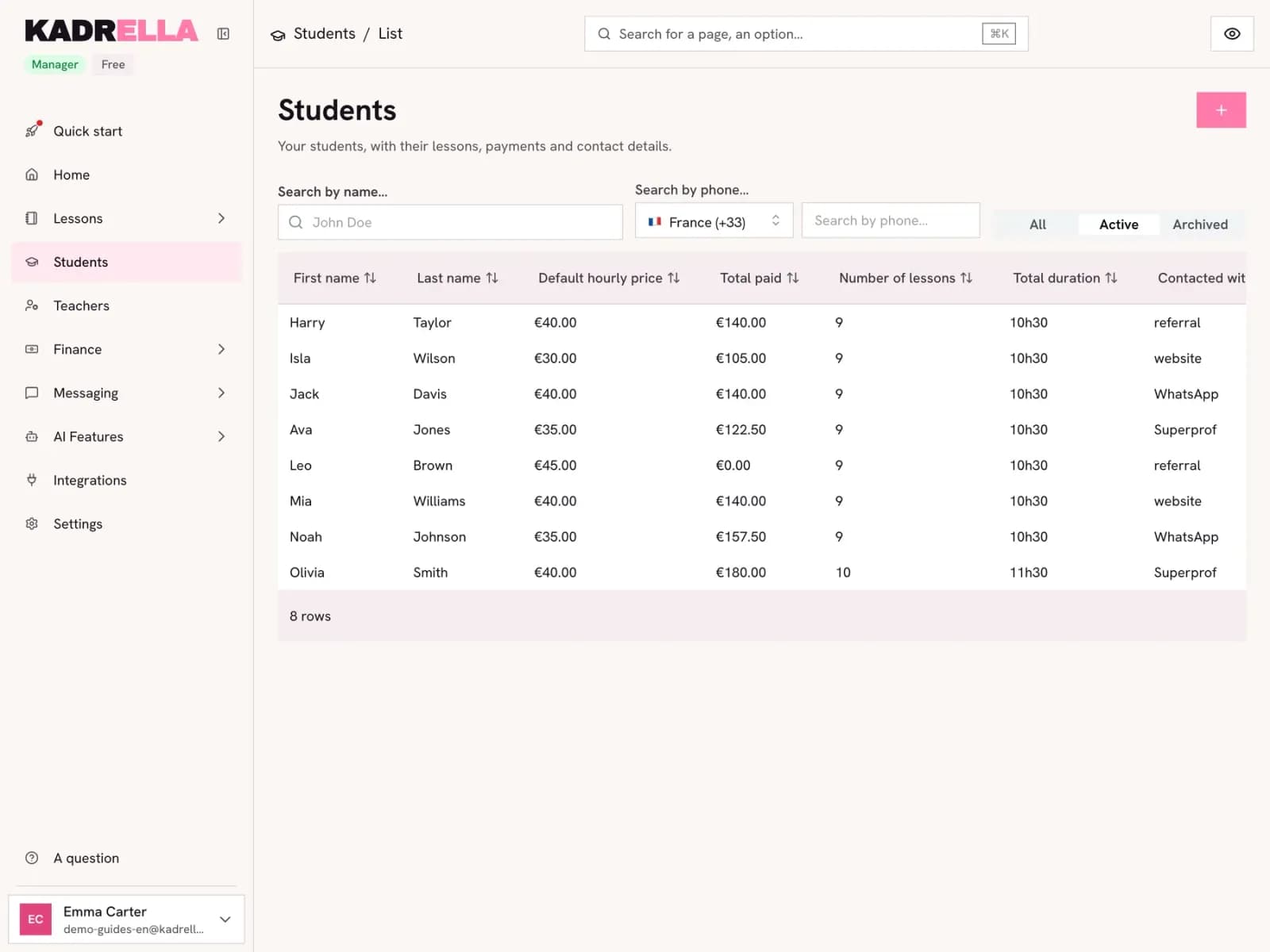
In the menu, open "Students". The list shows each one’s rate, total paid, number of lessons and total time. Click "+" at the top right.
 View the full-size screenshot
- "Add Student" opens a blank record.
Step 2
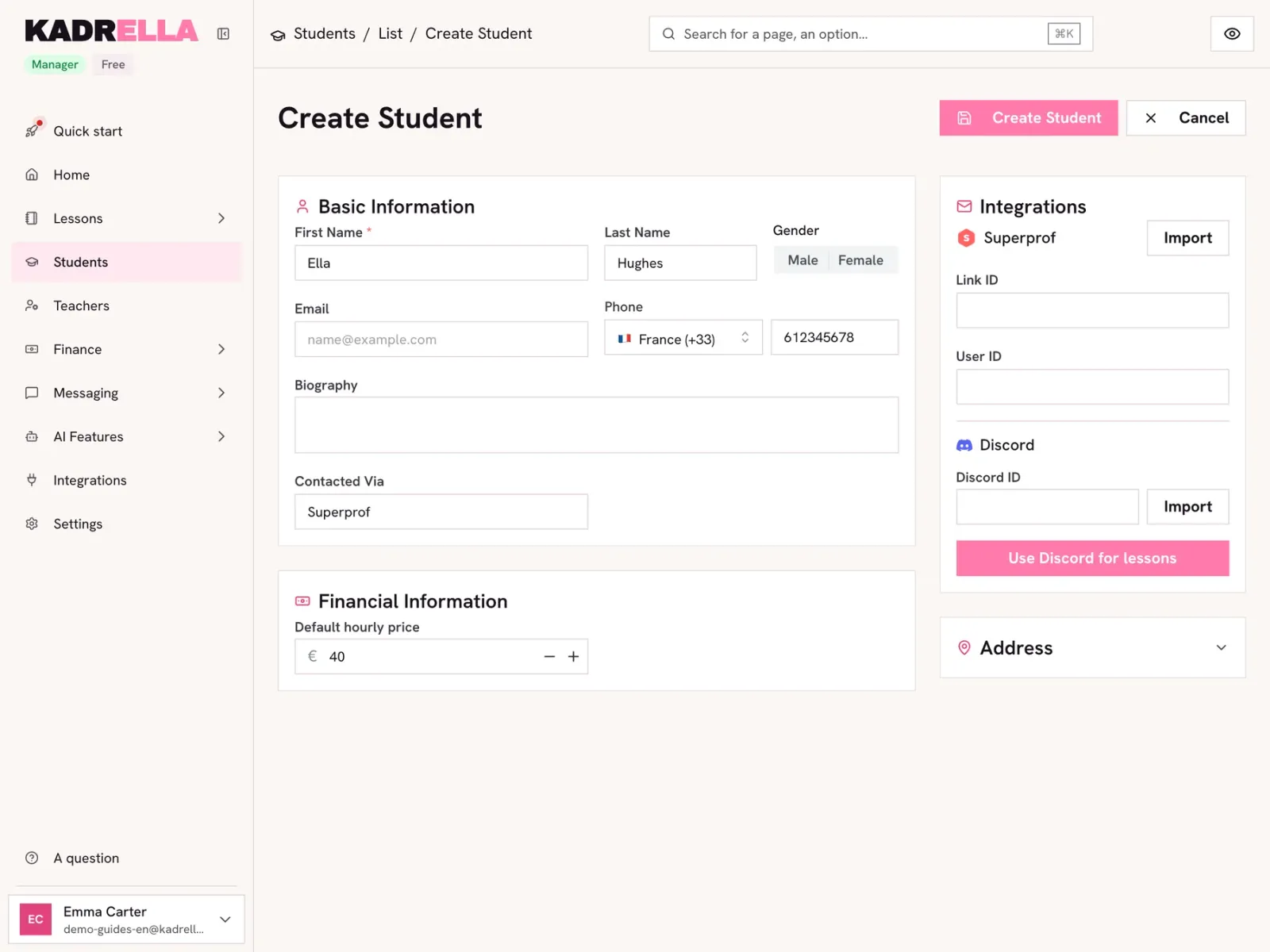
Fill in the record
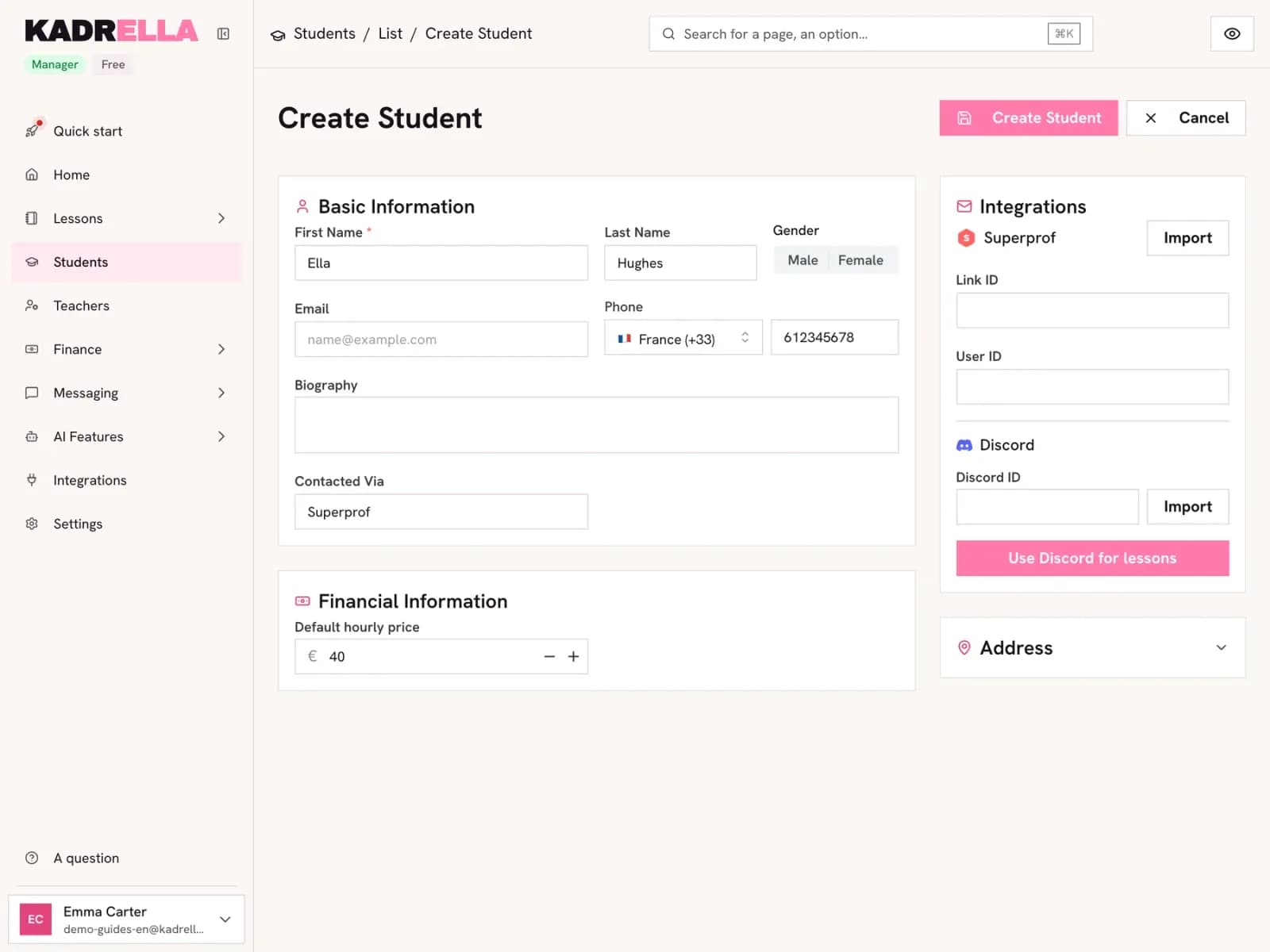
Only the first name is required. Add the phone number with its country code so you can message them on WhatsApp, the channel they reached you through (Superprof, word of mouth…) and the default hourly price. If Superprof is connected, the "Import" button fills the record from a Superprof conversation. Click "Create Student".
 View the full-size screenshot
- The first name, the only required field.
- The phone number, used for WhatsApp.
- "Contacted Via": where the student came from.
- The hourly price used in every new lesson.
Step 3
Add a parent
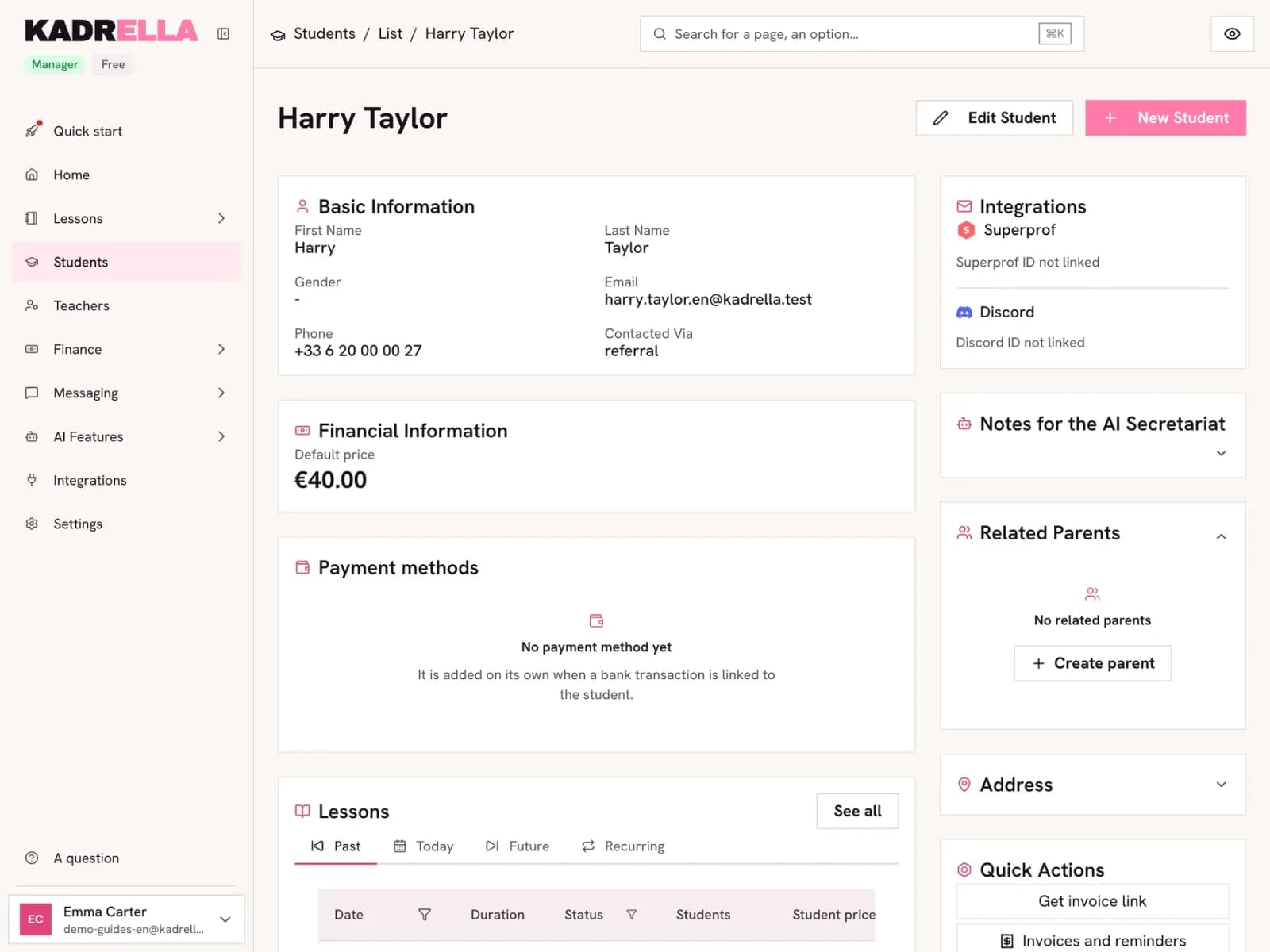
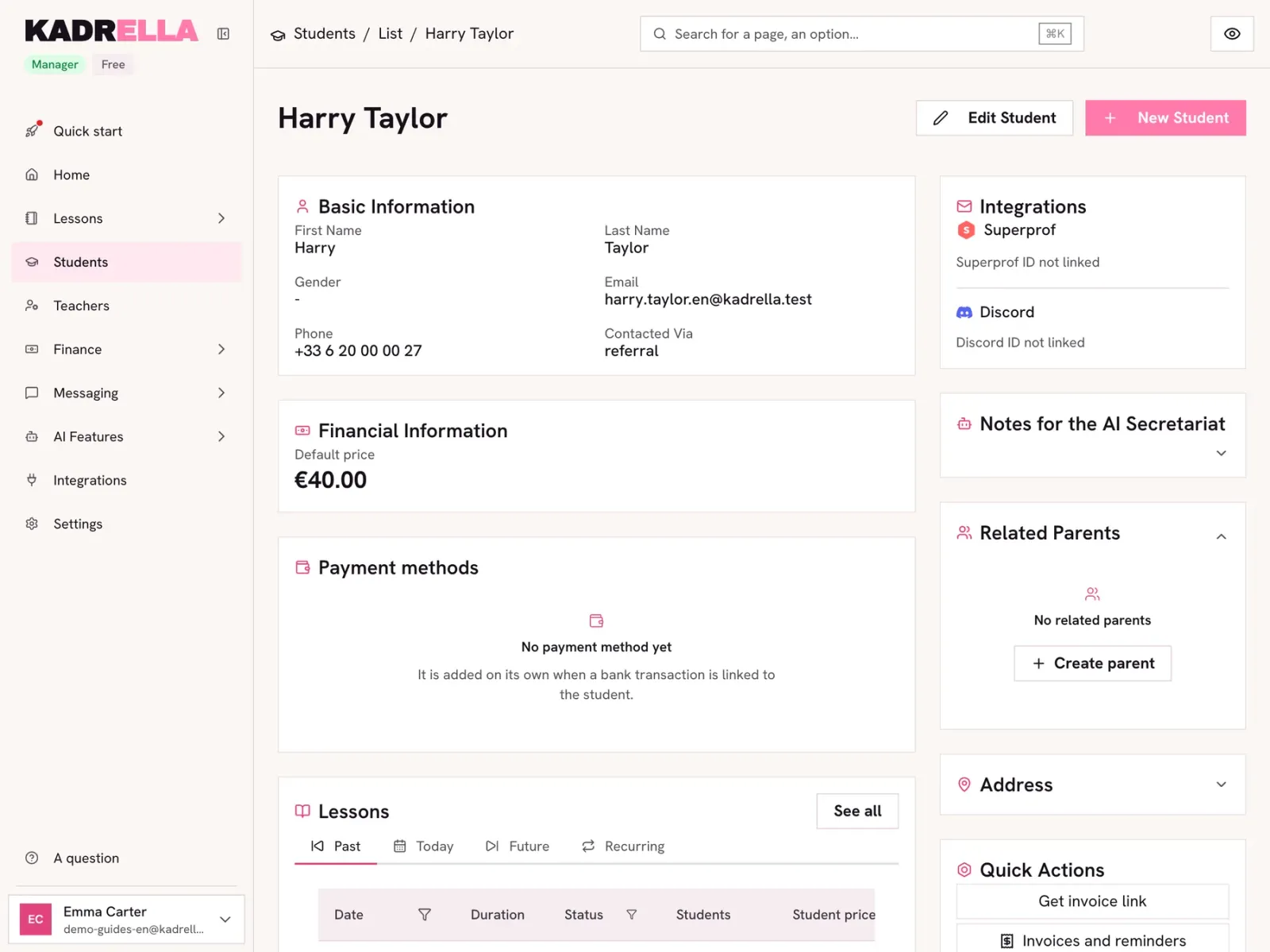
On the student page, open "Related Parents" and click "Create parent". Enter their name and contact details: the parent stays linked to the student record.
 View the full-size screenshot
- "Create parent" in "Related Parents".
Good to know
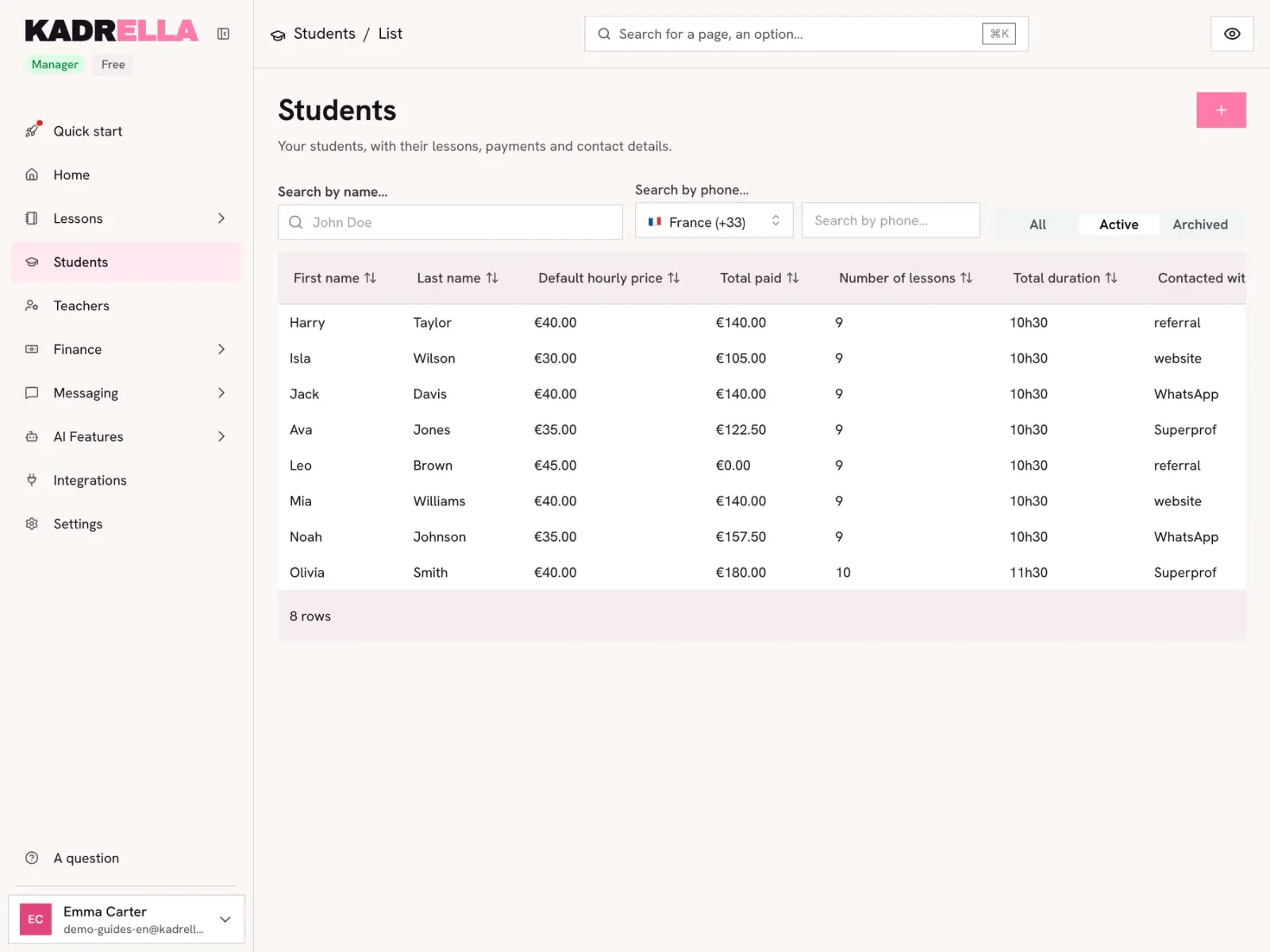
- The "Contacted Via" channel later tells you where your students come from: useful to decide where to look for the next ones.
Going further
- Feature
- Student management
Screenshots taken on a demo account: names, phone numbers and amounts are made up.
Spend your Sundays teaching, not chasing payments.
Free to start, set up in minutes. No card.